
How to Restore Downloads (Files or Folder)


Accidentally deleted a downloaded file or found that your Downloads folder has disappeared? Recovery is often possible, but the right solution depends on what happened. We’ll cover how to recover deleted downloads and files, restore a missing or deleted Downloads folder, and deal with lost Chrome downloads on Windows 10 and 11, including what to check before attempting recovery.
How to Find Lost Downloaded Files
When you notice some of your files in your Downloads folder have disappeared, it doesn’t always mean they were deleted. Instead, they may just be somewhere else on your computer. Let’s look at a few ways you can locate them.
Locate Downloads Folder
The Downloads folder is the default save location for most browsers, but you can change it to another folder or drive. If your downloaded files aren’t where you expect them to be, check your browser’s download settings first to see where new files are actually being saved.
Here’s where to find the download location setting in popular browsers:
| Browser | Settings Path |
| Google Chrome | ⋮ Menu → Settings → Downloads → Location |
| Microsoft Edge | ⋯ Settings and more → Settings → Downloads → Location |
| Mozilla Firefox | ☰ Menu → Settings → General → Files and Applications → Downloads → Save files to |
| Opera | Opera Menu → Settings → Advanced → Browser → Downloads → Location |
| Brave | ☰ Menu → Settings → Downloads → Location |
| Vivaldi | Vivaldi Menu → Settings → Downloads → Default Download Location |
| Arc | Arc Menu → Settings → Profiles → [Profile] → Related Settings → Save downloads to |
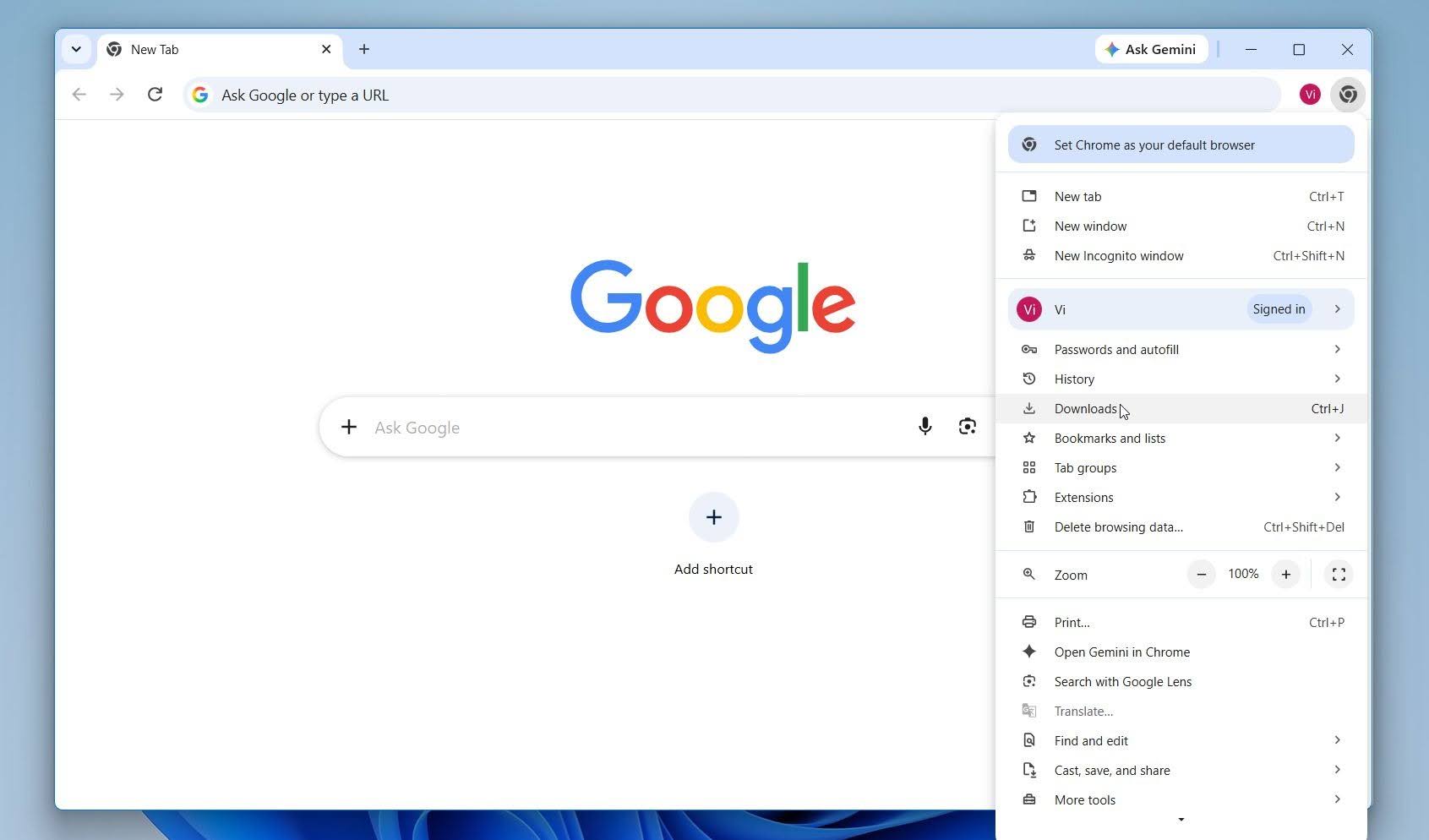
For example, here’s how to check the download location in Google Chrome:
- Click the vertical ellipsis in the top-right corner.
- Click Settings.
- Click Downloads.
Search for a Specific File
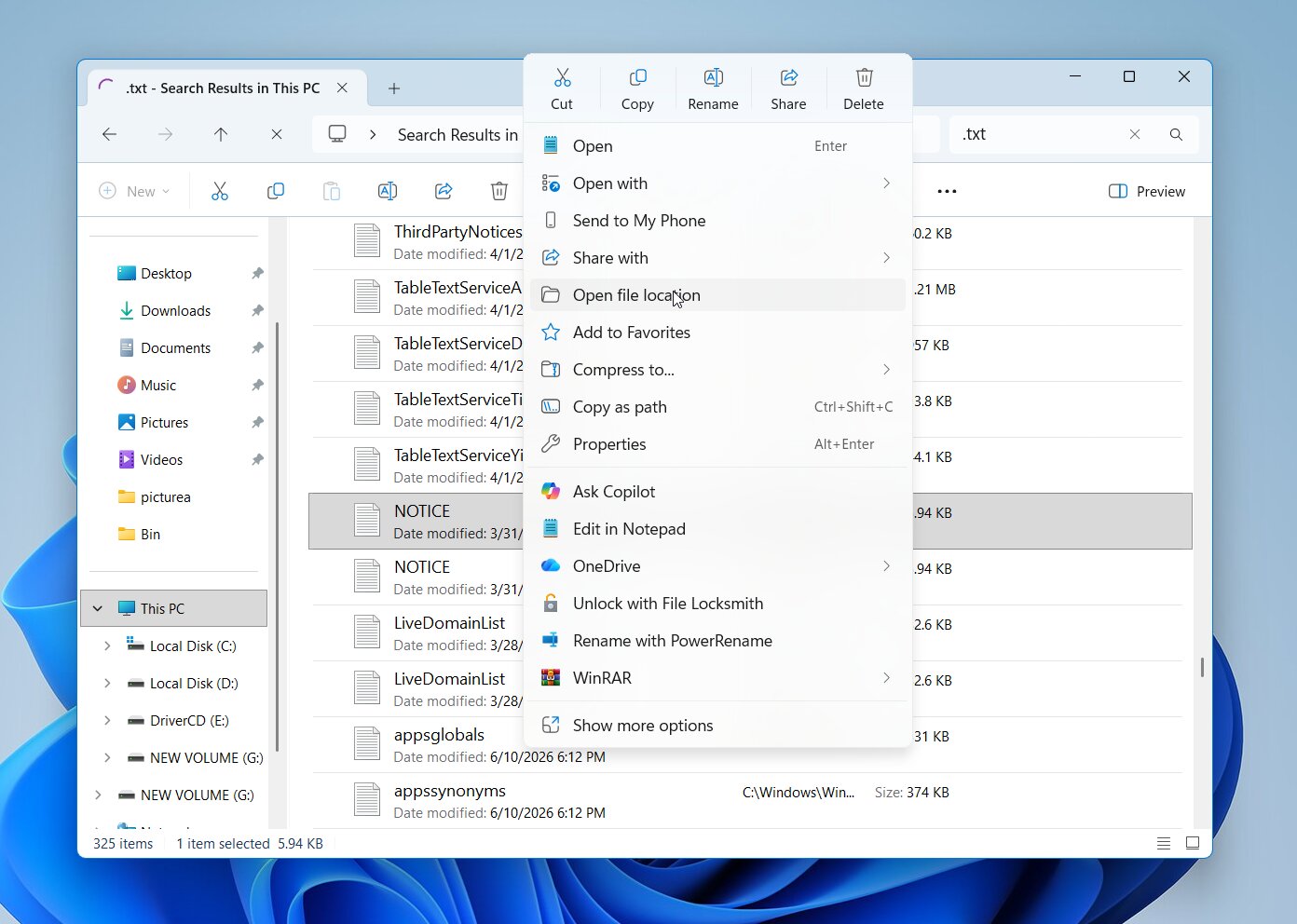
If you know the name of the missing file, you can search for it with File Explorer. This method is also useful if you changed your browser’s download location but don’t remember where the files are being saved. If you don’t know the exact file name but know the file type, search by its extension instead. For example, enter *.txt to find TXT files within the selected location and its subfolders.
- Open File Explorer.
- Select the folder or drive you want to search. If you have no idea where the file is, select This PC to search across available locations.
- Enter the file name or a search pattern such as *.txt in the search box in the upper-right corner.
- Once you find the file, right-click it and select Open file location to go to the folder where it’s stored.
Check Quarantine Folder
Antivirus software may quarantine a downloaded file if it detects a potential threat. A quarantined file is isolated and blocked, so it may appear to have disappeared from your Downloads folder even though it hasn’t necessarily been deleted. False positives can also occur, which means a safe file may occasionally end up in quarantine by mistake.
Warning: Only restore or allow a quarantined file if you’re certain it’s safe.The exact quarantine location depends on the antivirus software you use. For example, here’s how to restore a download quarantined by Microsoft Defender Antivirus:
- Open Windows Security.
- Click Virus & threat protection.
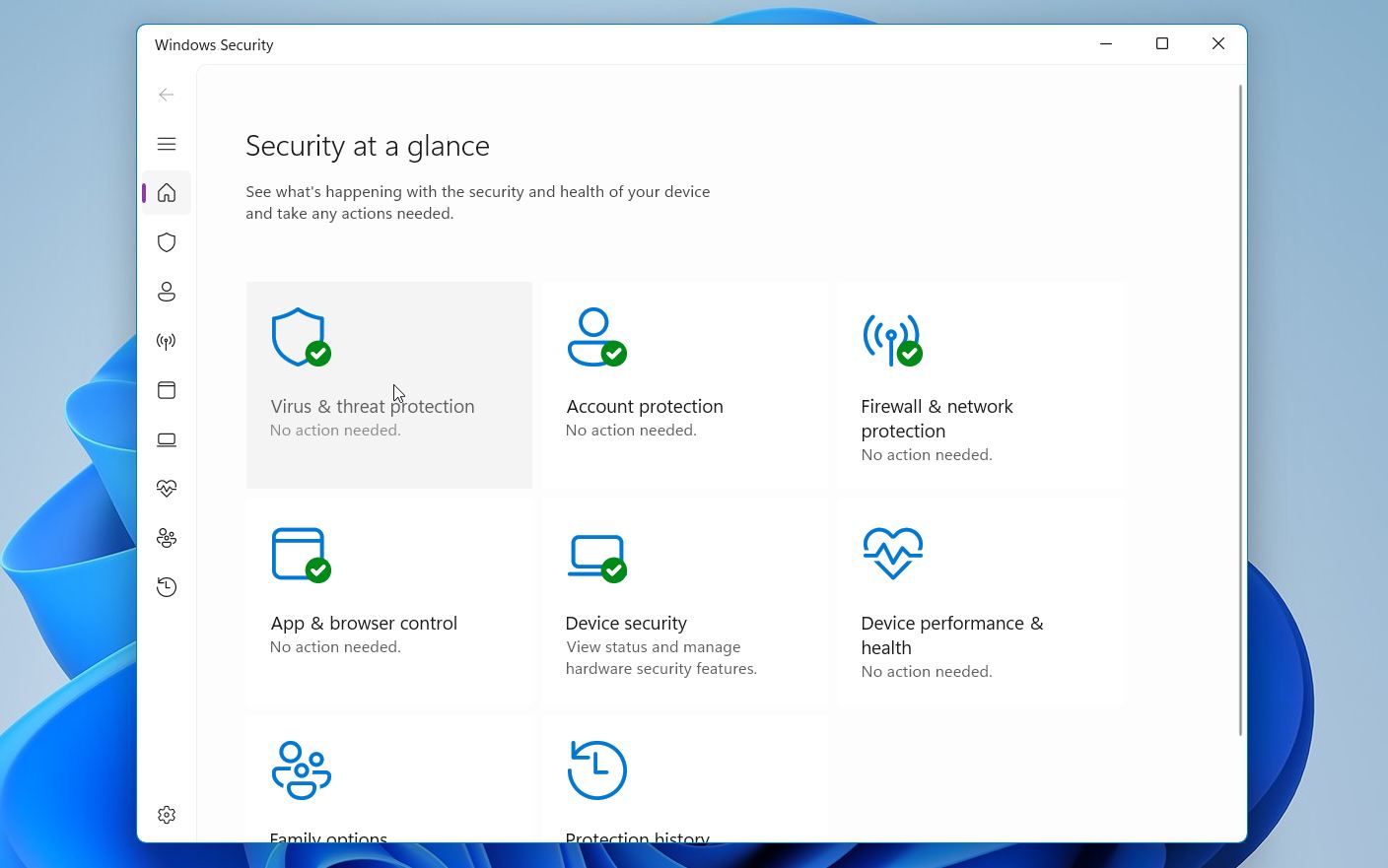
- Click Protection history and locate the quarantined file.
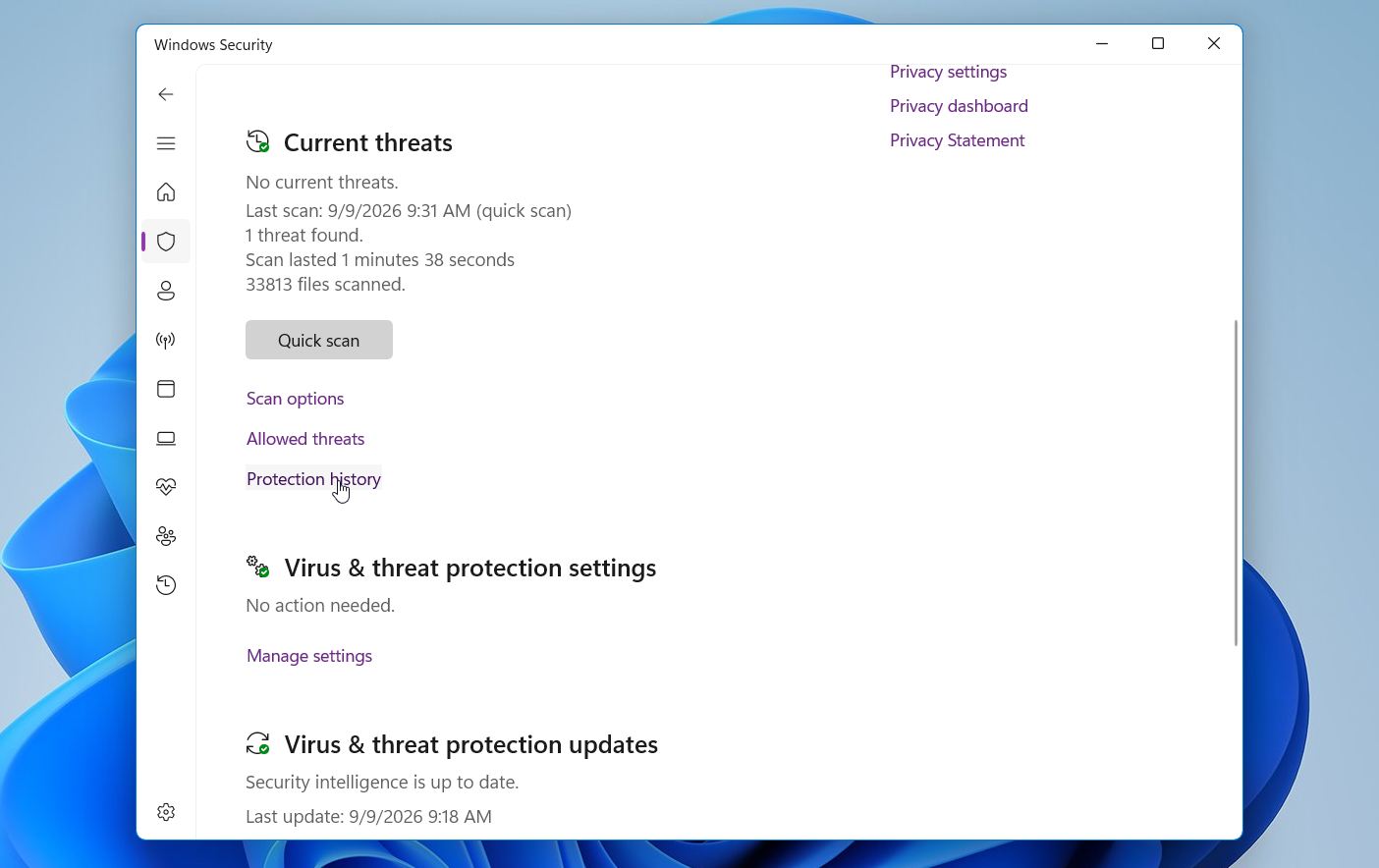
- Select the detection to view the available options.
- Click Actions > Allow.
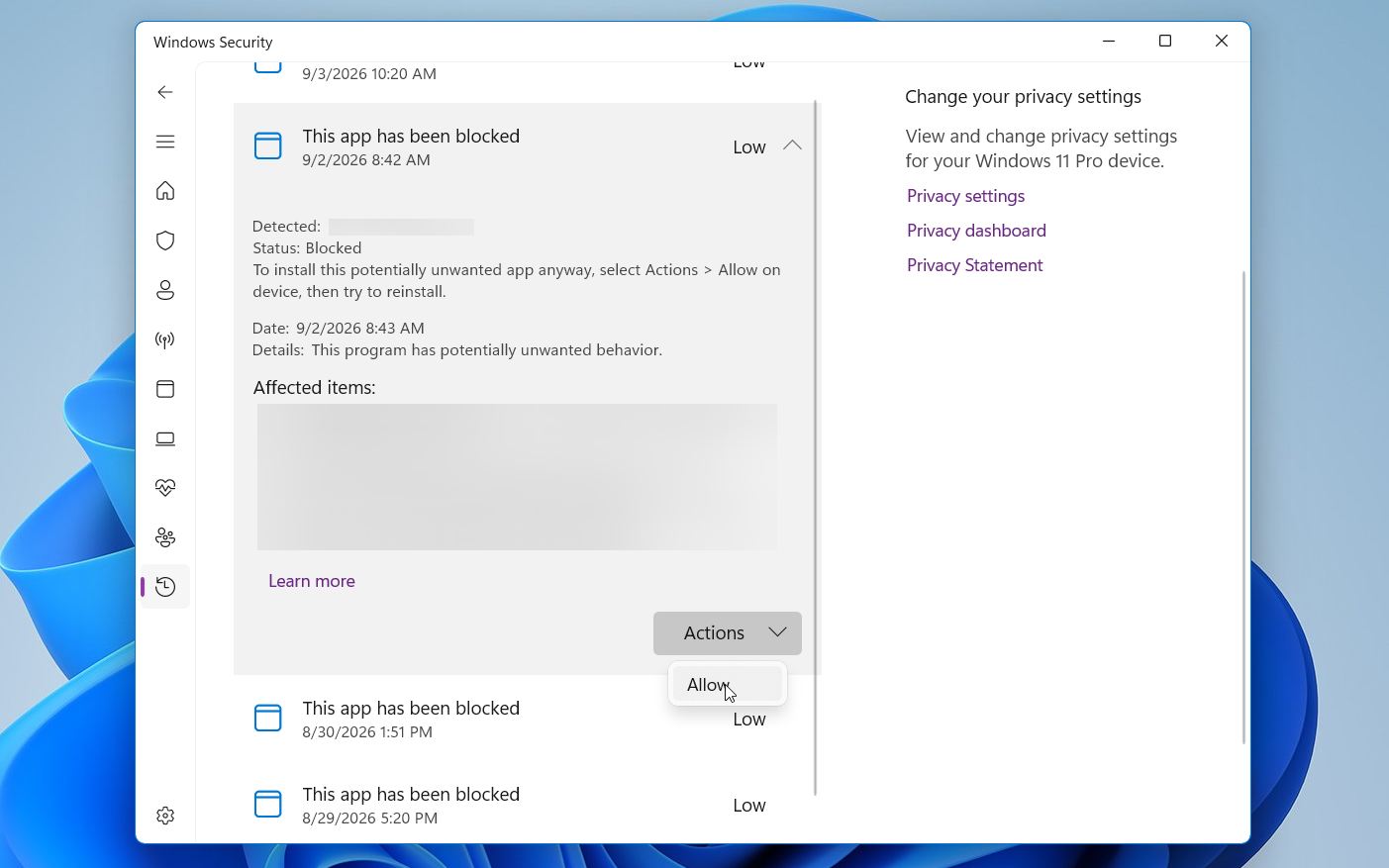
If Microsoft Defender detects the restored file again, it may appear as a new action-needed entry. Only if you’re certain the file is safe should you choose Allow on device. Microsoft Defender treats Restore and Allow on device as separate actions.
How to Recover Deleted Downloads on Windows 10/11
If your Downloads folder or its contents have truly been deleted, then you will have to look at some recovery methods. Check out these recovery solutions to get your data back.
Method 1: Get Back Deleted Files & Folders From Recycle Bin
Recycle Bin recovery is quick and easy, so it’s always worth checking there first. Files deleted from a local drive are normally moved to the Recycle Bin, where they remain until you delete them manually or Windows removes them through a configured cleanup process, such as Storage Sense. Files in the Recycle Bin still occupy storage space.
Here is how to recover files from the Recycle Bin:
- Open the Recycle Bin from your desktop.
- Find and select the deleted downloads you want to recover. Right-click the selected files and click Restore.
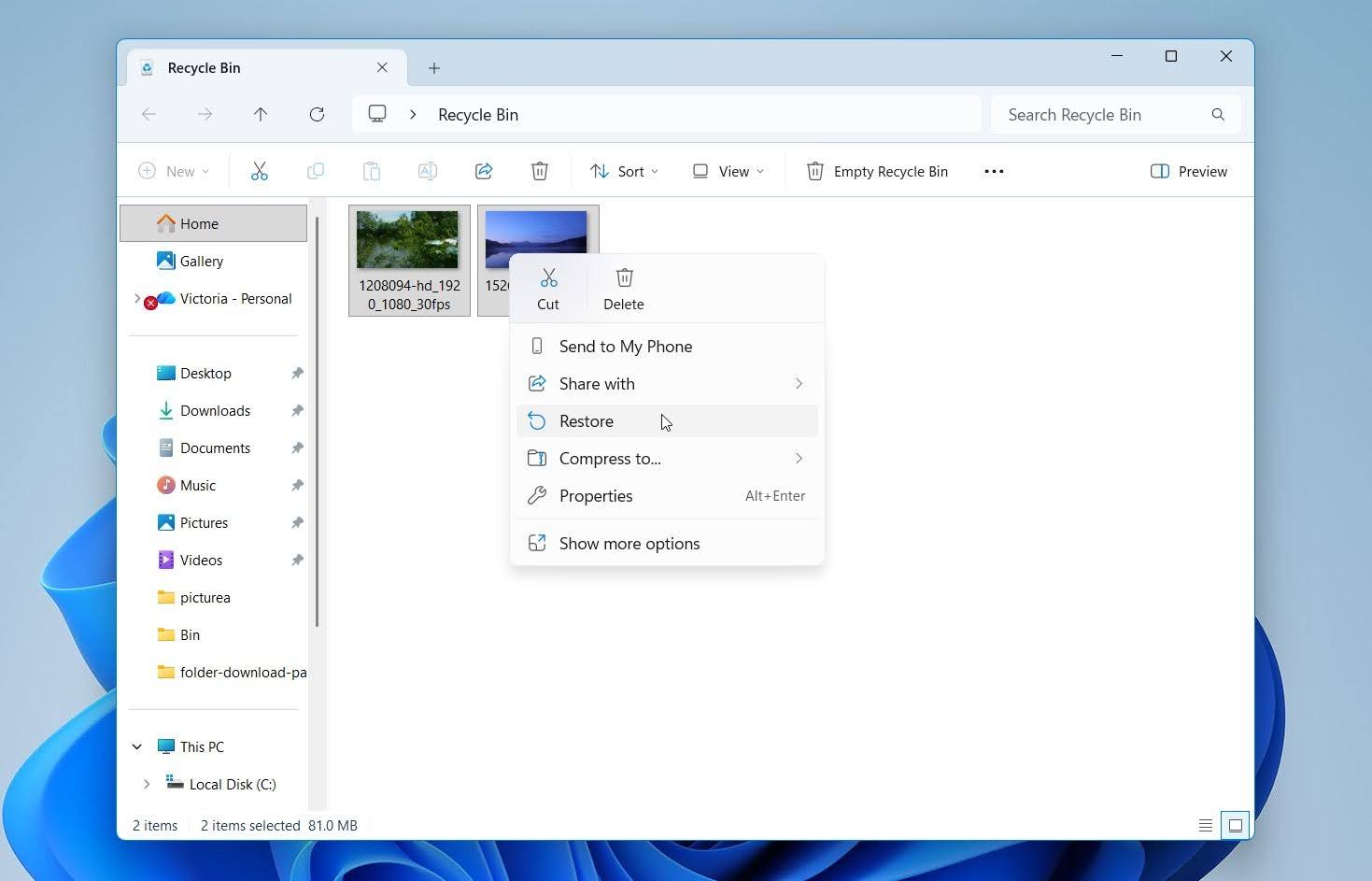
Windows will return the restored files to their original location, which should be the Downloads folder if that’s where they were deleted from. You can also drag and drop files from the Recycle Bin into another folder if you want to restore them somewhere else.
If your deleted files are not in the Recycle Bin, move on to the other recovery methods.
Method 2: Use Data Recovery Software
Data recovery software is specialized software that can restore your deleted Downloads folder and data. But, not all data recovery software is created equal. We at Pandora Recovery are dedicated to evaluating every data recovery tool we can find. Everything, including price, recovery performance, compatibility, and support are meticulously reviewed so we can provide you with an honest recommendation that best suits your needs.
When you need to recover a deleted Downloads folder, the perfect data recovery solution should offer:
- 👍 Ease of use – Nobody likes trying to figure out a complicated user interface. Everything should be easy to find and access, especially when searching for the scan results.
- 💪 Great recovery performance – You’re trying to recover as much data as possible. Therefore, the data recovery tool you choose should be able to recover a wide range of file types with good results.
- 👀 Multiple scan modes – There are different ways to find data. A tool that combines multiple appropriate recovery methods may be able to locate more recoverable data.
Here are our top picks for hard drive recovery software that will aid you in recovering your deleted Downloads folder and files.
Warning: The Downloads folder is usually located on the system drive, and most modern PCs use an SSD for this drive. SSDs commonly have TRIM enabled, which can permanently clear the storage blocks associated with deleted files. As a result, deleted files may become unrecoverable relatively quickly, even with data recovery software. Stop using the drive as much as possible and attempt recovery as soon as you can to avoid further reducing your chances.Option A: Disk Drill
After extensive testing, Disk Drill delivered some of the strongest results in our data recovery tests. It performed particularly well with NTFS, FAT32, and exFAT partitions, making it a strong choice for recovering files deleted from the Downloads folder. Its scan automatically applies multiple recovery algorithms appropriate for the selected storage device, including Quick Scan, lost-partition search, file-system scanning, and signature scanning.
Disk Drill is also easy to use for beginners. If the original file-system information is still available, its tree view can help you locate the Downloads folder and select the files you want to recover. If the folder structure is no longer available, you can use search, filters, and previews to find individual files instead. Disk Drill has a great reputation and has delivered strong results in our tests, but if your files have already been overwritten or otherwise made unrecoverable, even the best recovery software may not be able to restore them.
Here’s how you can recover the data in your Downloads folder using Disk Drill:
- Download and install Disk Drill. Avoid installing it on the same drive that contains the deleted Downloads data, as it can overwrite it and render the data unrecoverable.
- Select the drive where your Downloads folder is located, which is usually the system drive. Click Search for lost data. Disk Drill will begin its scan.
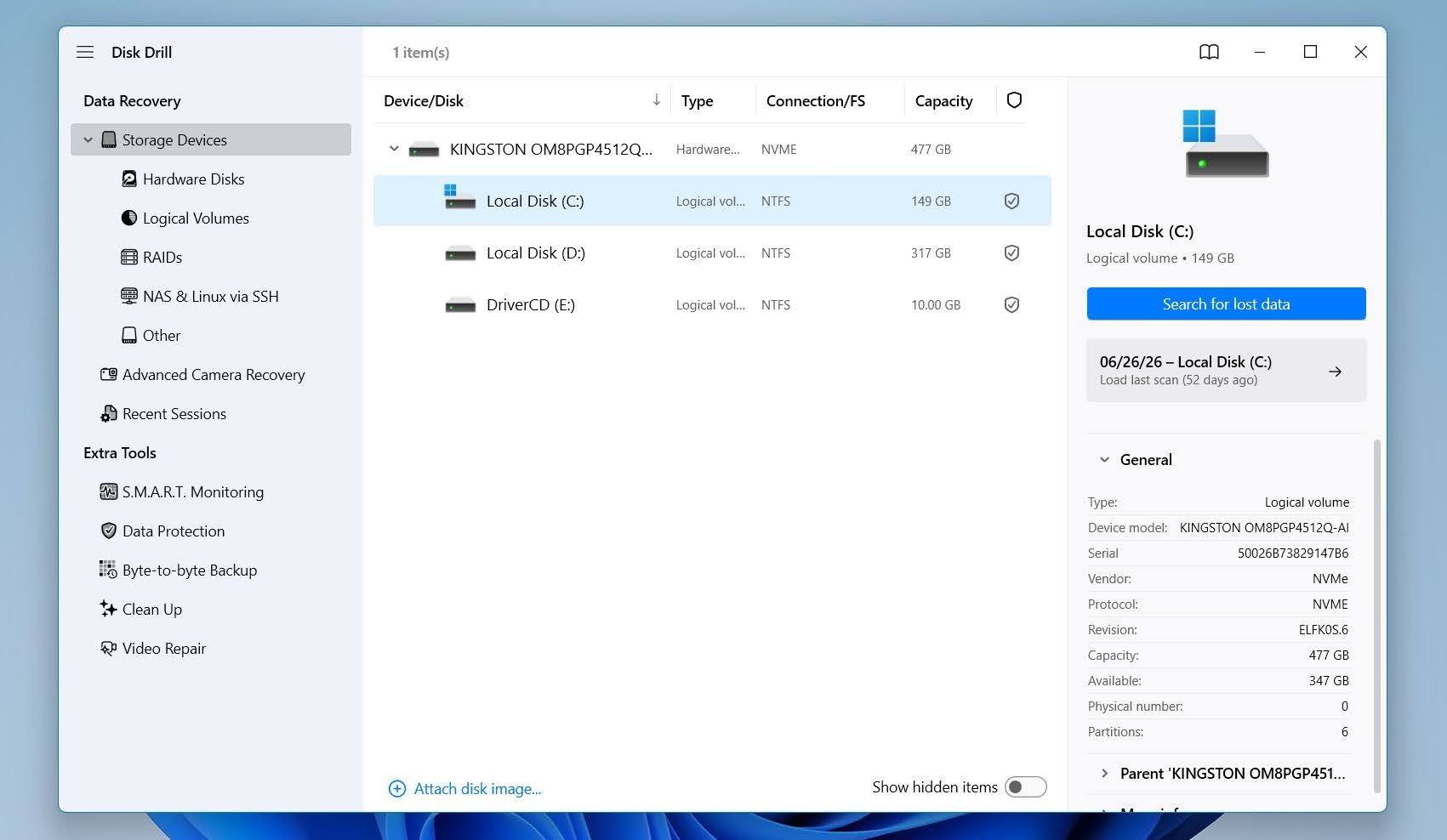
- Once the scan is complete, click Review found items to browse the results.
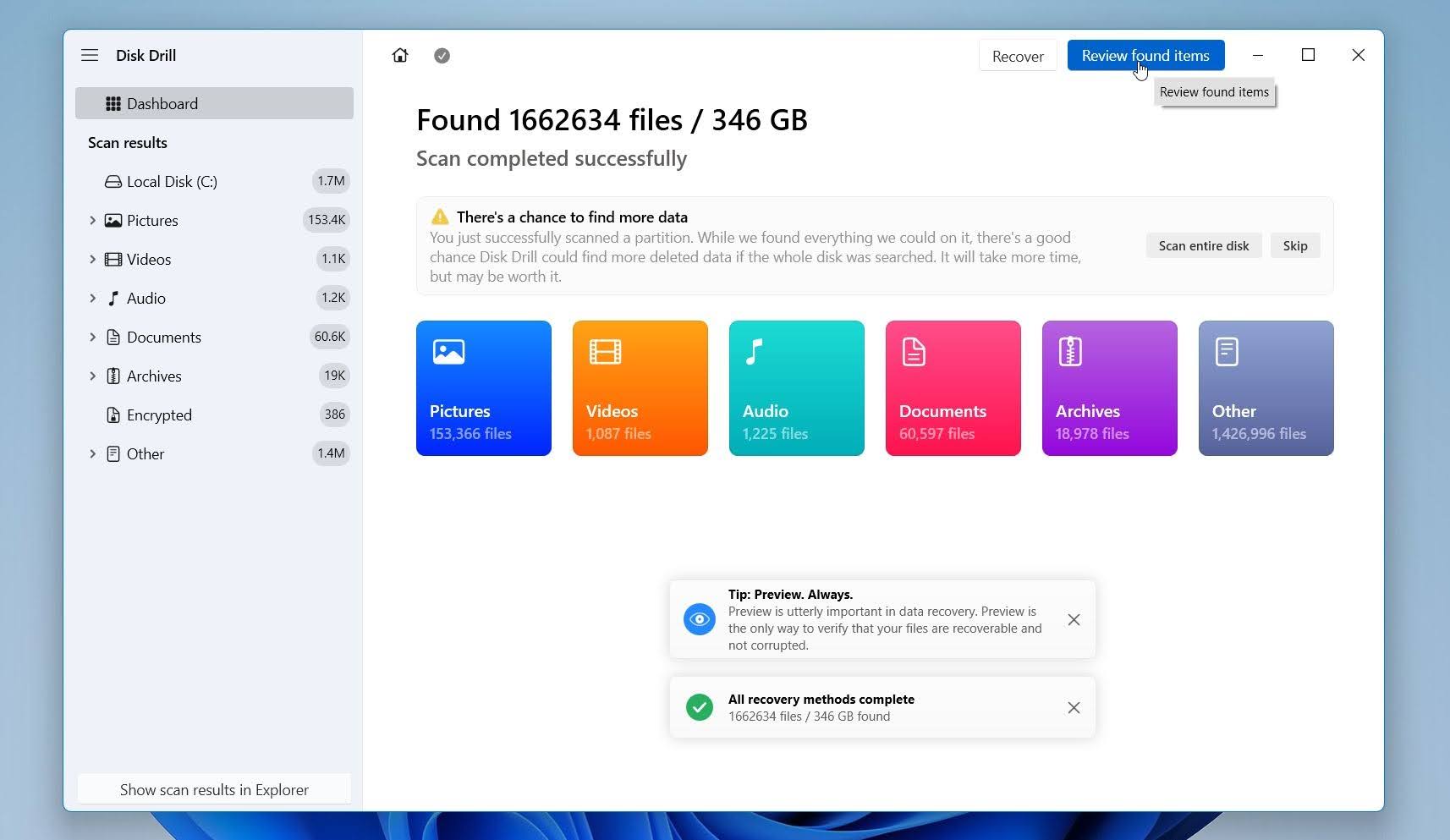
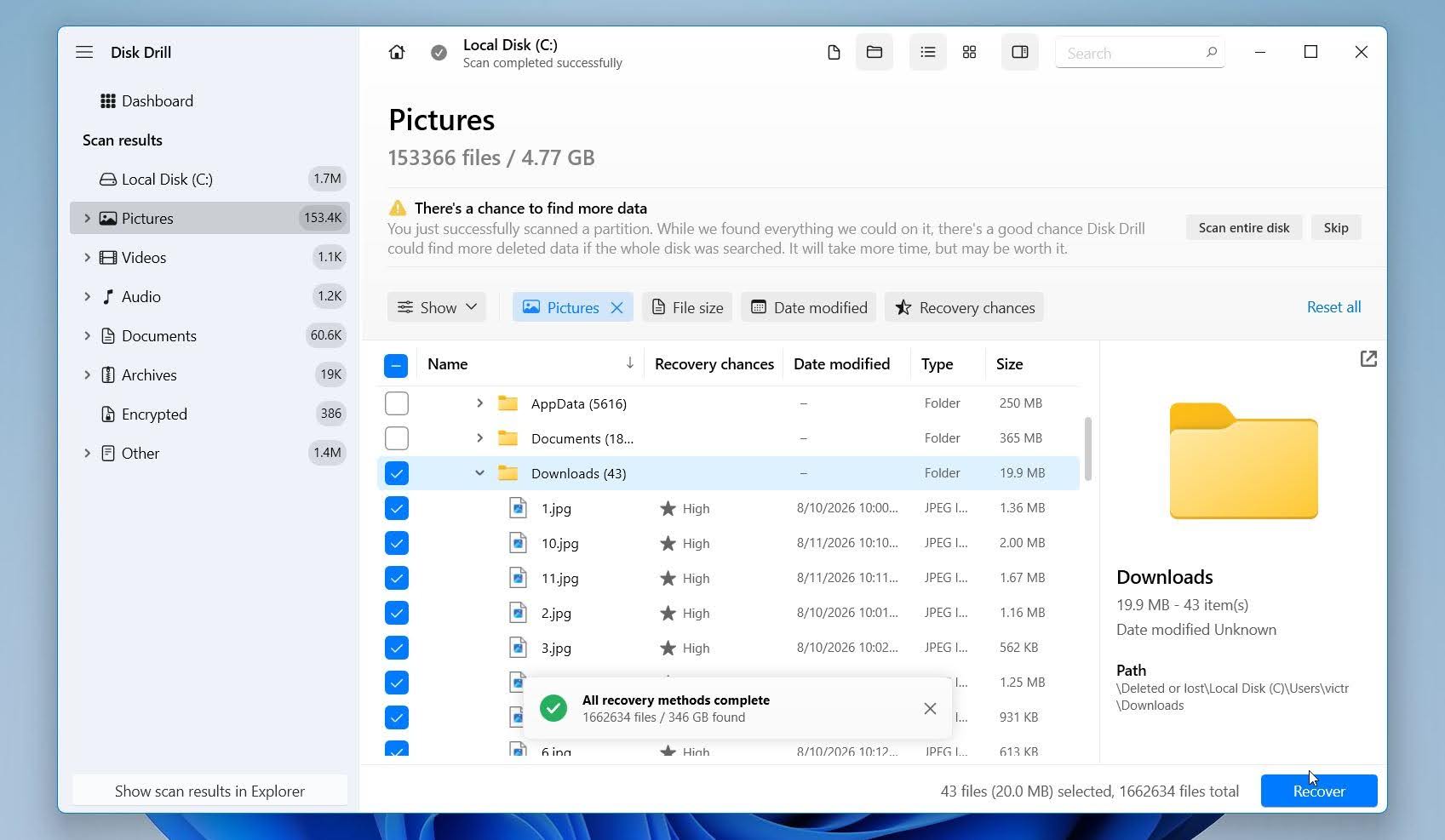
- Use the search bar and filters to find the files deleted from your Downloads folder, then select the ones you want to restore. Check the Recovery Chances column for Disk Drill’s estimate of how likely each file is to be recovered successfully, and preview important files whenever possible. Keep in mind that Recovery Chances is only an estimate, not confirmation that a file will be recovered intact. Click Recover when you’re ready.
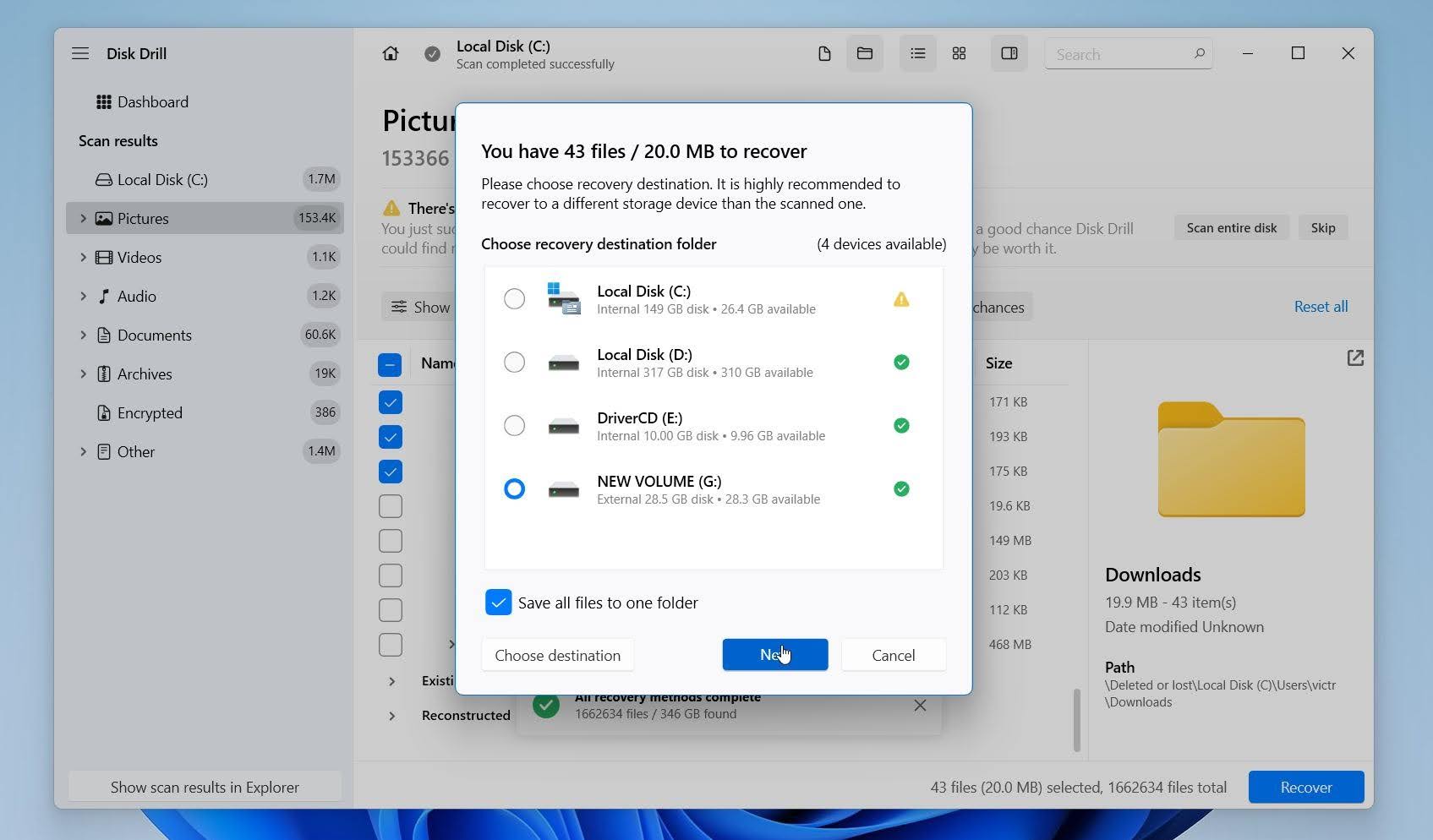
- Select a recovery location. Make sure it doesn’t reside on the same disk you’re recovering the data from. Click Next to complete recovery.
Disk Drill for Windows lets you recover up to 100 MB of data for free, which is usually enough to test the recovery process and even restore some important files.
Option B: Windows File Recovery
Our tests found that Windows File Recovery is another capable option for retrieving deleted downloads. It’s a completely free Microsoft recovery tool that may be able to recover files from your Downloads folder when they’re no longer available in the Recycle Bin, as long as the lost data is still recoverable.
Windows File Recovery offers Regular and Extensive recovery modes. It’s a good tool, especially considering that it’s free, although its recovery capabilities aren’t as strong as those of more advanced data recovery software. It also lacks a graphical interface and automated workflow, so everything is handled through commands. This creates a bit of a learning curve for unfamiliar users, and you may need to sift through the recovered results to find the files you need.
This is how you can recover deleted files from the Downloads folder using Windows File Recovery:
- Get Windows File Recovery from the Microsoft Store and open it. Connect a separate drive where you want to save the recovered files. The source and destination must be different drives, so if your Downloads folder is on C:, you can use an external drive such as E:.
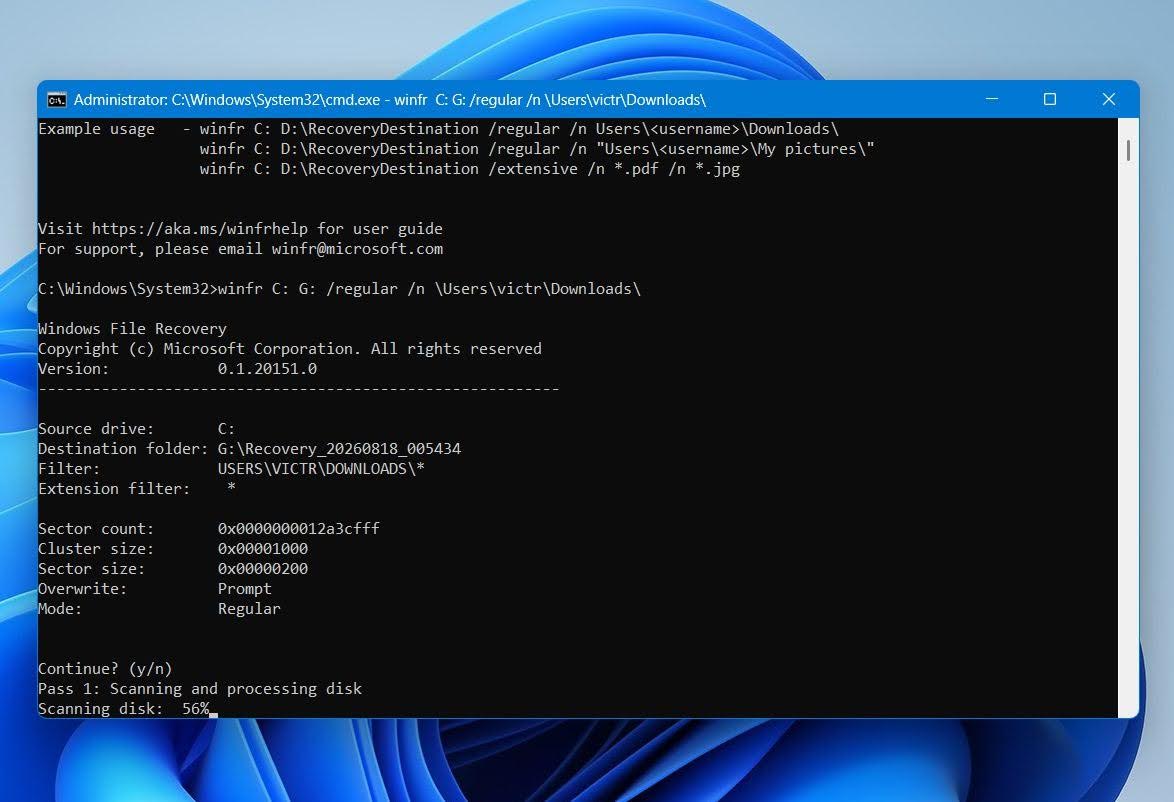
- Type winfr C: E: /regular /n \Users\<username>\Downloads\, replacing <username> with your Windows account name and E: with the letter of your destination drive. Press Enter.
- Press Y to confirm and start the recovery.
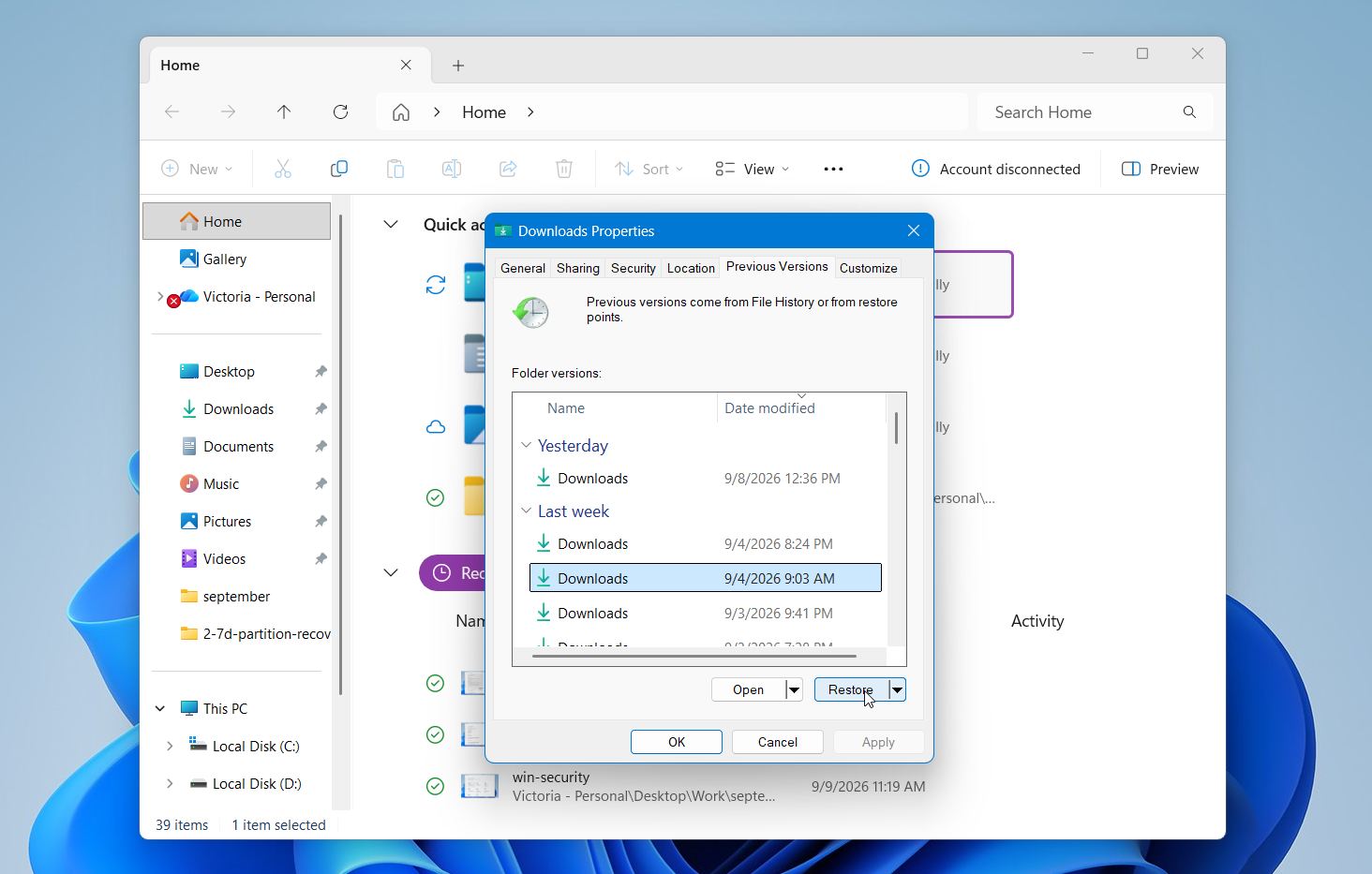
Method 3: Restore Previous Versions of the Downloads Folder
If you had File History enabled before the deletion, you may be able to restore an earlier version of your Downloads folder. File History periodically saves copies of your files, which means an older version may still contain the downloads you accidentally deleted. Keep in mind that this method only works if File History was already active and created a backup before the files were removed.
Here is how:
- Right-click your Downloads folder and click Properties.
- Open the Previous Versions tab.
- Select an available version from before the files were deleted, then click Restore.
How to Troubleshoot Browser Downloads
Sometimes a file seems to be missing from your Downloads folder simply because the download never finished. A dropped internet connection, browser issue, or problem with the website can interrupt the process. Depending on what happened, you may be able to resume the download or start it again.
Resume an Interrupted Download
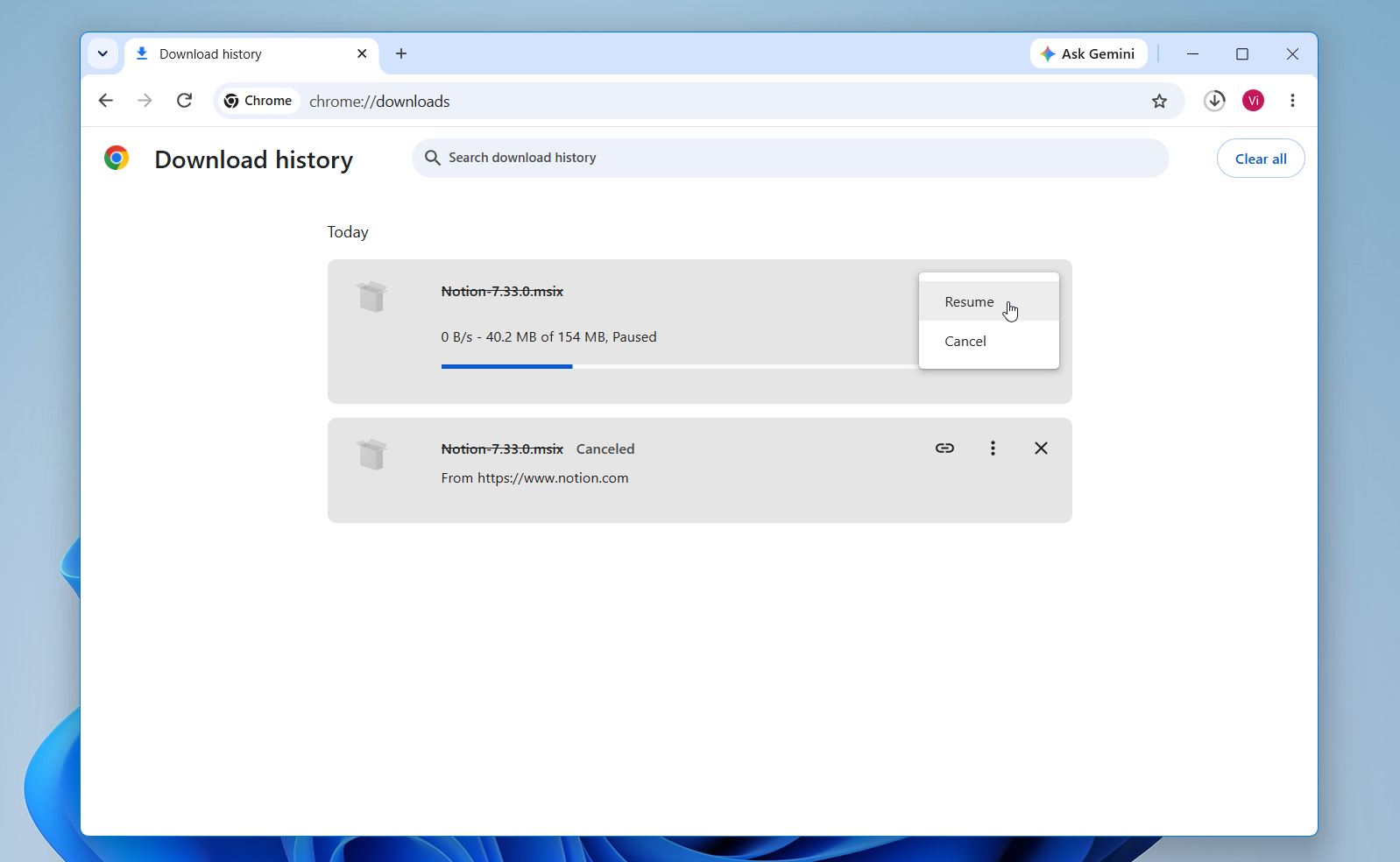
If your connection drops during a download, check your browser before starting over. Some interrupted downloads can resume from where they stopped, which can save time with larger files. However, this depends on the browser retaining the partial download and the server supporting resume functionality. Chrome can also automatically resume downloads after an unstable connection.
Chrome
- Open Google Chrome.
- Press Ctrl + J to open your downloads.
- Find the interrupted download and click Resume if the option is available.
Edge
- Open Microsoft Edge.
- Press Ctrl + J to open your downloads.
- Find the interrupted download and click Resume if Edge offers the option.
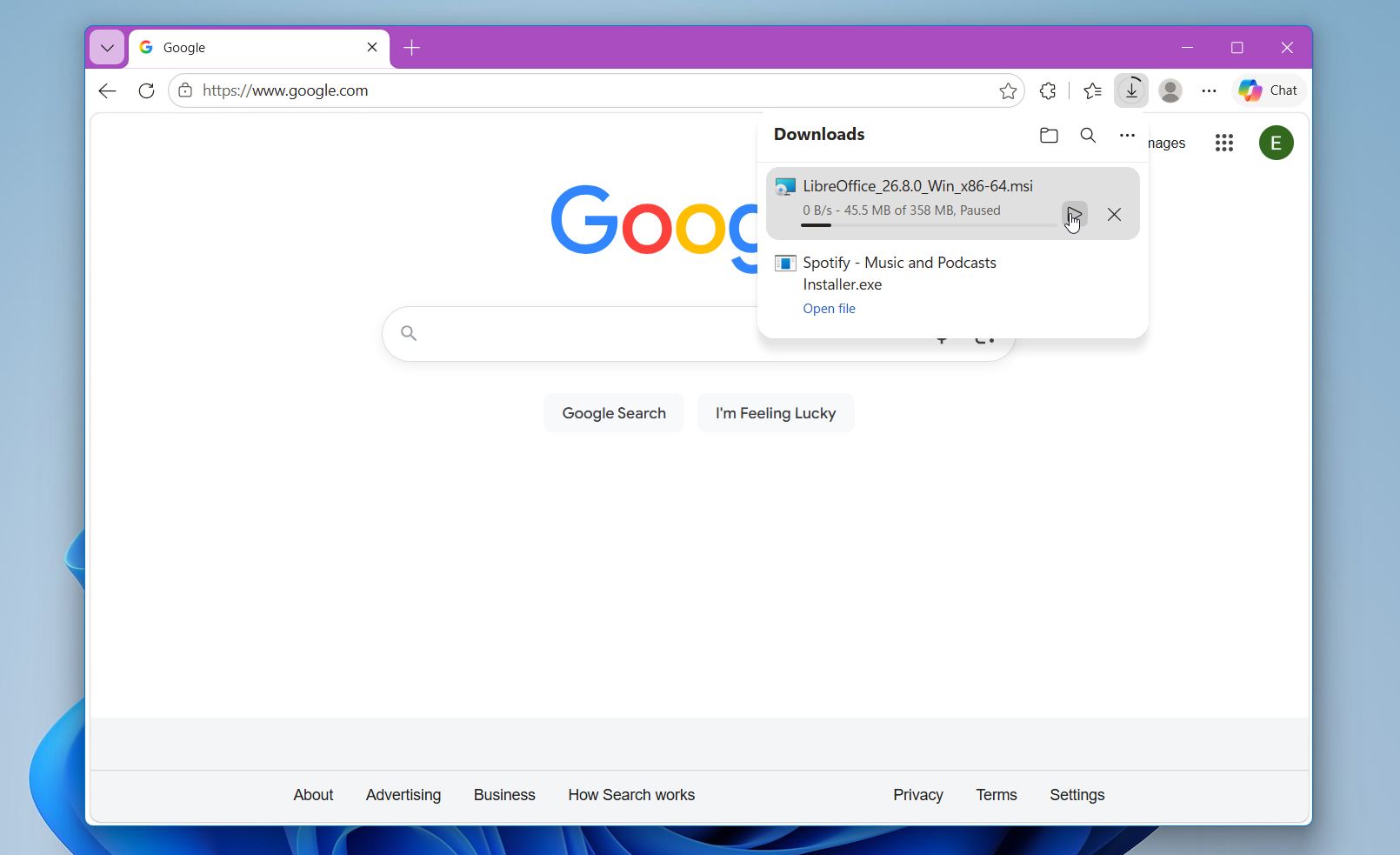
If Resume isn’t available or doesn’t work, you’ll need to start the download again.
Re-download the File
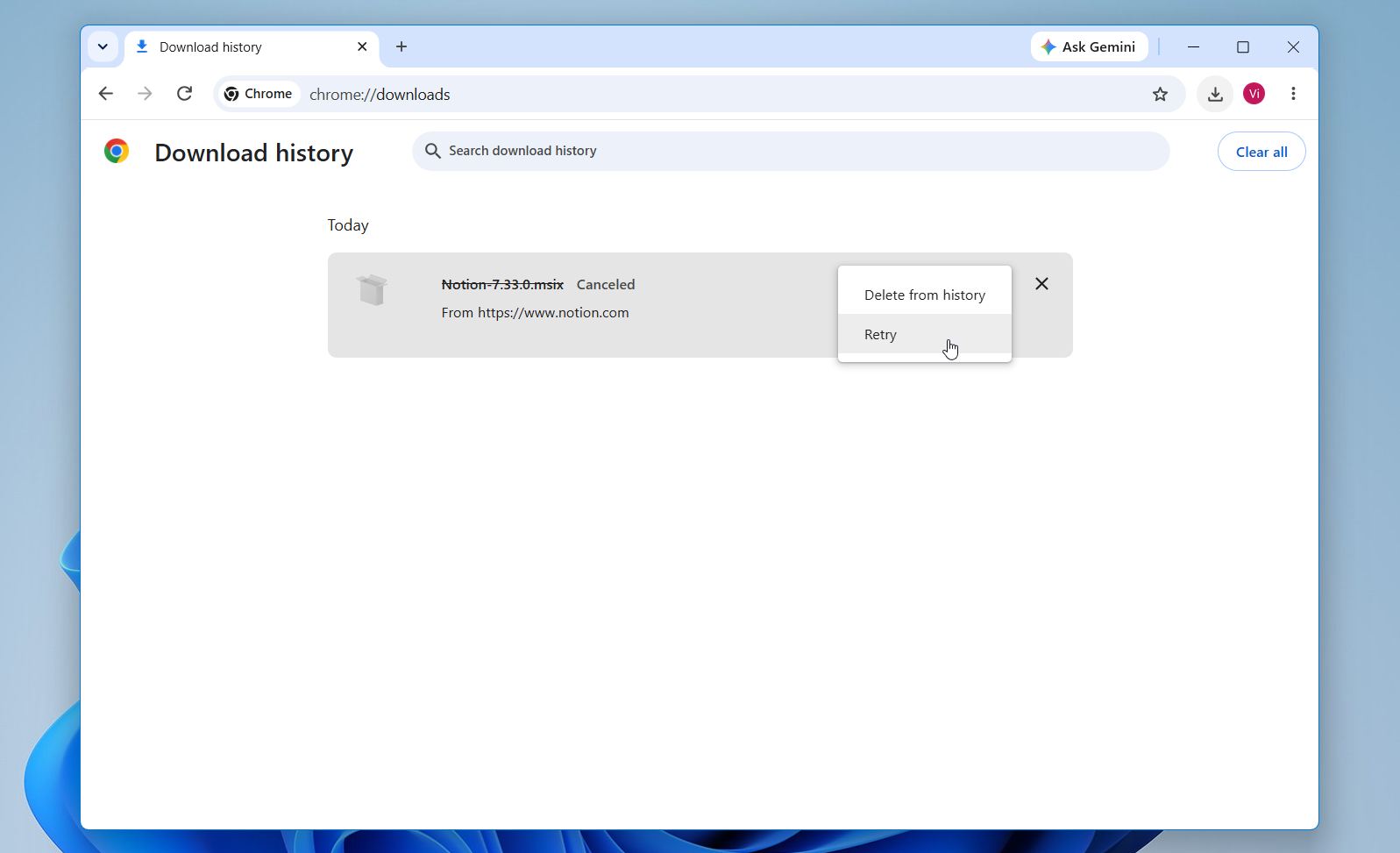
If the download failed completely or your browser crashed, check the downloads list first. If Chrome or Edge still shows the failed download and provides a Retry option, use it to start the download again.
Chrome
- Open Google Chrome.
- Press Ctrl + J.
- Find the failed download and click Retry if available.
Edge
- Open Microsoft Edge.
- Press Ctrl + J.
- Find the failed download and click Retry if available.
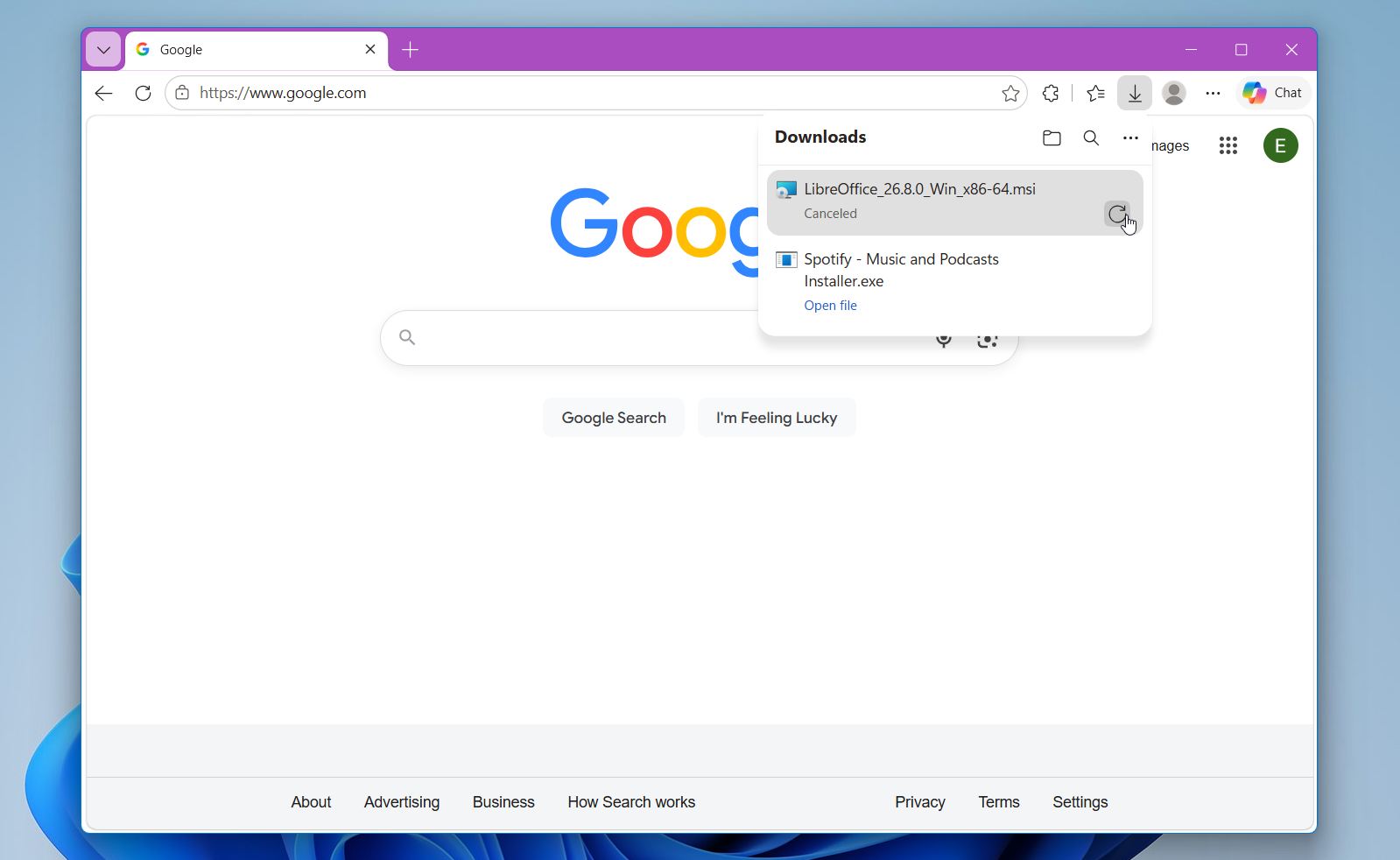
If you don’t see Retry, return to the website where you originally got the file and start the download again. For persistent problems, check your internet connection and available disk space. Browser security settings, antivirus software, insufficient permissions, and problems with the source website can also prevent downloads from completing.
Frequently Asked Questions
Where do deleted Downloads go in Windows 10 and 11?
Files deleted from the Downloads folder normally go to the Recycle Bin, where you can restore them to their original location. If they aren’t there, they may have been permanently deleted with Shift+Delete, removed when the Recycle Bin was emptied, or bypassed it for another reason. In that case, you can still try to recover the deleted files in Windows 11 with a backup or data recovery software.
Can I delete the Downloads folder on my PC?
Yes, you can delete the Downloads folder, although it’s generally better to delete its contents rather than the folder itself. If you delete the folder through File Explorer, it will normally go to the Recycle Bin unless the deletion bypasses it. If it’s still there, you can restore it to its original location. If not, you may need to use a backup or data recovery software to recover its contents.
Can I recover deleted Downloads after emptying the Recycle Bin?
Yes, you may still be able to recover files after emptying the Recycle Bin. Check File History or another backup first. If no backup is available, you can try Windows File Recovery, Microsoft’s free command-line recovery tool, or third-party software such as Disk Drill, which offers a more user-friendly interface and strong recovery capabilities. Recovery is possible as long as the deleted data hasn’t been overwritten or otherwise made unrecoverable.
How to restore permanently deleted Downloads?
You may be able to restore permanently deleted downloads with data recovery software such as Disk Drill, provided the underlying data hasn’t been overwritten or otherwise made unrecoverable. Stop saving or downloading new files to the affected drive before you start.
- Download and install Disk Drill, preferably on a different drive.
- Select the drive where the Downloads folder was stored.
- Click Search for lost data to start the scan.
- Find and select the downloads you want to restore.
- Recover the files to a different physical drive to avoid overwriting other recoverable data.
How to get back deleted Downloads from Chrome?
Once Chrome finishes downloading a file, it’s stored as a normal file on Windows, usually in the Downloads folder unless you changed the download location. If you later delete it, check the Recycle Bin first. If it isn’t there, try a backup or data recovery software. It’s also worth opening Chrome’s download history with Ctrl + J. If the original source is still available, you may be able to download the file again.
How to restore the Downloads folder on Mac?
If the Downloads folder still exists but its shortcut has disappeared from Finder or the Dock, you can add it back:
- Open Finder.
- Open Finder > Settings, then select Sidebar.
- Enable Downloads to display it in the Finder sidebar.
- If its Dock shortcut is also missing, drag the existing Downloads folder to the folder section of the Dock.
This only restores access to an existing Downloads folder. If the actual folder was deleted, check the Trash or restore it from a backup instead.
How can I retry a failed Download?
A failed download isn’t the same as a completed file that was later deleted. If your browser still provides a Retry option, you can use it to restart the failed download:
- Open Chrome or Edge and press Ctrl + J.
- Find the failed download and click Retry, if available.
If there’s no Retry option, return to the original URL and start the download again.
How to recover deleted Chrome downloads on Android?
Chrome on Android normally saves files to the device’s configured download location. It doesn’t automatically save downloads to Google Drive. If you specifically saved or moved the file to Google Drive, check the Google Drive Trash.
For files stored locally on the phone, DiskDigger offers limited photo recovery without root access. Recovery of videos and most other file types requires root access, while recovery of non-photo file types also requires the Pro version. If the downloads were stored on an SD card, another option is to remove the card, connect it to a computer with a card reader, and scan it with data recovery software.
Final Thoughts
There are several ways to recover deleted files on Windows 10 & 11. For deleted downloads, start with the Recycle Bin, then check File History or another backup if the files aren’t there.
If neither option helps, data recovery software is the next step. Disk Drill is one of the best tools to start with thanks to its strong recovery performance, easy-to-use interface, previews, filters, and Recovery Chances estimates. Windows File Recovery is a good alternative if you want a completely free option and don’t mind working with a command-line interface. Both may be able to locate deleted Downloads files that are still recoverable.
Recovery success depends on whether the data has been overwritten, the type of storage device, and the condition of the remaining file-system metadata. The original folder structure may not always be reconstructed, even when individual files can still be recovered. Minimize writes to the affected drive and save recovered files to a different physical device.
Once your downloads are back, check that the recovered files open correctly and consider backing up important files that would be difficult to replace.

- 48 publishings
- Auckland, New Zealand
Jordan Jamieson-Mane is a content writer with a focus on technology-related content. He has spent much of his life studying and working with all types of technology. During his time as a writer, he has written countless articles in the field of data recovery, breaking down complex topics into articles that are easy to understand.
When he's not writing articles on data recovery, Jordan enjoys traveling the world, reading books, and building websites.
- LC Tech FILERECOVERY Professional Review – Can It Compete with Modern Recovery Tools?
- UFS Explorer Review – A Powerful Recovery Tool With Lots to Offer
- Cisdem Data Recovery for Windows Review – A Capable Copy
- AnyRecover Data Recovery Review – A Polished Solution for Basic Users
- iBoysoft Data Recovery Review: Not Much to Offer
- Frisco, Texas, United States
Yevgeniy Tolkunov is Hardware Engineer at ACE Data Recovery. Yevgeniy has a Master's Degree in Physics, Information Technology; 15+ years of experience.