
How to Fix “The Parameter Is Incorrect” Error on External Hard Drives


Sometimes, while trying to access an external hard drive, you might encounter the, “The parameter is incorrect” error message. This could happen if your hard drive has sustained some physical or logical damage. But don’t worry, this is a common error that is solvable.
In this article, we’ll take you through the various reasons why you might have encountered the “The parameter is incorrect” error. Subsequently, we’ll describe 9 ways to fix the error.
In this guide, we’ll show you how to diagnose the cause, recover inaccessible data safely, and troubleshoot the connection, BitLocker, drivers, and Windows itself. We’ll then cover CHKDSK and other file system repair options, with formatting left as a last resort.
What Does “The Parameter Is Incorrect” Mean?
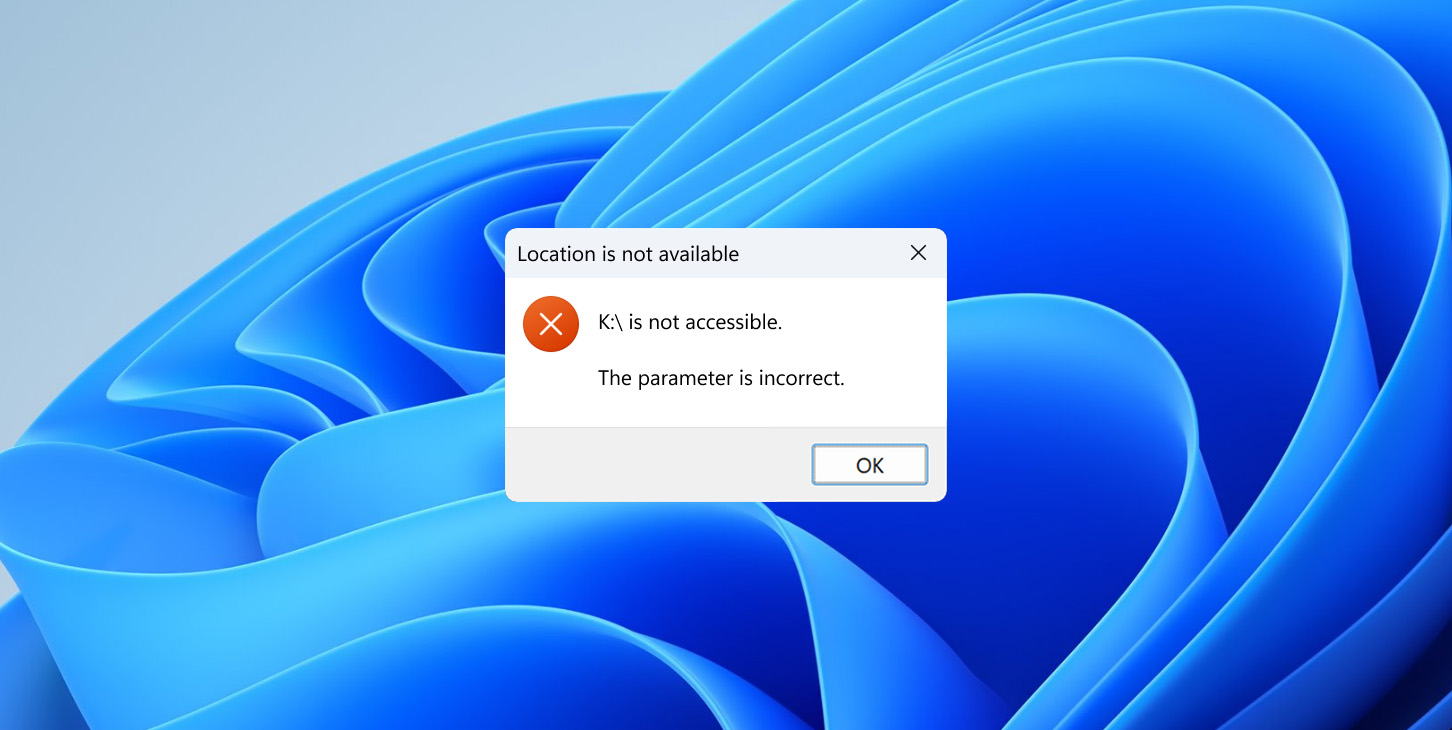
“The parameter is incorrect” is a generic Windows error rather than a diagnosis of hard drive corruption. Windows associates this message with the system error ERROR_INVALID_PARAMETER, also known as error 87 or 0x57, which indicates that an invalid parameter was passed during an operation. Since this error can occur in many unrelated Windows processes, the message alone doesn’t tell you what is wrong with your external drive.
When the error appears as you try to open an external HDD, SSD, or USB drive, it generally means that Windows can detect enough of the device or volume to attempt access, but something prevents that request from completing correctly. This doesn’t automatically mean that the file system is corrupted or that the drive has bad sectors, physical damage, or malware.
To narrow down the actual cause, you need to check whether the connection is stable, how the drive appears in Disk Management, whether its file system and correct capacity are reported, its BitLocker state and overall health, and whether the same drive works when connected to another USB port or computer. We’ll use these checks to distinguish between the possible causes in the sections below.
What Are the Reasons Behind the Parameter Is Incorrect Error?
Since “The parameter is incorrect” is a generic Windows error, there isn’t one specific problem behind it. The cause can be as simple as a faulty USB cable or as serious as a failing drive. That’s why it’s better to start with the connection and the information Windows reports about the drive before attempting any repairs.
The table below covers the most likely causes, what they typically look like, and what you should check first.
| Possible Cause | What It Can Look Like | What to Check First |
| Faulty USB cable or port | The drive disconnects, disappears, or works intermittently. A loose cable, damaged connector, or faulty port can interrupt communication with the drive. | Try a different cable, connect the drive directly to another USB port, and test it on another computer. |
| USB hub, dock, or insufficient power | The drive works when connected directly but fails through a hub or dock, or becomes unstable under load. | Connect the drive directly to the computer and simplify the USB setup. |
| External enclosure or USB bridge problem | The HDD or SSD itself may still work, but access changes depending on the enclosure or adapter used. | If practical, test the drive with another compatible enclosure or adapter. |
| File system corruption | Windows reports the correct drive capacity, but the volume doesn’t open normally. | Check the volume and its file system in Disk Management. |
| RAW volume | Windows detects the physical disk and may report the correct capacity, but no longer recognizes its file system. | Recover important data before attempting to format or repair the volume. |
| Lost or damaged partition information | The disk is detected, but the expected volume is missing or its space appears as Unallocated. | Don’t create a new volume. Recover the lost partition or its data first. |
| Unreadable sectors or failing drive | You encounter I/O errors, extremely slow reads, freezes, or repeated disconnects. Hardware failure, media degradation, or physical damage can all cause unstable access. | Stop repair attempts. If the drive remains readable, create an image of it before attempting recovery. |
| 0 bytes, No Media, or incorrect capacity | Windows detects something connected but can’t correctly access or report the actual storage. | Rule out the cable, USB port, adapter, and enclosure first. If the problem remains, treat it as a possible hardware failure. |
| BitLocker-protected drive | The volume is locked or its encryption state prevents normal access. BitLocker encryption itself doesn’t mean that the drive is faulty. | Check the BitLocker status and unlock the volume if necessary. |
| Device or USB controller driver issue | The drive appears incorrectly in Device Manager or started having problems after a device or driver issue. | Reconnect the drive, check Device Manager, and reinstall the device where appropriate. |
| Corrupted Windows system files | Similar storage or device-management problems occur with several known-good external drives. | Run DISM and SFC to check and repair Windows system files. |
| Malware | The access problem appeared alongside suspicious activity, unexpected file changes, or other signs of infection. The error by itself isn’t evidence of malware. | Scan Windows and any accessible storage with Windows Security. |
Check the Drive in Disk Management Before Trying to Fix It
Before you run CHKDSK, reinstall drivers, or try any other repair, check how Windows currently sees the external drive in Disk Management. This can quickly tell you whether Windows still recognizes the volume and its file system or whether you’re dealing with a RAW, Unallocated, or potentially failing drive.
Follow these steps:
- Right-click Start and select Disk Management.
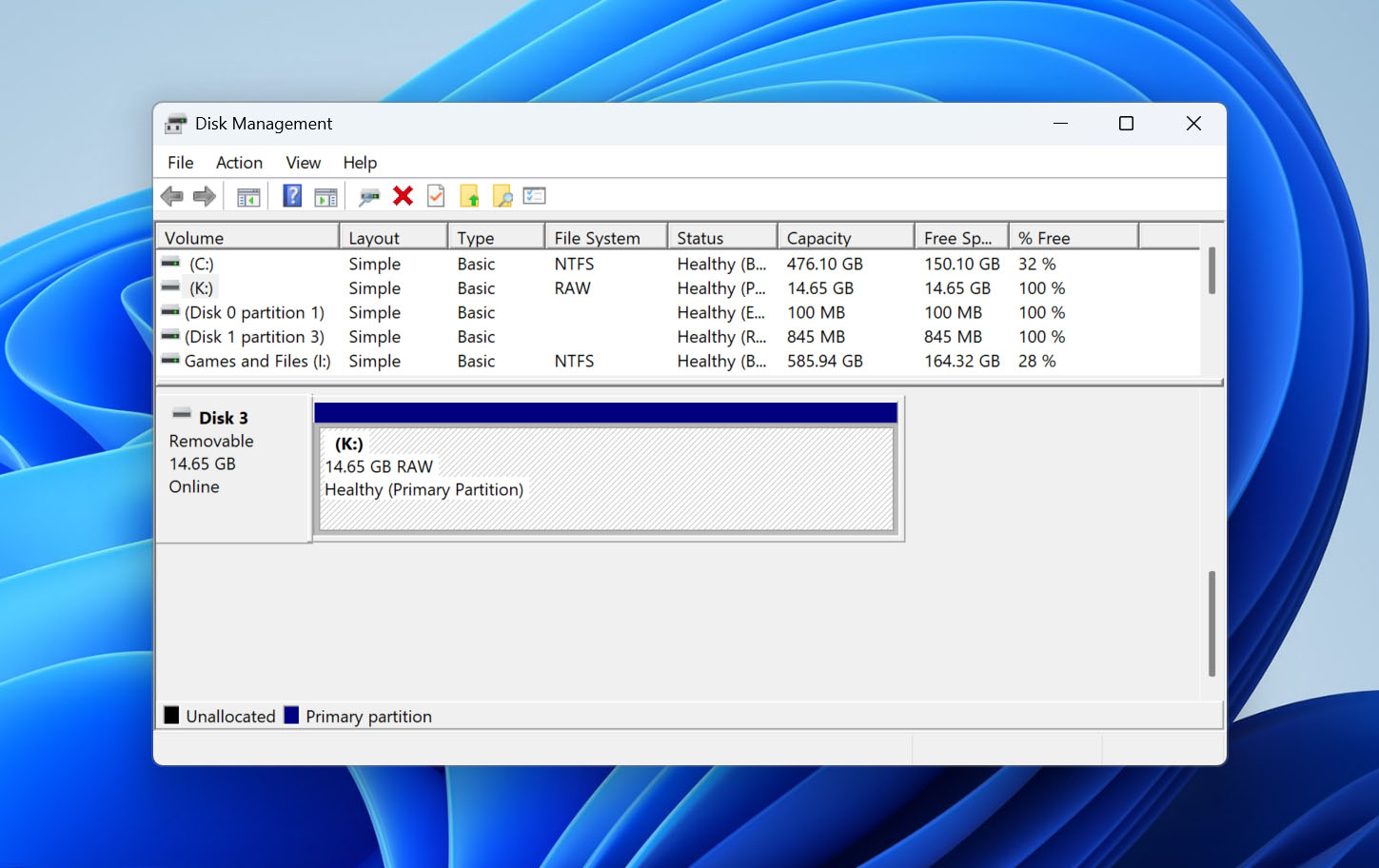
- Locate your external drive. Use its total capacity, disk number, partition size, and volume label (if available) to identify it. Don’t rely on the drive letter alone, since it may be missing or different from what you expect.
- Check whether Windows reports the correct total capacity and whether the expected partition is present.
- Look at the File System column. A normally recognized Windows-compatible volume will typically appear as NTFS or exFAT, while a damaged or unrecognized file system may appear as RAW.
- Check whether the volume has a drive letter and review its current status.
Don’t initialize the disk, format it, create a New Simple Volume, or run write-based repair commands just because something looks abnormal in Disk Management. These actions can modify the current disk or file system structure. If the drive contains important inaccessible data, secure that data first or create an image of the drive where possible.
Use the table below to determine what your Disk Management results mean and what you should do next.
| What Disk Management Shows | What It Usually Means for This Guide | What to Do Next |
| Correct capacity, NTFS/exFAT, stable connection | Windows still recognizes the volume structure and file system. | Check the connection, secure any important accessible files, and then inspect the file system. |
| Correct capacity, healthy partition, no drive letter | The volume may simply be missing a mount letter. | Assign an unused drive letter if the volume is otherwise healthy. |
| RAW | Windows detects the volume but can’t recognize its current file system. | Don’t format it. Recover the data or create an image of the drive first. |
| Unallocated space where the partition should be | The expected partition information may be missing or damaged. | Don’t create a New Simple Volume. Recover the data or lost partition first. |
| Correct capacity but repeated disconnects | The USB connection, enclosure, power supply, or drive hardware may be unstable. | Stabilize the connection before attempting file system repair. |
| 0 bytes | Windows isn’t obtaining usable capacity information from the drive. | Test another cable, USB port, computer, and compatible enclosure where possible. Don’t format the drive. |
| No Media | Windows can see the USB interface but not usable underlying storage. | Test the connection and enclosure. Ordinary recovery software may not be able to access the storage in this state. |
| Obviously incorrect capacity | There may be a controller, enclosure, translation, or other hardware problem. | Stop write-based repair attempts and investigate the hardware first. |
| Drive absent from Disk Management | Windows isn’t detecting the external drive as a storage device. | Check the cable, USB port, Device Manager, enclosure, and the drive itself. |
| BitLocker volume is locked | The volume contents are encrypted and unavailable while the drive remains locked. | Unlock the BitLocker volume before attempting ordinary file recovery or file system repair. |
How to Recover Data from Hard Drive With the Parameter Is Incorrect Error
If important files became inaccessible after the “The parameter is incorrect” error appeared, we recommend recovering them before moving on to CHKDSK, file system repair, formatting, or other methods that can write changes to the drive. However, the right recovery approach depends on how the external drive behaves.
Situation 1: The drive is stable and shows the correct capacity
If the external HDD, SSD, or USB drive stays connected and Disk Management reports its correct capacity, you can try scanning it with data recovery software. File Explorer doesn’t need to open the volume normally for this to work. As long as the physical device remains detectable and the software can access it, a recovery scan may still find the files stored on it.
For this guide, we use Disk Drill. It can scan external drives that Windows detects even when their volumes are inaccessible through File Explorer, and it supports common file systems such as NTFS, FAT32, and exFAT.
Situation 2: The drive is unstable
If the drive disconnects, freezes during reads, produces repeated I/O errors, becomes extremely slow, or has unreadable areas, avoid repeatedly scanning the original device. Each additional read attempt puts more stress on a drive that may already be failing.
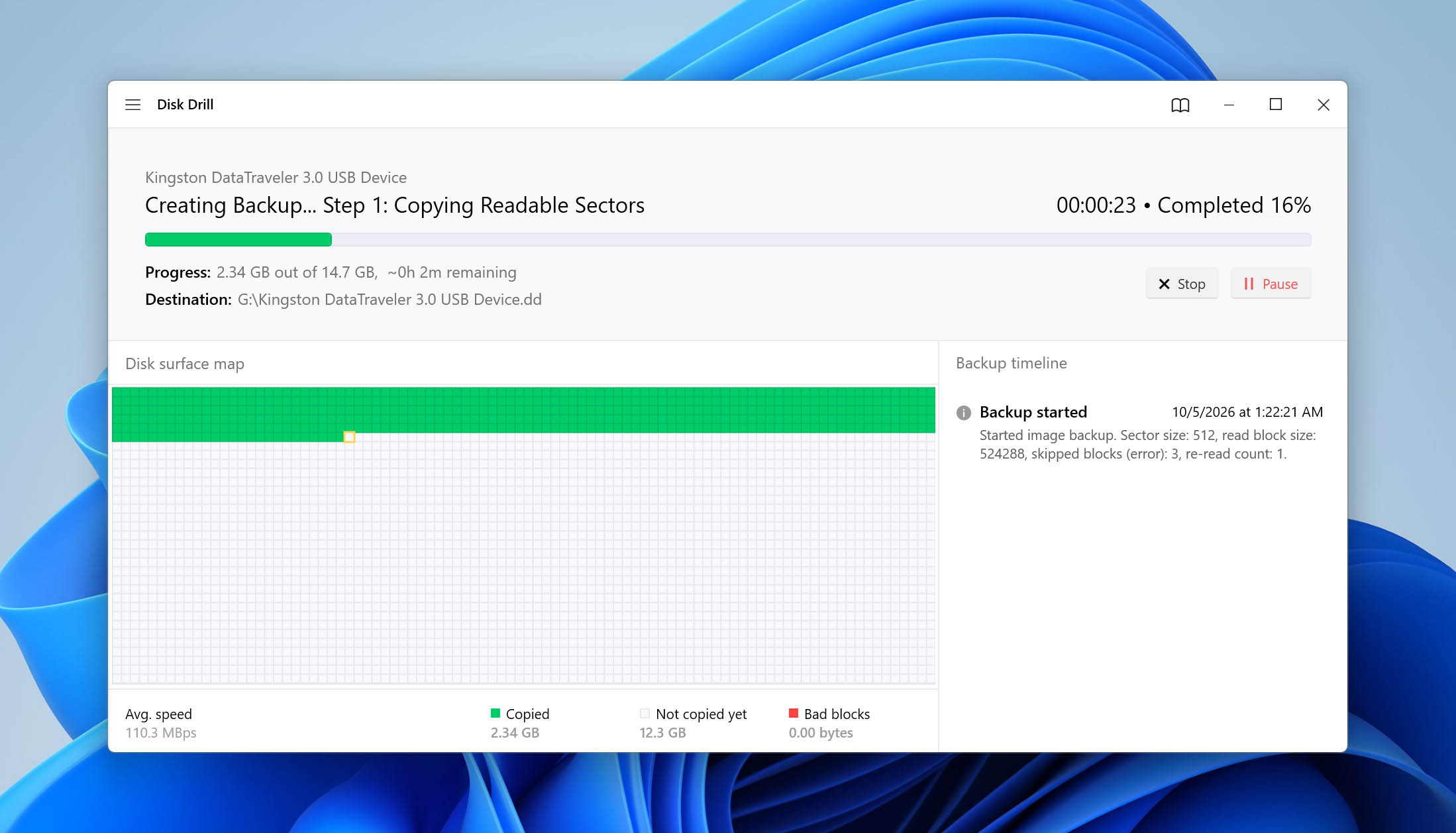
When safely possible, create a byte-to-byte image of the drive first. You can then attach the image in Disk Drill and scan it instead of repeatedly reading the original storage device. This also gives you a fixed copy to work with if the condition of the original drive gets worse.
Situation 3: The drive shows 0 bytes, No Media, the wrong capacity, or won’t stay detected
Data recovery software needs access to the underlying storage to scan it. If Disk Management reports 0 bytes, No Media, an obviously incorrect capacity, or the drive keeps disappearing, don’t assume that Disk Drill or another recovery application will be able to access your files.
First, connect the drive directly to the computer, try another cable and USB port, test it on another computer, and, where appropriate, try another compatible enclosure. If Windows still can’t access the underlying storage correctly, software recovery may not be possible and professional data recovery may be required.
If your external drive remains detectable with its correct capacity but you can’t access the files normally, you can try to recover them with Disk Drill. Unlike File Explorer, data recovery software can scan many inaccessible external drives as long as Windows can still access the underlying storage with a usable capacity.
Before you start, connect another physical storage device with enough free space for the recovered files. Where practical, install Disk Drill on an unaffected drive rather than the one you’re trying to recover.
Follow these steps to recover your files:
- Download, install, and launch Disk Drill.
- Check the condition of the affected drive before starting the scan. If it stays connected and reads normally, you can scan it directly. If it disconnects, becomes extremely slow, produces read errors, or shows other signs of instability but is still readable, open Byte-to-byte Backup instead.
- For an unstable drive, select the affected physical disk in Byte-to-byte Backup and create a byte-to-byte image on another physical storage device. Once the image has been created, open it in Disk Drill and continue the recovery from the image rather than repeatedly scanning the original drive.
- If the source drive is stable, select the affected physical drive or volume directly from Disk Drill’s device list.
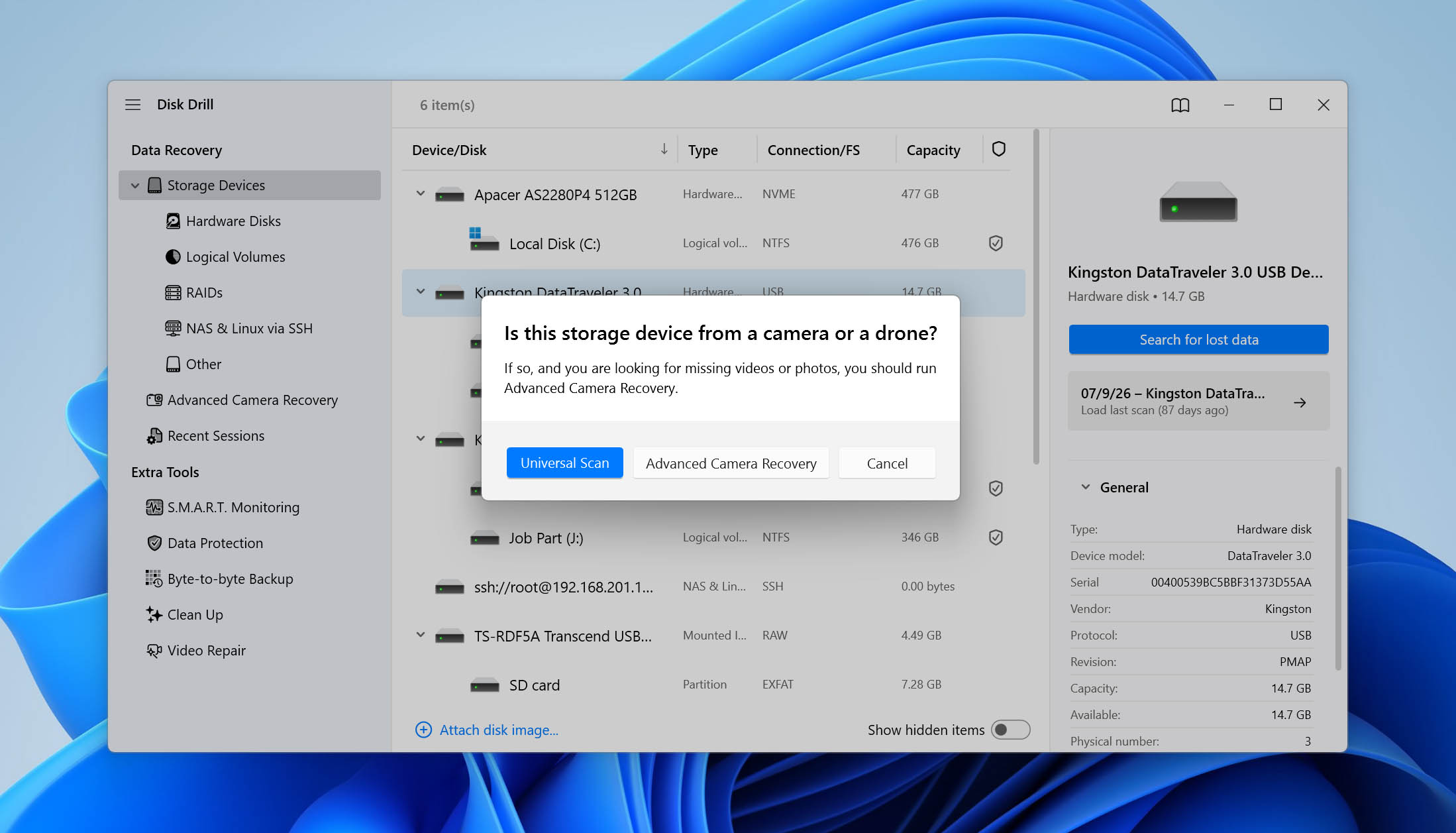
- Click Search for lost data, then choose Universal Scan.
- You can review the files Disk Drill finds while the scan is still running or wait until it finishes. Check the Existing, Deleted, and Reconstructed result groups depending on what you’re looking for.
- Use the filename search and filters for file type, size, and date to narrow down the results. You can also preview files and check their recovery chances to help determine which ones are worth recovering.
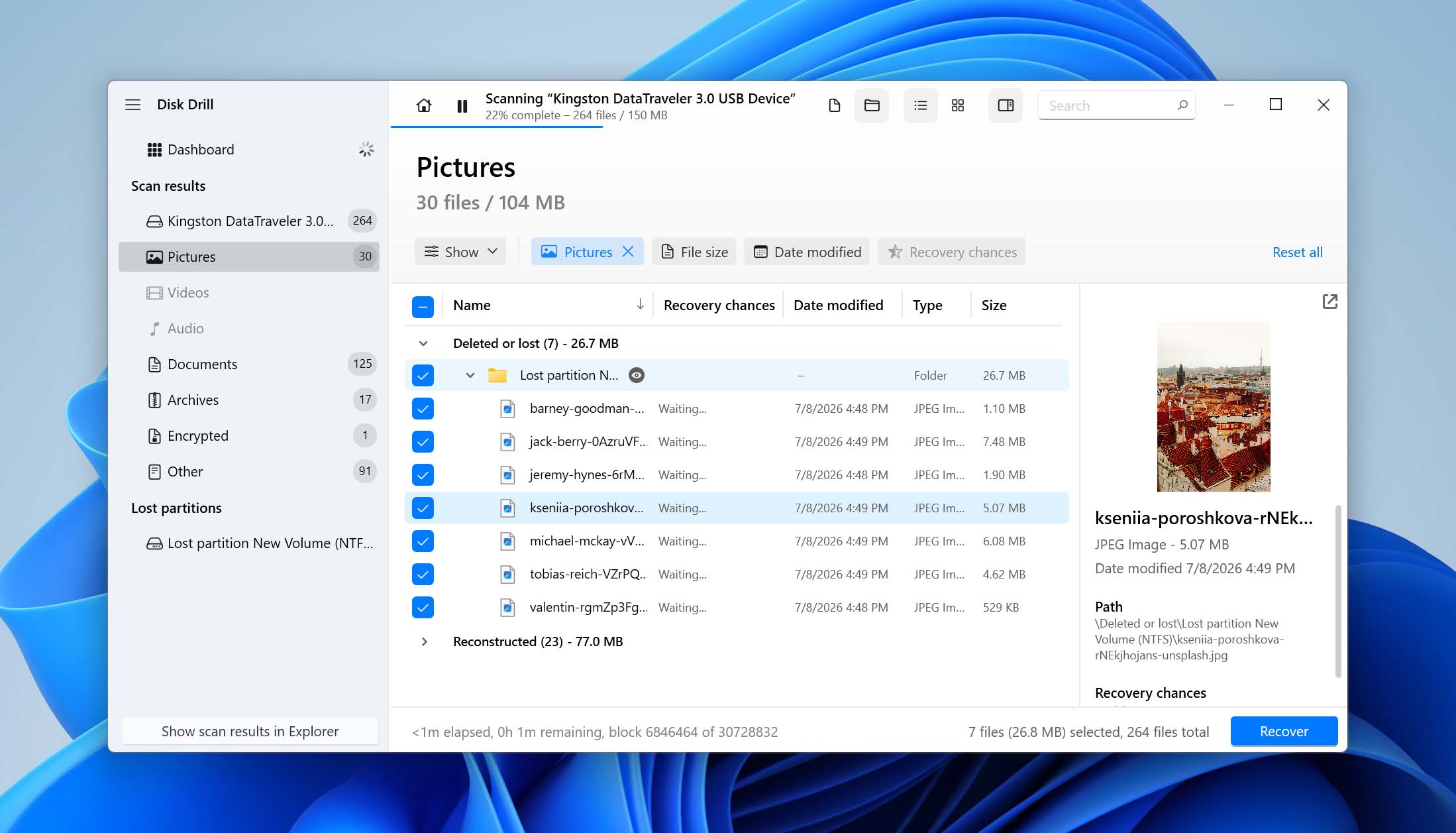
- Select the files you need and click Recover.
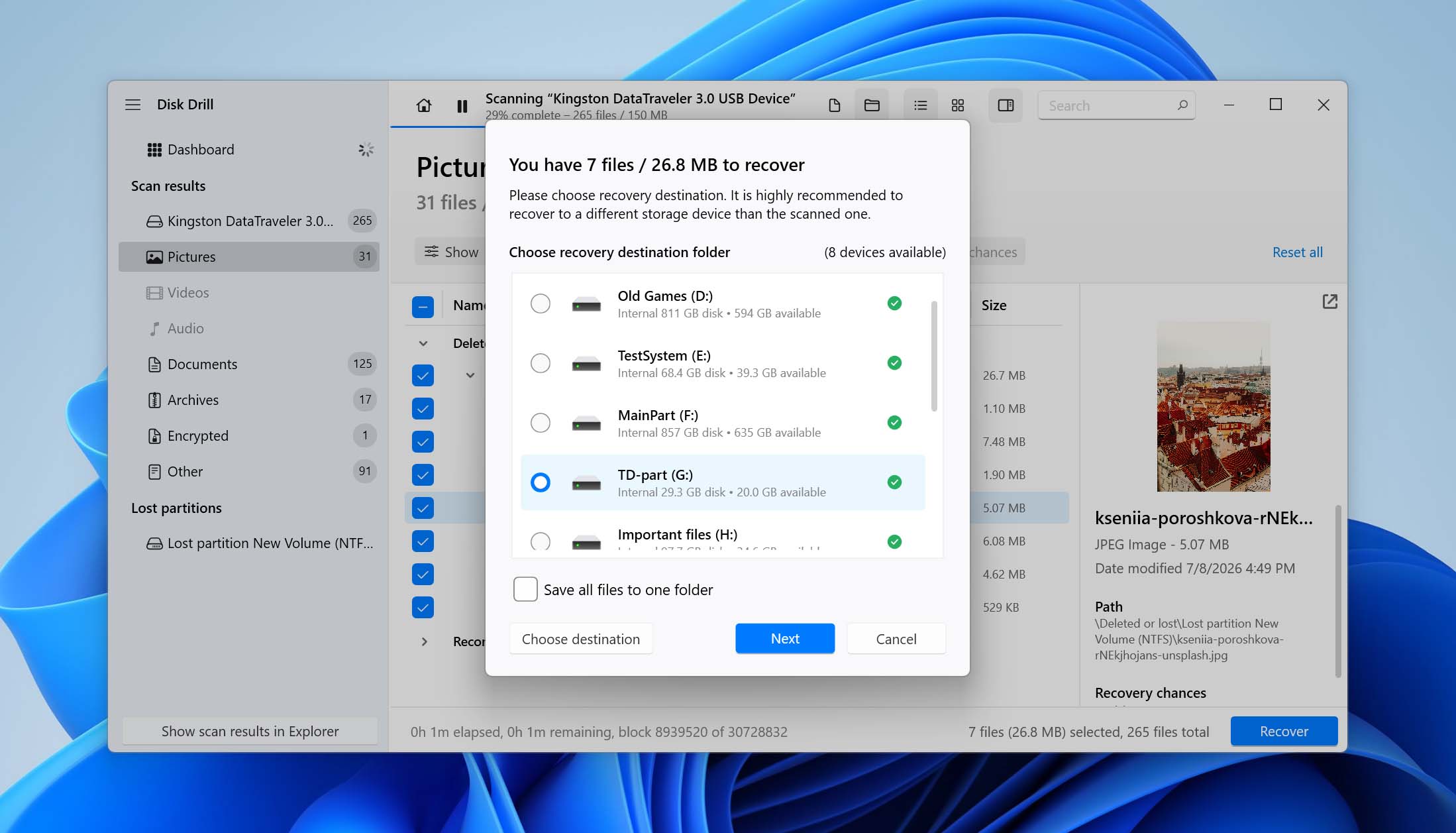
- Choose a folder on a different physical storage device as the recovery destination. Don’t save recovered files back to the affected external drive.
- Once recovery is complete, open several important recovered files and verify that they work correctly. Only after you have secured and checked your data should you move on to repair or format the original drive.

How to Fix the Parameter is Incorrect Error
Once you’ve secured your data through hard drive recovery, it’s time to explore solutions to fix “The parameter is incorrect” error on the hard drive.
Method 1: Check Your External Hard Drive Connection
A faulty or unstable connection is one of the first things you should rule out when an external drive shows “The parameter is incorrect.” Disconnect the drive, reconnect it, and check whether Windows can access it normally. If the error remains, try another USB port on your computer. Whenever possible, connect the drive directly instead of using a USB hub or docking station.
Next, try another compatible USB cable or adapter and test the drive on another computer. If it works there, the problem is more likely related to the original computer, USB port, or connection rather than the drive itself.
If the problem occurs only when the drive is connected through a USB hub or docking station, disconnect unnecessary peripherals, try another port on the hub, and make sure the hub receives adequate power. You can also bypass it completely and connect the external drive directly to the computer.
The enclosure itself can also be responsible. If your HDD or SSD uses a removable external enclosure, its USB bridge or other electronics may fail even when the storage device inside is still functional. Where practical, you can test the drive with another compatible enclosure or adapter.
Method 2: Scan Your System For Viruses
Malware isn’t a likely cause of “The parameter is incorrect” on its own. However, if you’ve noticed other signs of infection, such as suspicious activity or unexpected file changes, scan Windows and any accessible files on the external drive.
- Press Windows Key + S, search for Windows Security, and open it.
- Select Virus & threat protection.
- Click Scan options.
- Choose the appropriate scan. If Windows can access the external drive well enough to scan it directly, select Custom scan and choose the affected drive. You can also use Scan with Microsoft Defender where available.
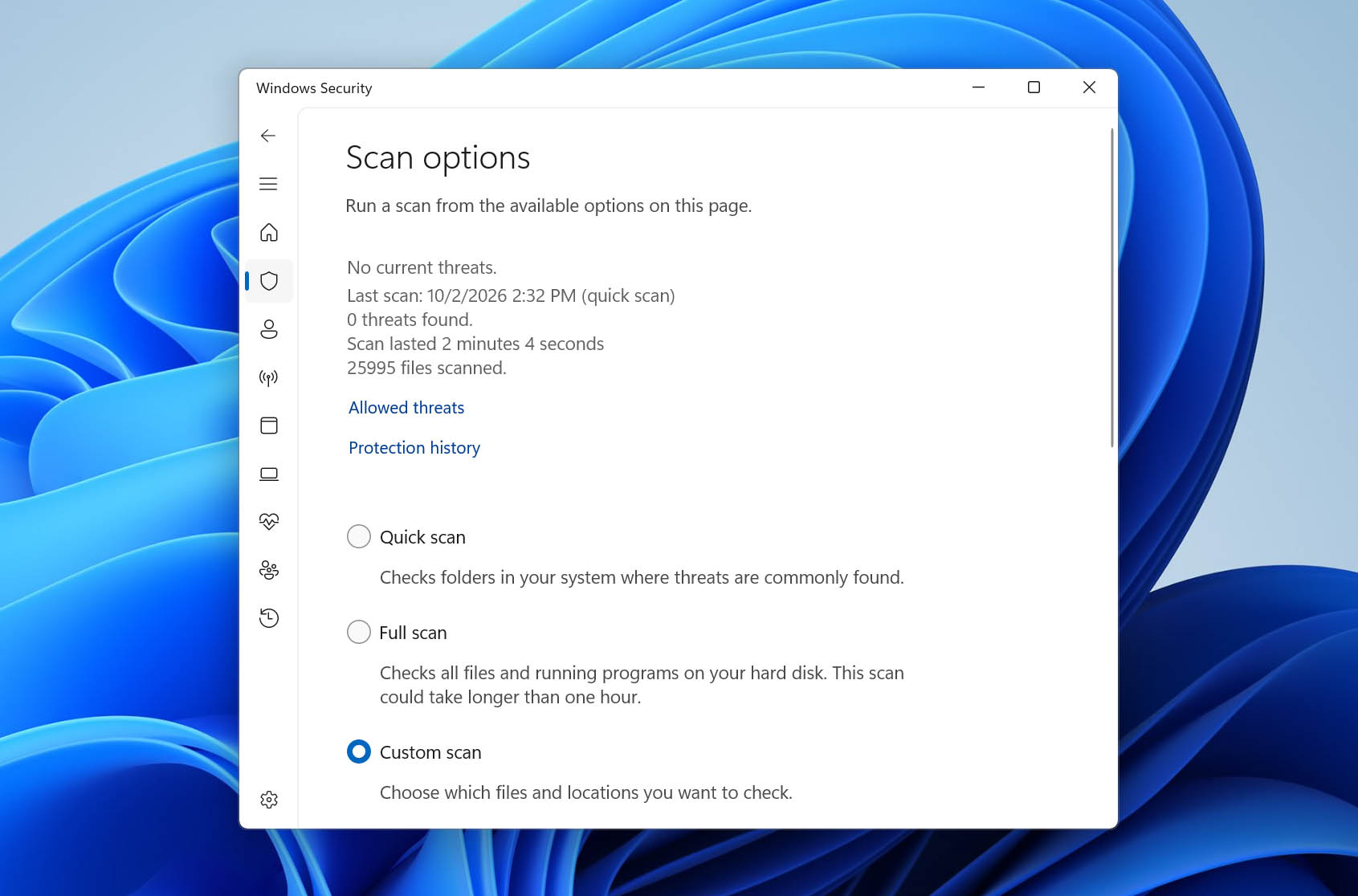
- Start the scan and wait for Windows Security to complete it. If any threats are found, follow the recommended actions to remove or quarantine them.
Keep in mind that removing malware won’t automatically repair file system damage that has already occurred. If the drive remains inaccessible after the scan, continue with the other troubleshooting methods below.
Method 3: Repair System Files
Windows system corruption is worth checking if several known-good external drives behave incorrectly, you’re experiencing other Windows errors, or the affected drive works normally on another computer. If only one external drive has the problem, the cause is more likely related to that drive or its connection.
Windows includes two built-in repair utilities: DISM and SFC. DISM repairs the Windows component image, while SFC checks protected system files and replaces damaged copies when possible.
Follow these steps:
- Press Windows Key + S and type Terminal.
- Right-click Terminal and select Run as administrator.
- Enter the following command and press Enter: DISM.exe /Online /Cleanup-Image /RestoreHealth
- Wait for DISM to complete the repair process.
- Enter sfc /scannow and press Enter.
- Wait for SFC to finish checking the protected Windows system files. If it finds damaged files that it can repair, it will replace them automatically.
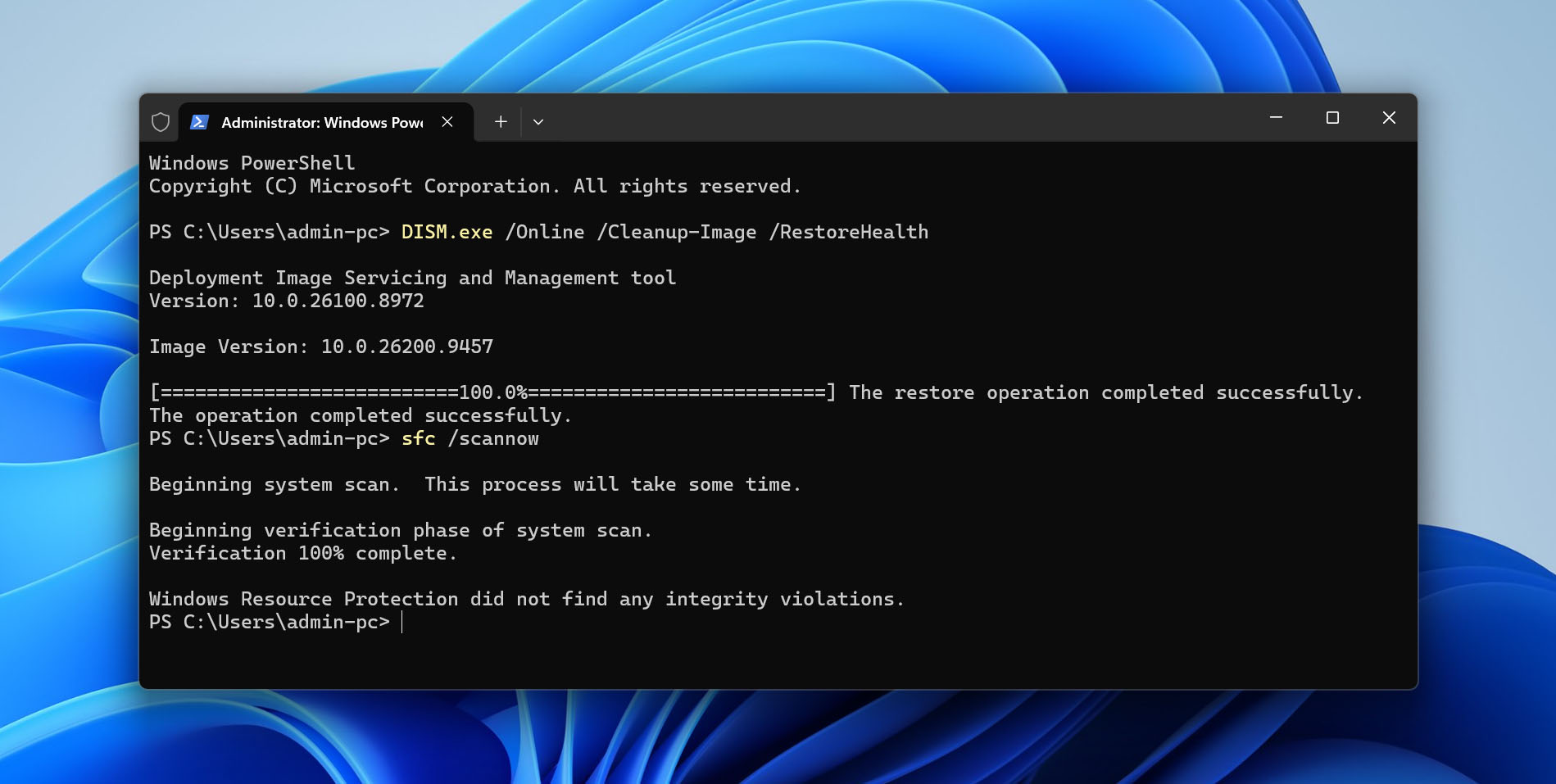
Once both commands have finished, restart your computer, reconnect the external drive, and check whether you can access it normally.
Method 4: Fix the Hard Drive Using CHKDSK
CHKDSK is a built-in Windows utility for checking file-system metadata and repairing logical errors. It can help when “The parameter is incorrect” is caused by logical file system corruption. However, CHKDSK modifies file-system structures when repair parameters are used, so recover or back up important data before running it in repair mode.
We recommend starting with a check that doesn’t use the /f or /r repair parameters:
- Press Windows Key + S and type Terminal.
- Right-click Terminal and select Run as administrator.
- Type chkdsk F: and press Enter. Replace F: with the actual drive letter of your external drive.
- Wait for CHKDSK to check the volume and report its file system status.
- If the drive remains stable, Windows recognizes its file system, and your important data has already been recovered or backed up, run chkdsk F: /f.
- Wait for the process to finish, then reconnect the drive and check whether you can access it normally.
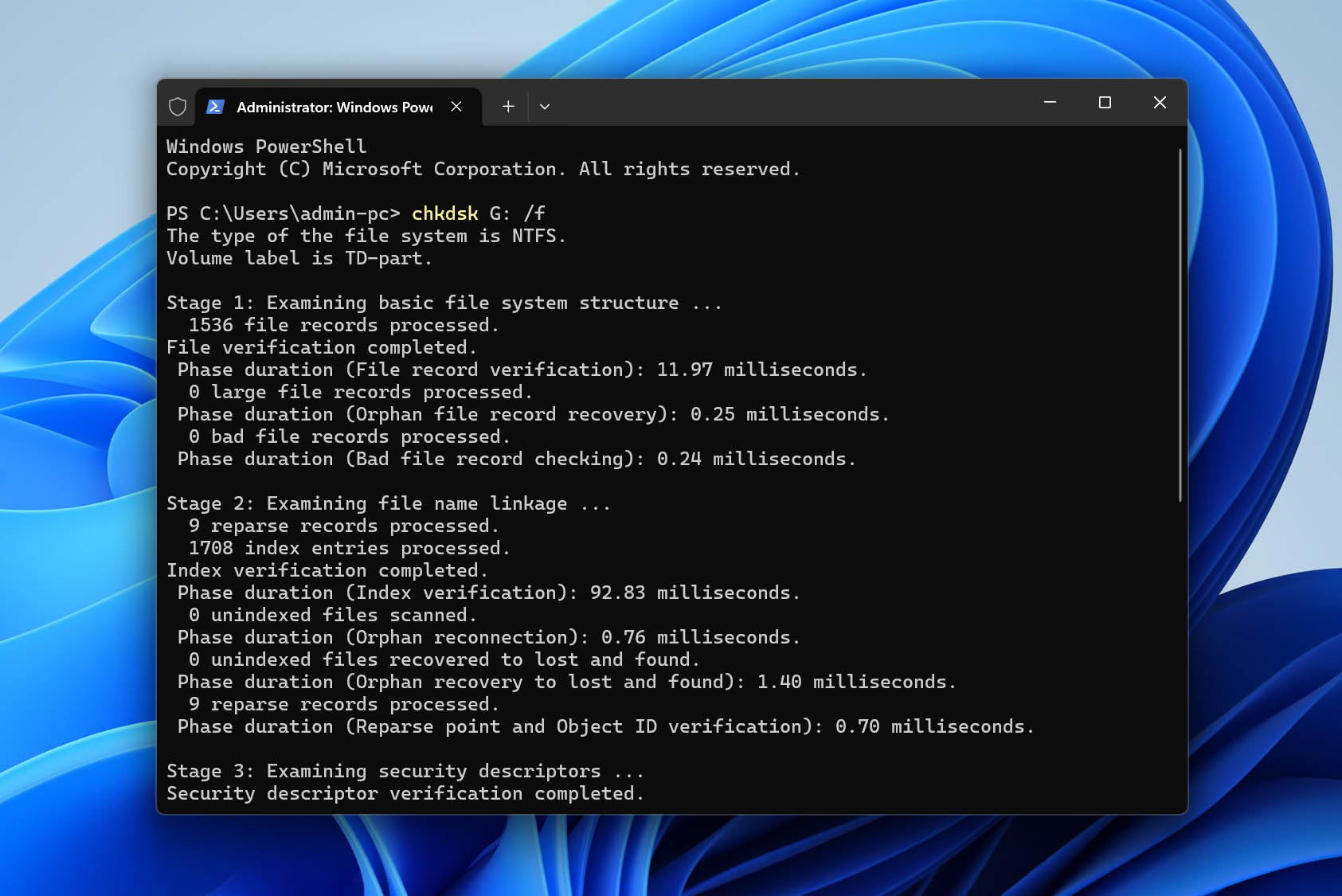
The /f parameter tells CHKDSK to repair logical file system errors it finds. You can also use /r, which includes the functionality of /f, checks for bad sectors, and attempts to recover readable information. However, /r performs substantially more reads, so it shouldn’t be the default command for every external drive problem.
CHKDSK can sometimes result in files becoming lost or inaccessible while it repairs damaged file-system structures. If this happens, check our separate guide on how to recover files deleted by CHKDSK.
Method 5: Update Drivers
Driver troubleshooting is worth trying if Device Manager reports a problem with the external drive, the same drive works normally on another computer, or Windows appears to have detected the device incorrectly. Reinstalling the device may help when Windows has a driver or device-enumeration problem.
Here’s how to check and reinstall the external drive in Device Manager:
- Right-click Start and select Device Manager.
- Expand Disk drives and locate your external drive.
- Right-click the drive and select Properties.
- Check Device status on the General tab. If Windows reports a problem with the device, note the error before continuing.
- Close the Properties window, right-click the external drive again, and select Uninstall device.
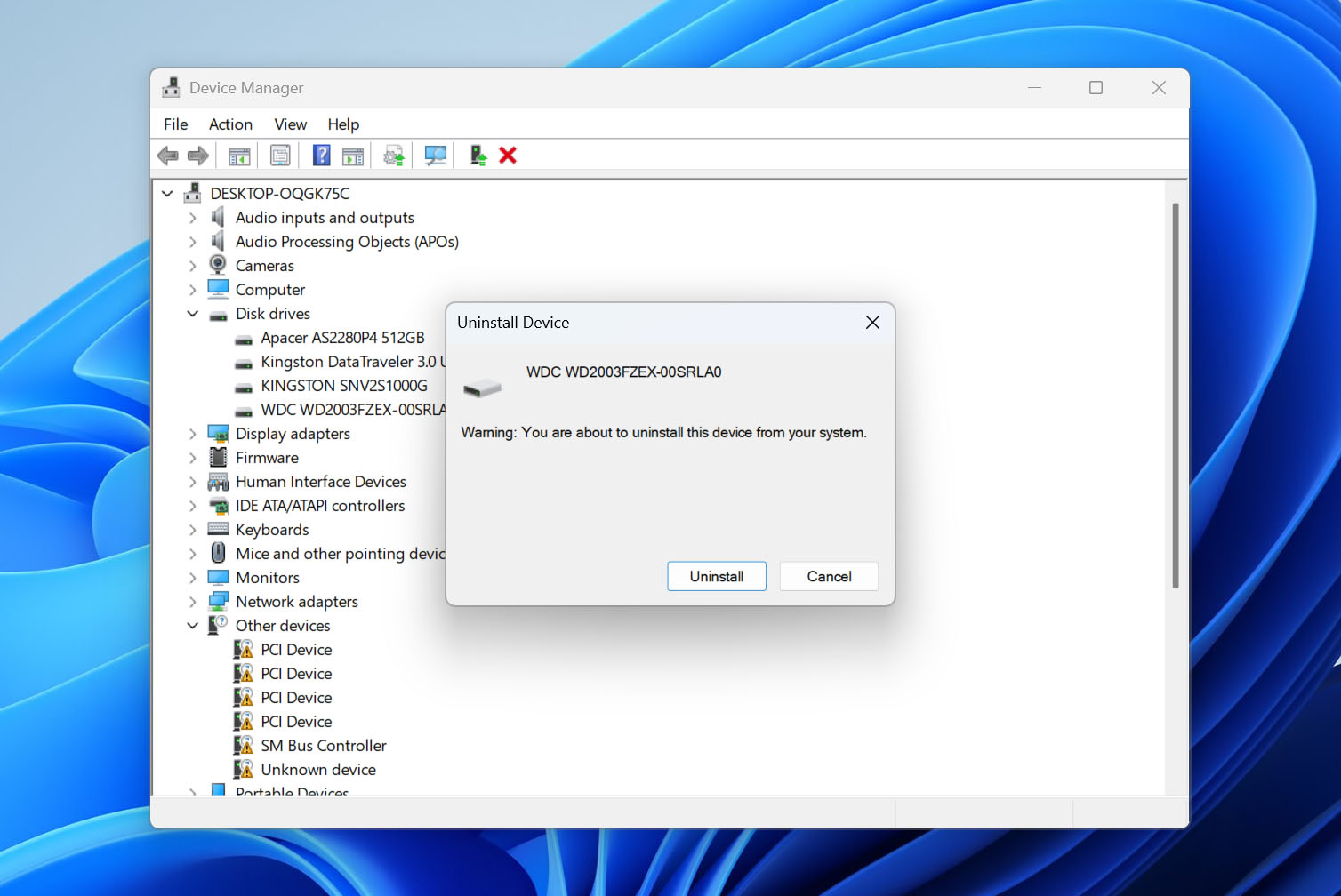
- Confirm the removal, disconnect the external drive, and then reconnect it. Windows should detect the device again and reinstall the appropriate driver.
If several USB devices are having similar problems, expand Universal Serial Bus controllers in Device Manager and check whether Windows reports errors there as well. You can also check Windows Update or your computer or USB/storage-controller manufacturer for a relevant driver update.
Method 6: Repair an External Hard Drive File System
TestDisk can help when “The parameter is incorrect” is related to damaged partition information rather than a general problem with the external drive. It’s worth trying if an expected partition has disappeared, Disk Management shows its space as Unallocated, or the partition table has been damaged. TestDisk also includes tools for repairing certain NTFS boot-sector problems.
[Don’t treat TestDisk as a generic fix for every RAW volume. If the drive contains important files, recover them first whenever possible, and don’t write any changes to the partition table until you have confirmed that TestDisk found the correct partition.
If the expected partition is missing, follow these steps:
- Download and extract TestDisk, then run testdisk_win as administrator.
- Select Create and press Enter to create a new log file.
- Select the affected physical disk, highlight Proceed, and press Enter.
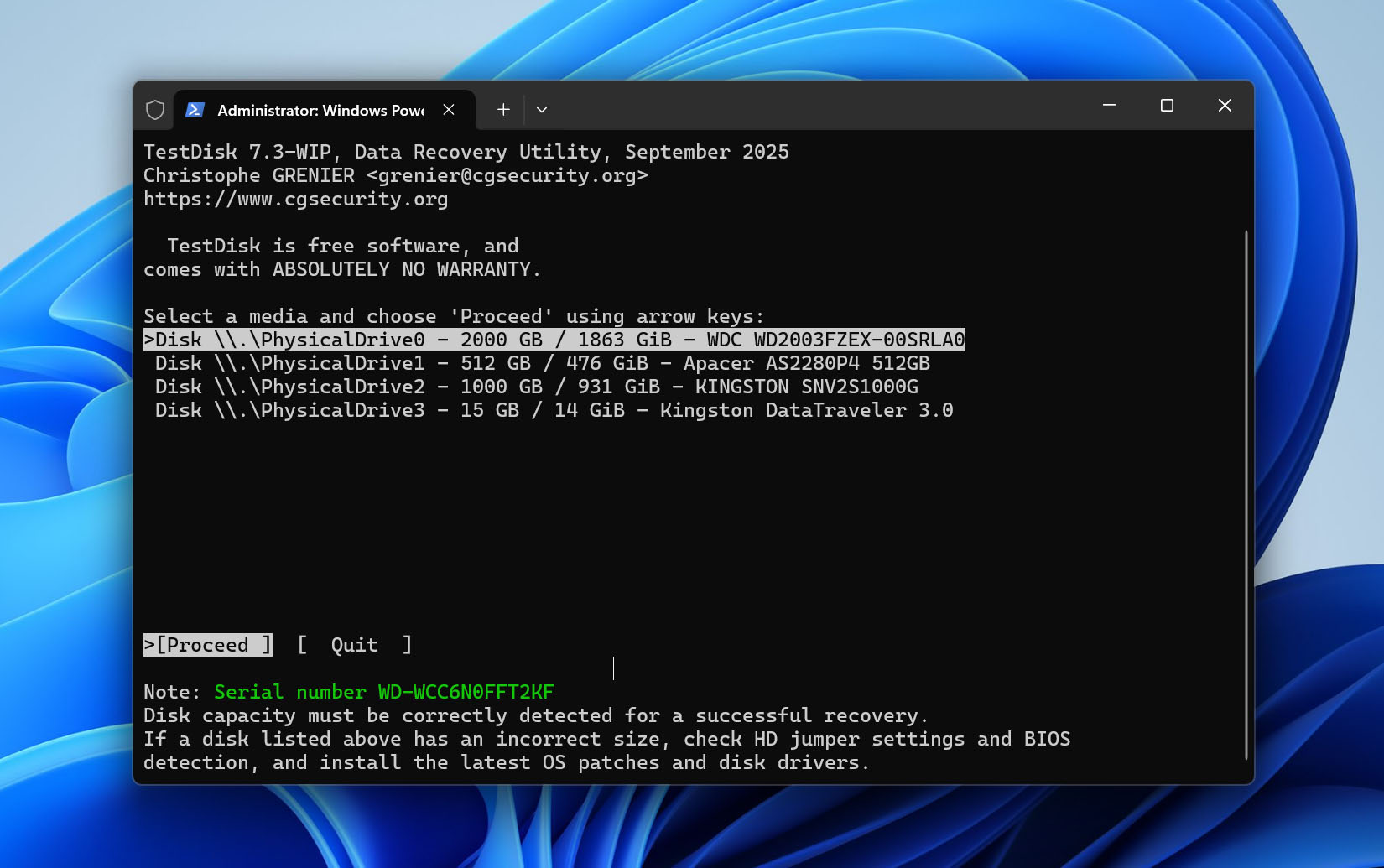
- Allow TestDisk to detect the partition-table type. Verify that the detected type matches the physical disk before continuing. Windows 11 doesn’t determine whether a disk uses MBR or GPT, so don’t select a partition-table type based on the Windows version.
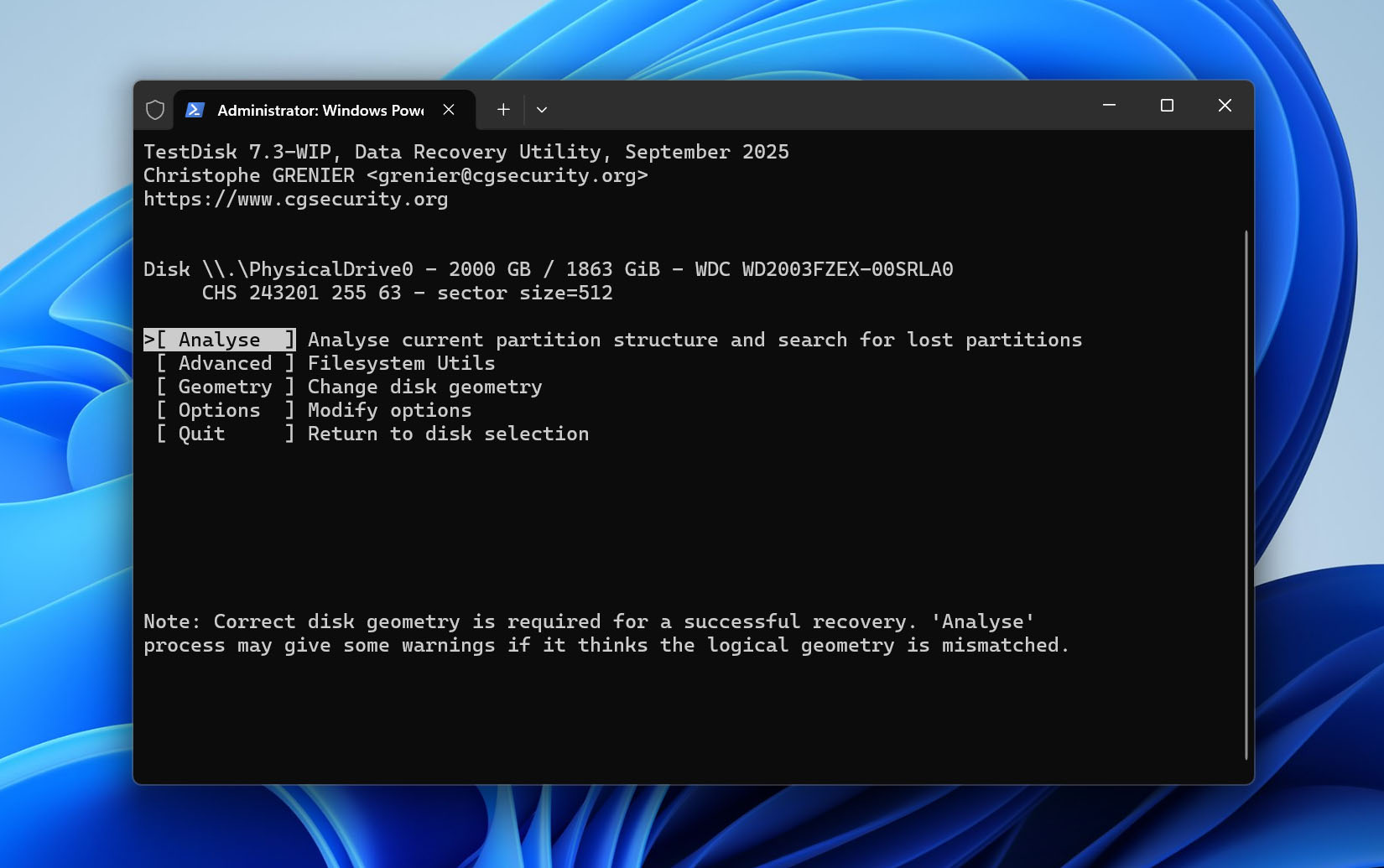
- Select Analyse and press Enter.
- Select Quick Search to search for lost partitions.
- Inspect the partitions TestDisk finds. Highlight a possible lost partition and use the option to list its files. Confirm that you can see the folders and files you expect before making any changes.
- If Quick Search doesn’t find the correct partition, return to the previous screen and run Deeper Search.
- Review the results again and verify the expected files. Don’t universally change a found partition to Primary or another partition type unless you know that this matches the original disk layout.
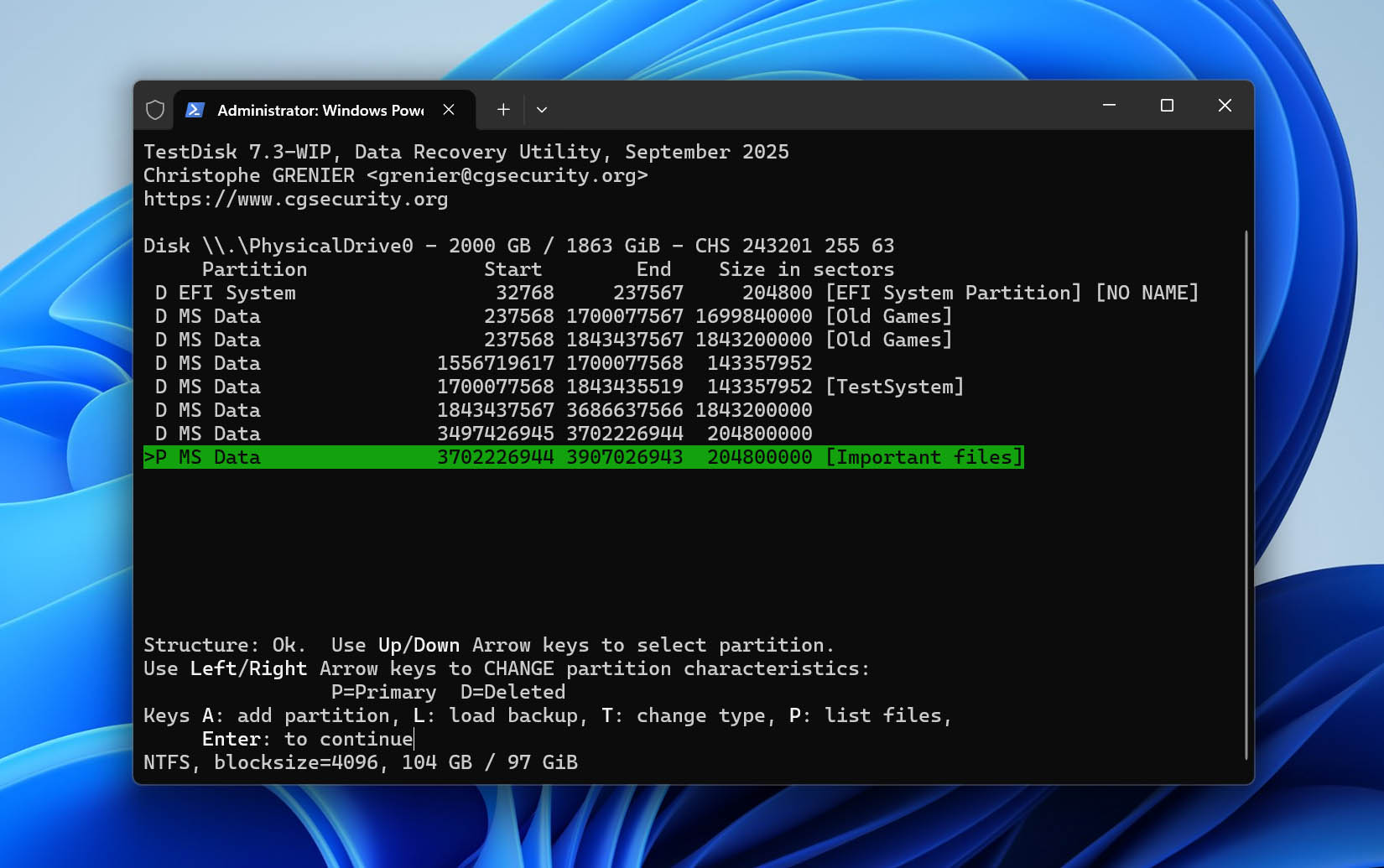
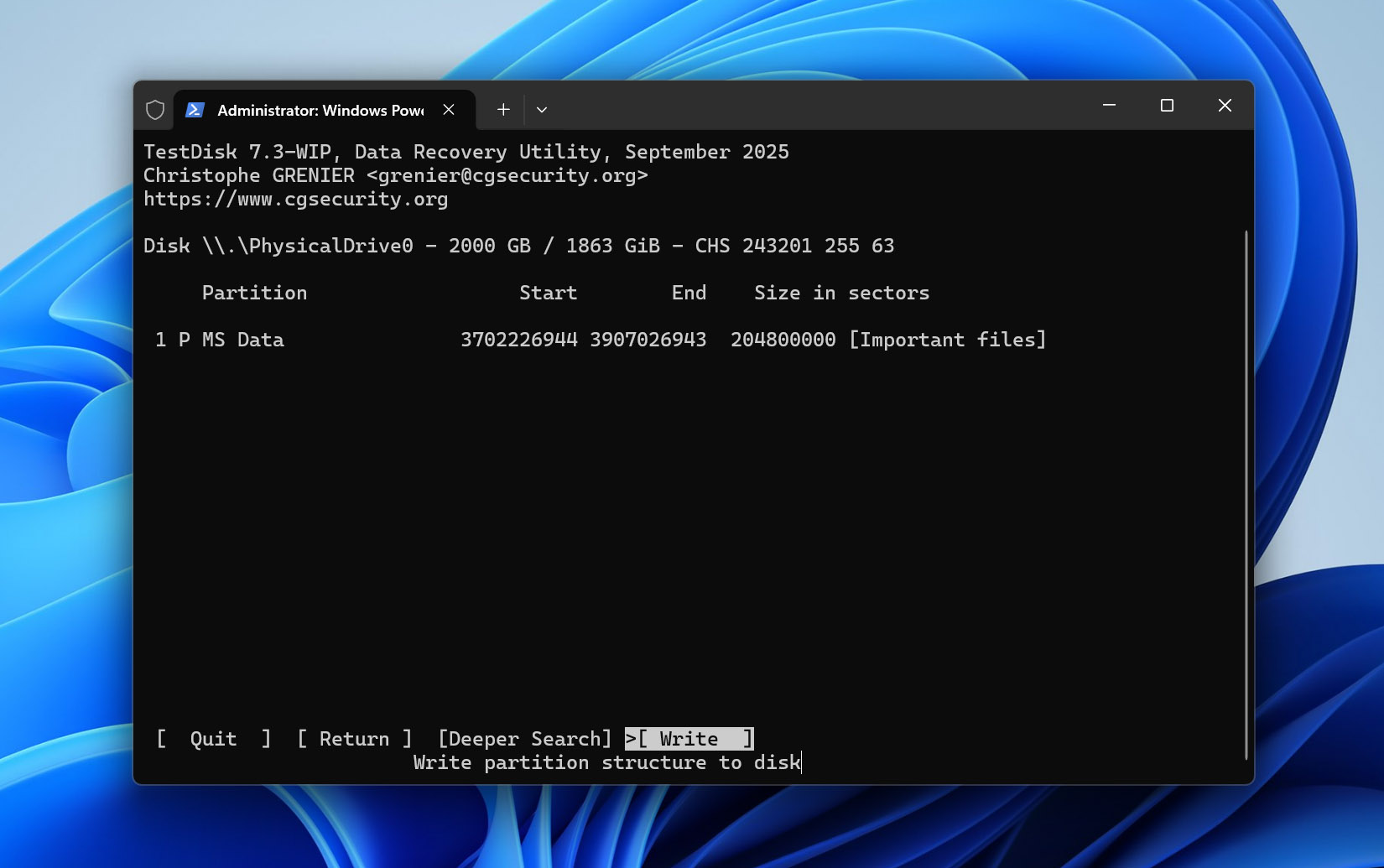
- Write the recovered partition information only after you have positively identified the expected partition and confirmed that its contents are correct.
TestDisk can also help with a damaged NTFS boot sector. Its NTFS repair options can compare the primary boot sector with its backup, restore the primary boot sector from a valid backup copy, or rebuild an NTFS boot sector in appropriate cases. These options should only be used when you have identified an NTFS boot-sector problem rather than simply because the volume appears as RAW.
If you haven’t used TestDisk before, check our detailed TestDisk review for a closer look at how its recovery and repair tools work.
Method 7. Format an External Hard Drive
If the data is already secured and logical file-system damage remains, formatting can recreate the volume’s file system and make it usable again. However, formatting removes the existing file-system structures and should be treated as destructive. Only proceed if your important files have already been recovered or backed up, the drive is physically stable, and Windows reports its correct capacity.
Here’s how you can format the affected volume using Disk Management:
- Right-click Start and select Disk Management.
- Locate the affected volume. Double-check its capacity and disk number to make sure you’ve selected the correct one.
- Right-click the volume and select Format.
- Choose the appropriate file system for how you plan to use the drive.
- Leave the Allocation unit size at its default value unless you have a specific reason to change it.
- Select Perform a quick format if the storage device is healthy.
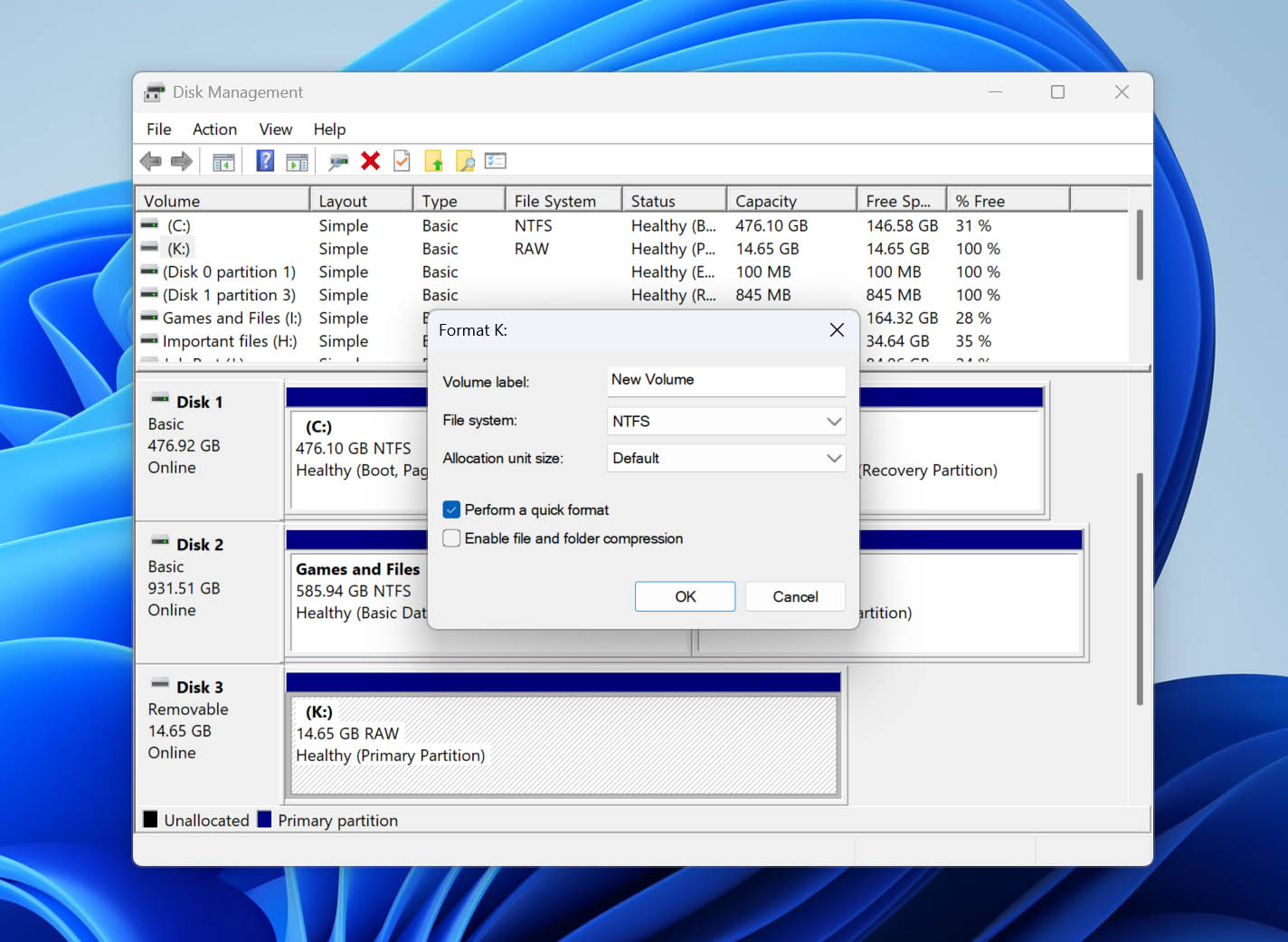
- Confirm the format only after you’ve secured all important files from the volume.
Method 8: Contact Data Recovery Service
Professional recovery is appropriate when the drive shows physical failure or the data is too valuable to risk further DIY attempts. Consider contacting a data recovery service if the drive clicks, repeatedly disconnects, freezes Windows when you try to read it, produces severe I/O errors, shows 0 bytes or No Media, reports an obviously incorrect capacity, or repeatedly fails while you try to create an image. The same applies if the drive has suffered physical or electrical damage.
If you suspect hardware failure, don’t repeatedly run CHKDSK, format or initialize the drive, or keep reconnecting an unstable device to see if it starts working. These actions won’t address the underlying hardware problem and can put additional stress on the drive.
A professional service can use specialized hardware and controlled recovery procedures when ordinary software cannot safely access the device. Before sending your drive to a recovery service:
- Contact the company and describe the problem, drive specifications, and symptoms you’ve encountered.
- Ask whether there are any evaluation fees and check the shipping requirements.
- Find out how pricing is determined and when you’ll receive a quote for the recovery.
- Check whether the service has a no-data/no-fee policy and whether any other charges still apply if the recovery is unsuccessful.
Frequently Asked Questions
What does the parameter incorrect error mean?
The error message “The parameter is incorrect” often appears when your computer is being prevented from accessing the external or internal hard drive due to physical or logical corruption of some kind.
How do I fix the ‘parameter is incorrect’ error without losing data?
To fix “the parameter is incorrect” error, first recover data from the external hard drive using a data recovery tool. Then use one of the methods listed in the article above to repair the drive and regain access to your drive. You can also contact a professional data recovery service if none of the other methods work.
Why do I get the “D drive is not accessible the parameter is incorrect” error?
There are several reasons why you can get the “D drive is not accessible the parameter is incorrect” error. Some of them are:
- The file system of the hard drive has become corrupted.
- Faulty external hard drive connection.
- The operating system of your computer has become corrupted.
- The drive must be updated or reinstalled.
- The hard drive has sustained some physical damage.
- Malware or virus attack on the drive.
- The drive is BitLocker encrypted.
What should I do if the drive shows RAW?
A RAW volume means that Windows can detect the volume but can’t recognize a usable file system on it. If you have important files on the drive, don’t format it or run CHKDSK in repair mode. Recover the files first or, if the drive is unstable but still readable, create an image and recover from that. Once your data is secured, you can attempt file system repair or format the volume to create a new file system.
What if the drive shows 0 bytes or No Media?
A drive that shows 0 bytes or No Media is different from one with ordinary file system corruption because Windows may not be able to access the underlying storage at all. Try another USB cable and port, connect the drive to another computer, and, where appropriate, test another compatible enclosure. CHKDSK and formatting aren’t suitable when Windows can’t access the actual storage. If the drive continues to show 0 bytes or No Media, professional data recovery may be necessary.
Can CHKDSK fix “The parameter is incorrect”?
Yes, CHKDSK may help if “The parameter is incorrect” is caused by logical file system errors and Windows still recognizes the file system. Start with chkdsk F: to inspect the volume without applying the /f or /r repair parameters. If the drive is stable and your important files are already recovered or backed up, you can then use chkdsk F: /f to repair logical errors. The /r parameter performs substantially more reads and shouldn’t be the default choice. Don’t run CHKDSK in repair mode on RAW, 0-byte, No Media, or unstable drives.
Can a USB hub cause “The parameter is incorrect”?
Yes. A USB hub or docking station can introduce an unstable connection or fail to provide enough power for an external drive. Disconnect unnecessary USB devices and try connecting the affected drive directly to a USB port on your computer. If the drive works normally when connected directly but shows the error through a hub or dock, the connection or power path is a more likely cause than file system corruption.
Can BitLocker cause “The parameter is incorrect”?
A BitLocker-encrypted drive isn’t faulty simply because it uses encryption. However, a locked BitLocker volume can prevent Windows and recovery software from accessing its contents normally. Check the volume’s BitLocker status and unlock it using the correct password or recovery key. Once the volume has been successfully unlocked, you can continue with file system troubleshooting if the error remains.
Conclusion
If you follow any of the methods mentioned in this article carefully, “the parameter is incorrect” error is not that difficult to fix. However, you must first recover your data using professional data recovery software to safeguard your files in case you have to format the hard drive.

- 5 publishings
Joshua is a content curator for Pandora Data Recovery Mentor. His expertise involves taking intricate IT concepts and breaking them down into super easy to understand chunks. He’s been wielding the writing sword for quite some time now - 3 years to be precise. Digital marketing, data recovery, and anything “techy” are Joshua’s niches.
- Frisco, Texas, United States
Yevgeniy Tolkunov is Hardware Engineer at ACE Data Recovery. Yevgeniy has a Master's Degree in Physics, Information Technology; 15+ years of experience.