

How to Recover Deleted NTFS Files on Windows 11


Deleting files from an NTFS drive can happen in several ways. You may delete a file normally, use Shift + Delete, empty the Recycle Bin, permanently remove an entire folder, or simply notice that files have disappeared from an NTFS HDD or SSD. Whether you can get them back depends largely on how they were deleted and where they were stored.
If the files are still in the Recycle Bin or an existing backup, recovery is usually simple. After permanent deletion, however, NTFS marks the corresponding file record and storage space as available for reuse. The data may remain on the drive temporarily, but new writes can overwrite it. On SSDs, TRIM can make permanently deleted data unavailable much sooner, so avoid unnecessary writes to the affected drive.
What Is the NTFS File System?
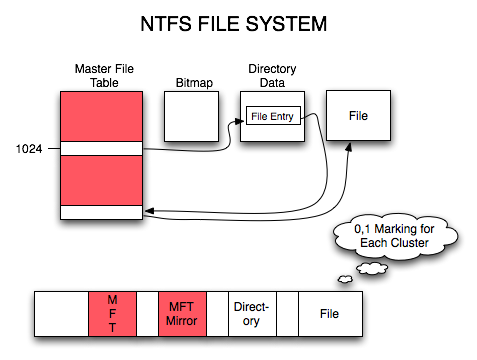
Microsoft introduced the New Technology File System (NTFS) with Windows NT in 1993. It became the primary file system for Windows NT-based operating systems and remains the default file system for modern Windows system volumes, including Windows 11.
NTFS provides a number of features not available in FAT32, including ACL permissions, journaling, compression, disk quotas, and file-system-level encryption support. It also supports optional per-directory case sensitivity, although standard Windows behavior remains case-insensitive. NTFS can handle very large files and volumes, with the maximum volume size on current Windows versions depending on the cluster size and reaching multiple petabytes.
NTFS has been used by Microsoft for decades and remains the default Windows file system in Windows 11. Its support for permissions, journaling, large volumes, and other file management features makes it well suited for modern Windows systems and storage drives.
Can Deleted NTFS Files Be Recovered?
Yes, deleted files can often be recovered from an NTFS volume if they are still in the Recycle Bin, available in a backup, or their data has not yet been overwritten. Your recovery chances depend on what happened to the files, how much the drive has been used since the deletion, and whether you’re dealing with an HDD or SSD.
The table below can help you choose the best recovery method for your situation:
| Situation | Recovery Chances | Best First Method |
| File deleted normally and still in Recycle Bin | Very High | Restore from Recycle Bin |
| File included in a File History backup | Very High | Restore Previous Version / File History |
| File deleted recently from a healthy NTFS HDD | High–Medium | NTFS-aware recovery software / Windows File Recovery Regular mode |
| Recycle Bin emptied on an NTFS HDD | Medium–High if data has not been overwritten | Data recovery software |
| Shift + Delete on an NTFS HDD | Medium–High if data has not been overwritten | Data recovery software / Windows File Recovery |
| File deleted a long time ago from an actively used HDD | Medium–Low | Extensive scan |
| File deleted from an NTFS SSD with TRIM enabled | Low / unpredictable | Check backups first; recovery software may still be attempted |
| NTFS volume was quick-formatted | Medium on HDD, depending on overwriting | Formatted-drive recovery / Extensive scan |
| NTFS file system is corrupted | Depends on damage | Image/recover files before repair |
| NTFS partition was deleted/lost | Medium–High if not overwritten | Scan the physical disk for previous partition/file-system structures |
| Drive has physical problems | Low / unsafe for repeated DIY scans | Image if possible or professional recovery |
What Happens When an NTFS File Is Deleted?
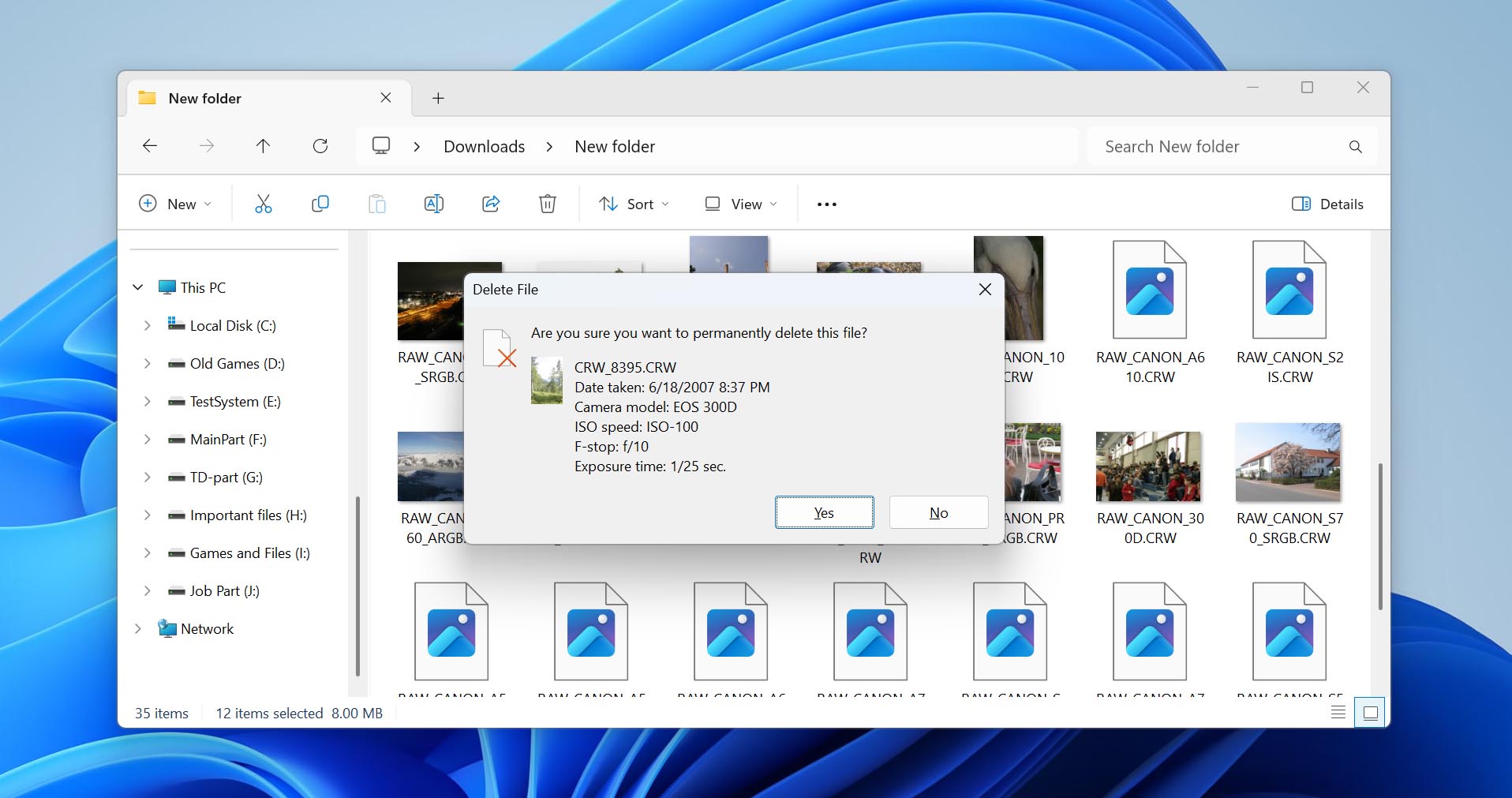
NTFS uses the Master File Table (MFT) to store the information Windows needs to locate and retrieve files. Each file has at least one associated MFT record containing information about the file and where its data is stored.
When you permanently delete a file, its MFT entry is marked as available for reuse. The clusters previously occupied by non-resident file data are also treated as available space. On an HDD, however, the MFT record and the actual file contents don’t necessarily disappear immediately.
This gives NTFS data recovery software a chance to use the remaining MFT and file-system information to reconstruct the original filename, folder path, timestamps, file location, and contents. If the MFT record has already been reused, recovery software may instead have to identify the file based on its signature. In this case, the file itself may still be recoverable, but its original name and folder structure are often lost.
What to Do Before Recovering Deleted NTFS Files
If the deletion just happened, stop unnecessary activity on the affected drive. Deleted data may remain recoverable until its storage space is reused, so anything that writes new data to the drive can reduce your recovery chances.
Until you finish the NTFS deleted file recovery process, avoid downloading large files, installing software on the affected drive, copying new files to it, defragmenting or formatting it, and creating new partitions. You should also recover files to a different physical drive rather than saving them back to the source.
This is more difficult when the deleted files were stored on the Windows C: drive because normal system activity continuously generates new writes. If practical, install your recovery software on another physical device and prepare an external drive where you can save recovered files. The sooner you act, the better, especially if you need to recover permanently deleted NTFS files from an SSD. When supported, Windows enables NTFS delete notifications/TRIM by default, which can make deleted data unavailable much sooner.
Before starting a full scan, check the Recycle Bin and any existing backups. Microsoft also recommends minimizing computer use after deletion because newly created data may overwrite the space previously occupied by deleted files.
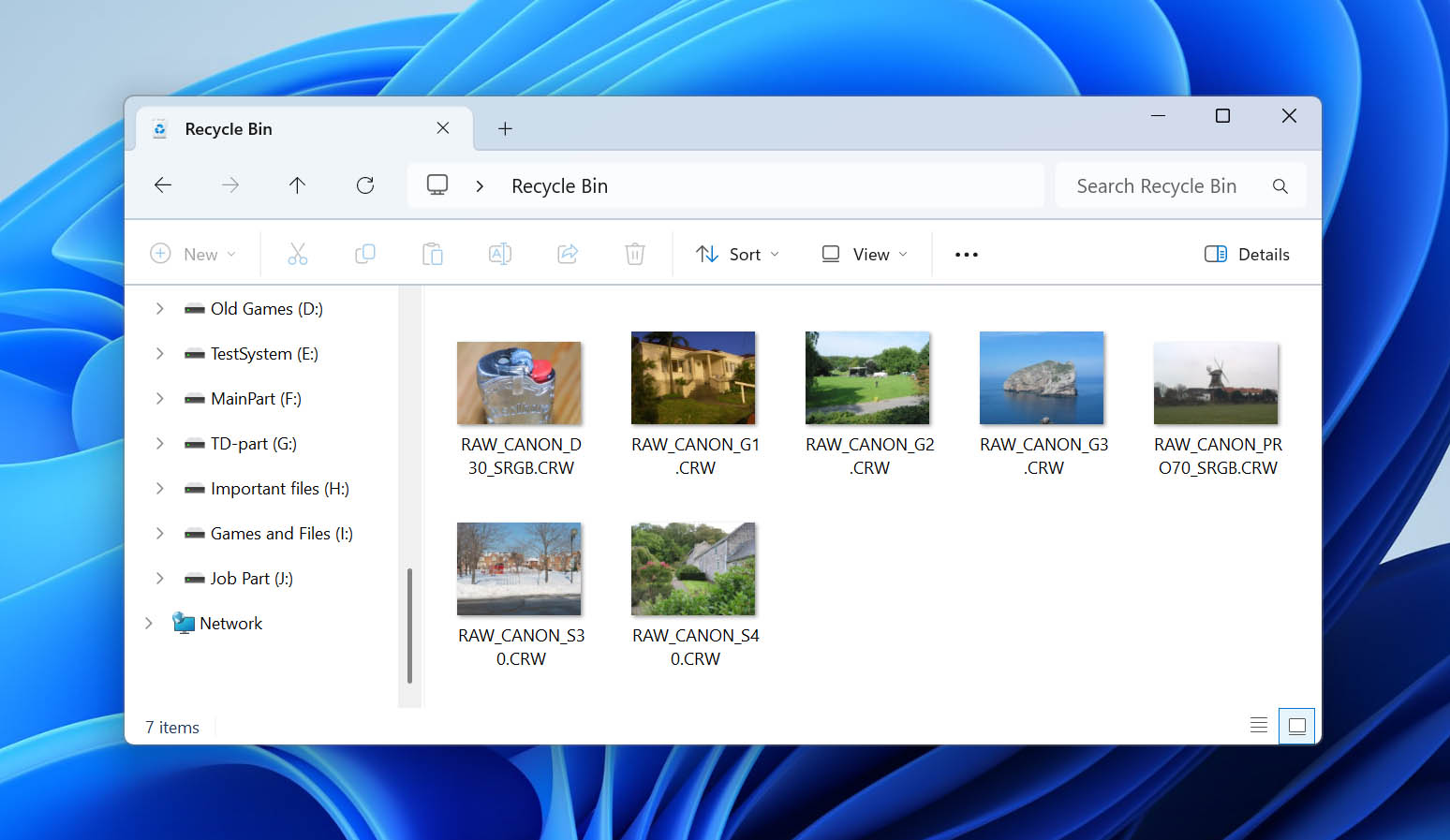
Following these precautions can improve your chances of successful NTFS recovery on Windows 11 and, more importantly, avoid making an otherwise recoverable situation worse.
How to Recover Data from an NTFS Drive Using Data Recovery Software?
Because data deleted from NTFS drives are not really gone until it becomes overwritten, you can use NTFS data recovery software to get it back with a few simple clicks. Well, at least if you choose the right software solution.
Choosing NTFS Data Recovery Software
We’ve had the opportunity to test a couple of dozen different NTFS data recovery software applications, and here are some of the common characteristics shared by those that have impressed us the most:
- 🎯 Usability: The best NTFS data recovery software applications are easy to use and intuitive. They don’t take a lot of time to figure out because all important options are readily available and clearly labeled.
- ⚡ Performance: When recovering lost data from an NTFS drive, you want to get it right on the first try. Leading NTFS data recovery software can recognize and undelete hundreds of different file formats from all kinds of NTFS storage devices—not just traditional spinning hard drives and modern SSDs.
- 🛡️ Reliability: Data recovery is a complicated process, and there are many things that can go wrong. That’s why it’s important to pick NTFS data recovery software that doesn’t crash, potentially causing even more damage. Popular solutions are used by thousands of people worldwide every single day, which is why we recommend them over more obscure alternatives.
- 🧰 Extra features: Most top-rated NTFS data recovery software tools come packed with various extra features, such as data backup capabilities and disk health reporting. These and other extra features can go a long way in helping you avoid data loss in the first place.
- 🎧 Customer support: You should never pay for any NTFS data recovery software application whose developers don’t support their customers by promptly answering their questions, releasing bug fixes, and giving out refunds.
Recovering Deleted Files from a Formatted NTFS Drive with Disk Drill
Disk Drill Data Recovery for Windows is a comprehensive recovery software that meets all of the above-described selection criteria with flying colors, which is why we’ve been using it as our NTFS data recovery software of choice for years now.
Disk Drill can recover files and folders to help you handle the problem of accidentally lost or deleted data. The app can undelete files from an emptied Recycle Bin and restore data if you inadvertently format a hard drive or partition. Disk Drill employs advanced scanning algorithms to perform NTFS recovery on virtually any type of storage media.
Users with general computer knowledge can use Disk Drill to recover their lost data:
- The tool’s intuitive interface enables you to start recovering data with a few clicks.
- You can pause and resume scans at will so you can perform data recovery at your own pace.
- Filters can be used to narrow the search criteria when recovering data to speed up the process as the tool focuses on the data that matters to you.
- Scan results can be mounted as a disk to make file recovery even easier.
In addition to its powerful data recovery capabilities, Disk Drill offers the ability to create a byte-level image of a storage device for use in data recovery. This saves your disk from the additional stress of multiple reads and writes during recovery and can be instrumental in saving data from a failing device.
To recover lost data from a formatted NTFS drive, follow these steps:
- Download and install Disk Drill for Windows. Install it on a different physical drive than the one you want to recover data from.
- Launch Disk Drill and select the NTFS drive that contained your lost files from the list of available storage devices.
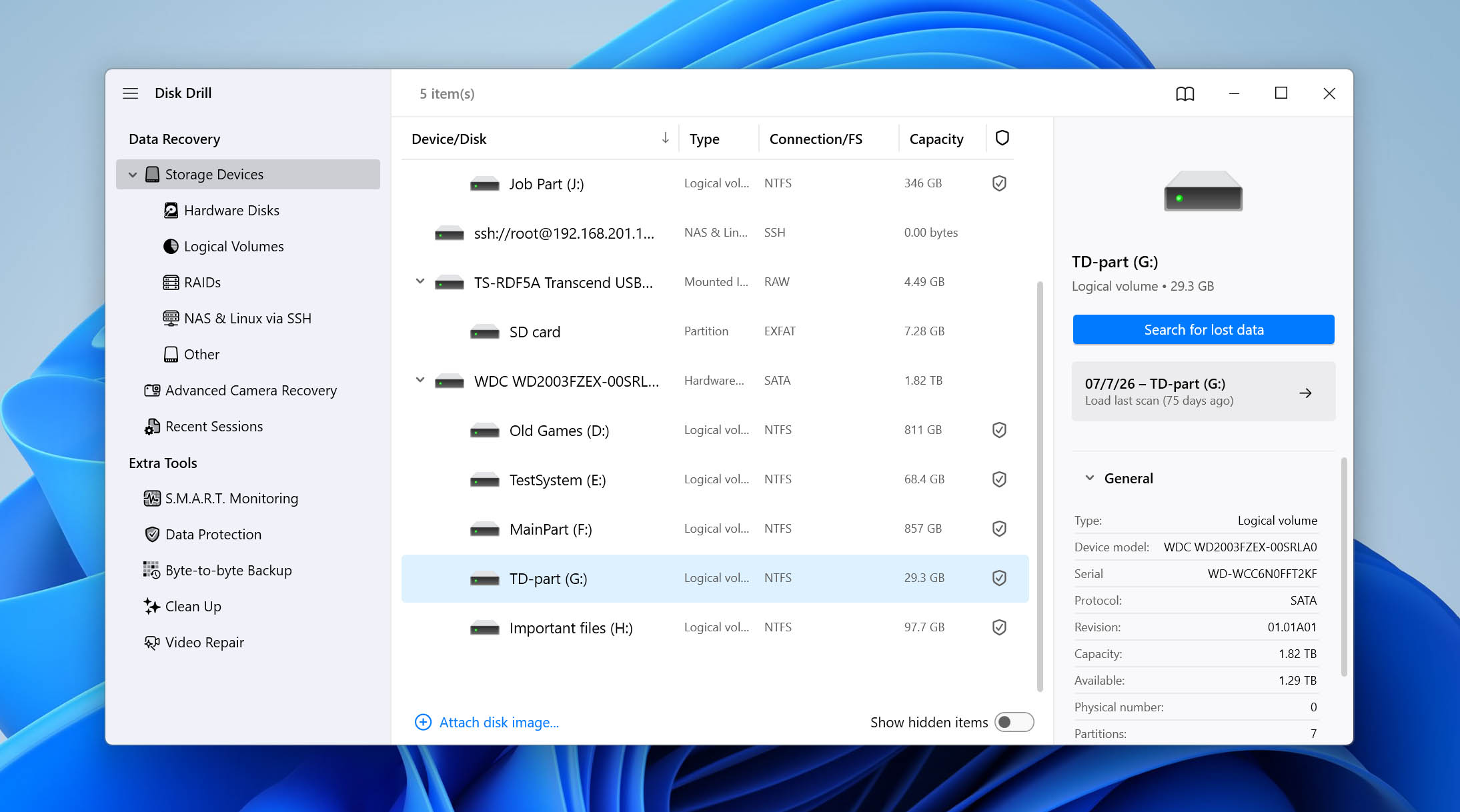
- Click Search for lost data. If you’re scanning an external NTFS drive, Disk Drill may ask you to choose between Universal Scan and Advanced Camera Recovery. Choose Universal Scan for general NTFS data recovery. Advanced Camera Recovery is intended for recovering fragmented video files from cameras and other recording devices.
- Wait for Disk Drill to scan the drive. You can review the results while the scan is still running or wait until it finishes, then click Review found items.
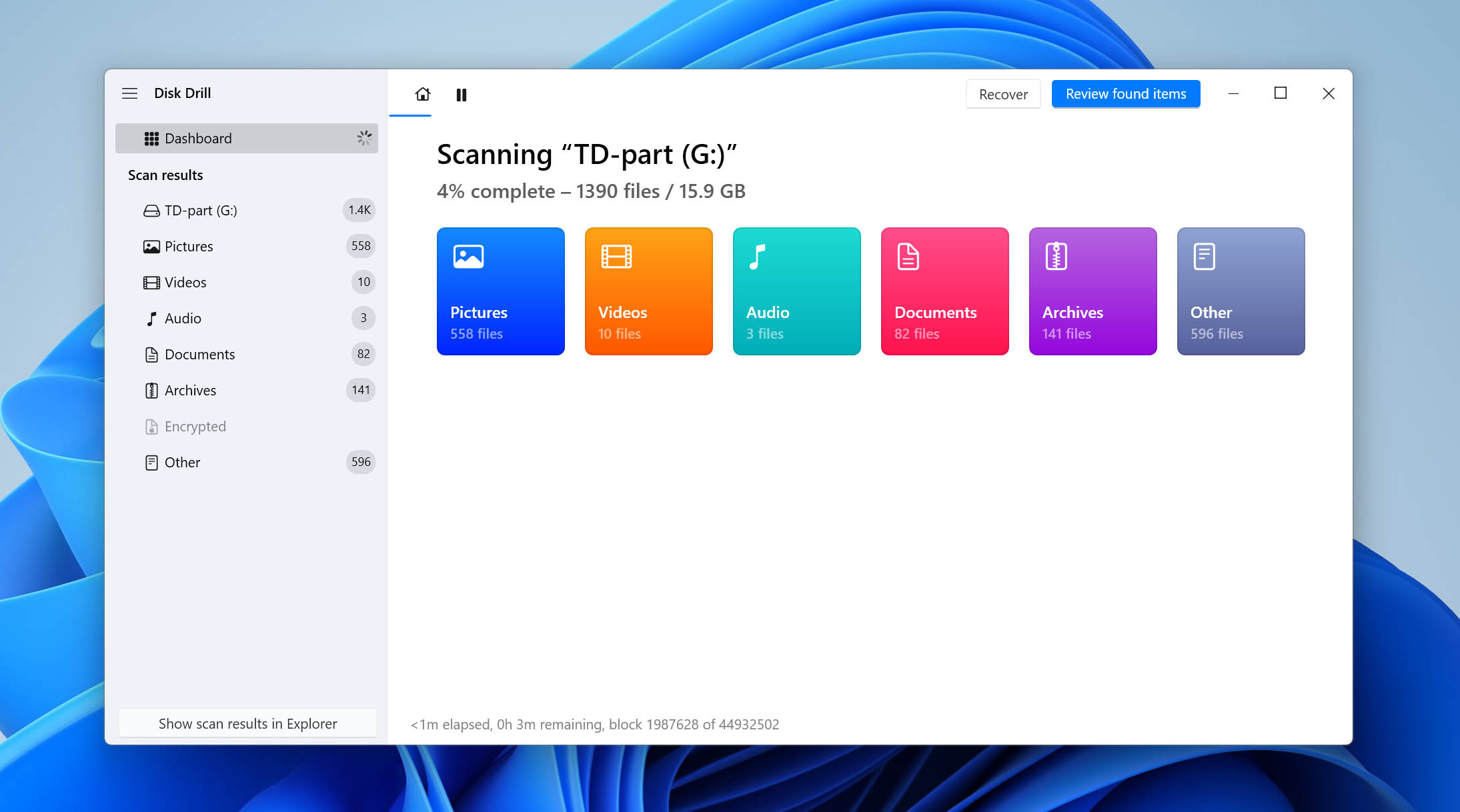
- Browse the scan results and use the available filters to narrow them down. Select a file and use preview to check its contents before recovery.
- Check the boxes next to the files and folders you want to restore, then click Recover.
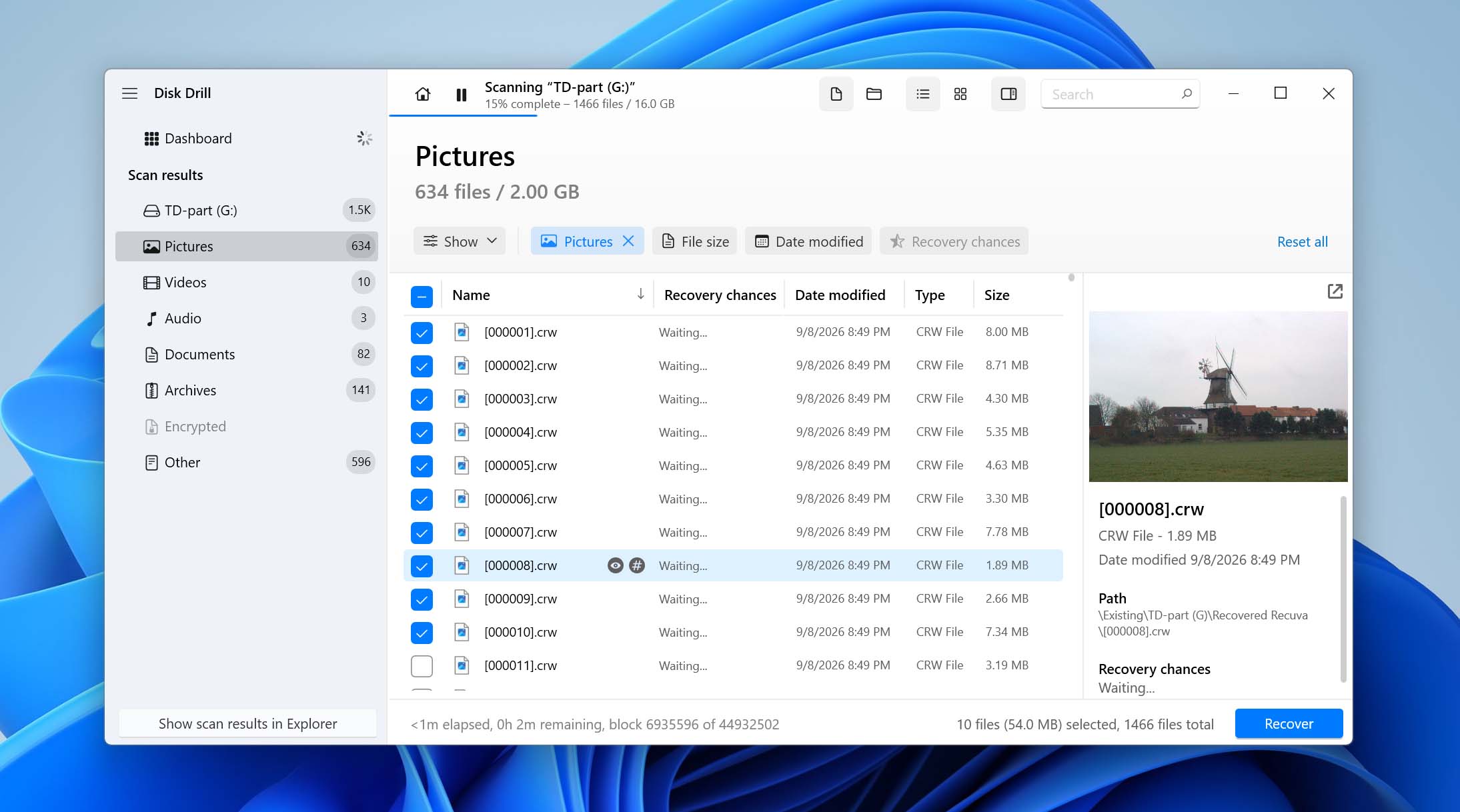
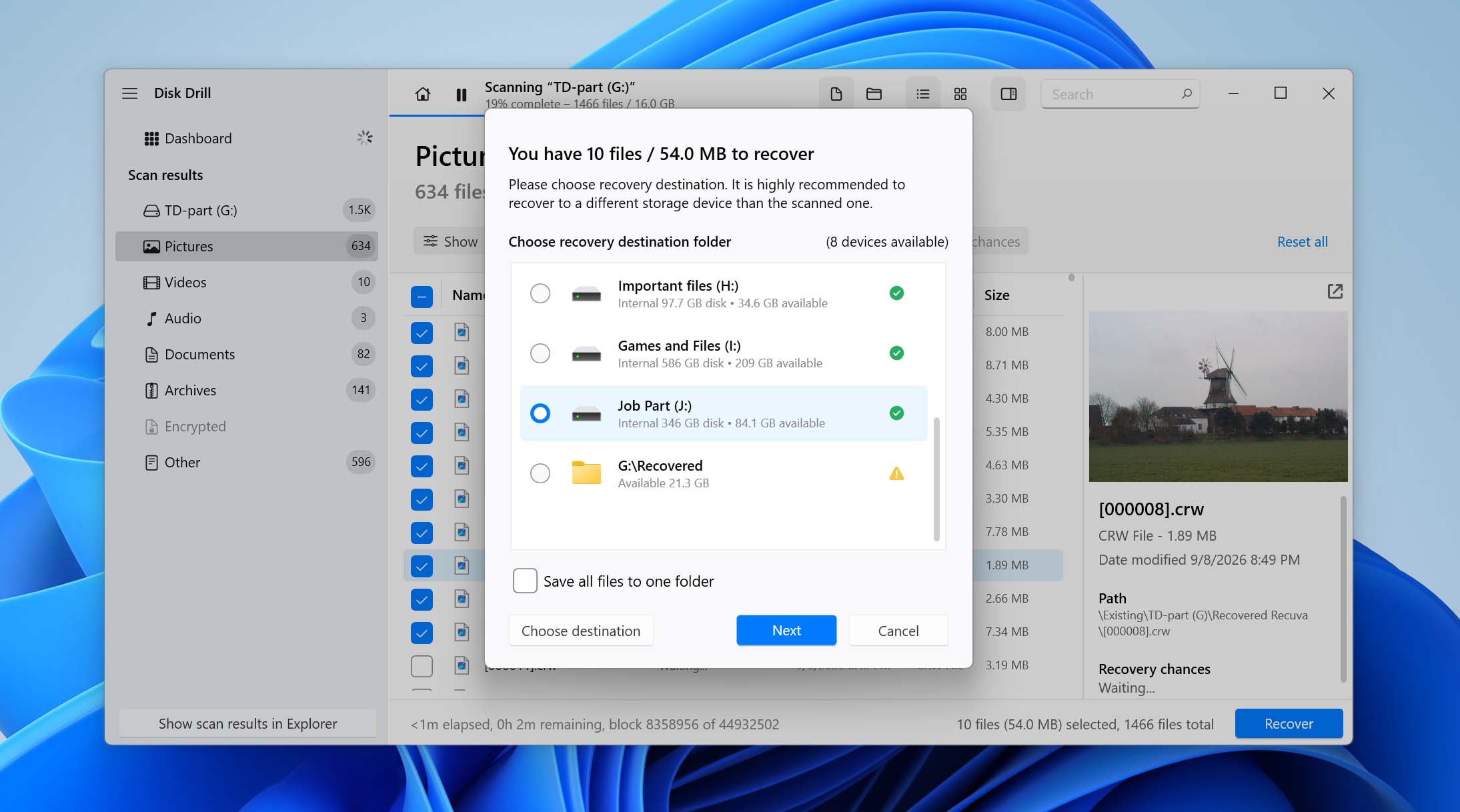
- Choose a recovery destination on a different physical drive and click Next to start the recovery.
In addition to NTFS-formatted drives, Disk Drill can also recover the FAT (FAT12, FAT16, FAT32), exFAT, NTFS, NTFS5, ext2/ext3/ext4, HFS+, and APFS file systems. All hard drive brands are supported, including Western Digital, Seagate, Toshiba, Hitachi, SanDisk, Kingston Technology, Sony, Transcend, and others.
Why should I use NTFS recovery software?
You should use NTFS data recovery software because it offers you the best chance to restore deleted files or repair a damaged file system. While there are some native methods of NTFS recovery built into Windows, they are not as effective as data recovery software in restoring your files and folders. If you have lost data or accidentally deleted files on your Windows machine, you should check out a quality NTFS recovery tool like Disk Drill to get them back.What Other NTFS Undelete Software Is Available?
While Disk Drill is easily our favorite NTFS undelete software, it’s certainly not the only solution that you can use to recover lost files from NTFS-formatted drives. Let’s take a look at three competent alternatives that are also worth taking a closer look at.
1. Recuva
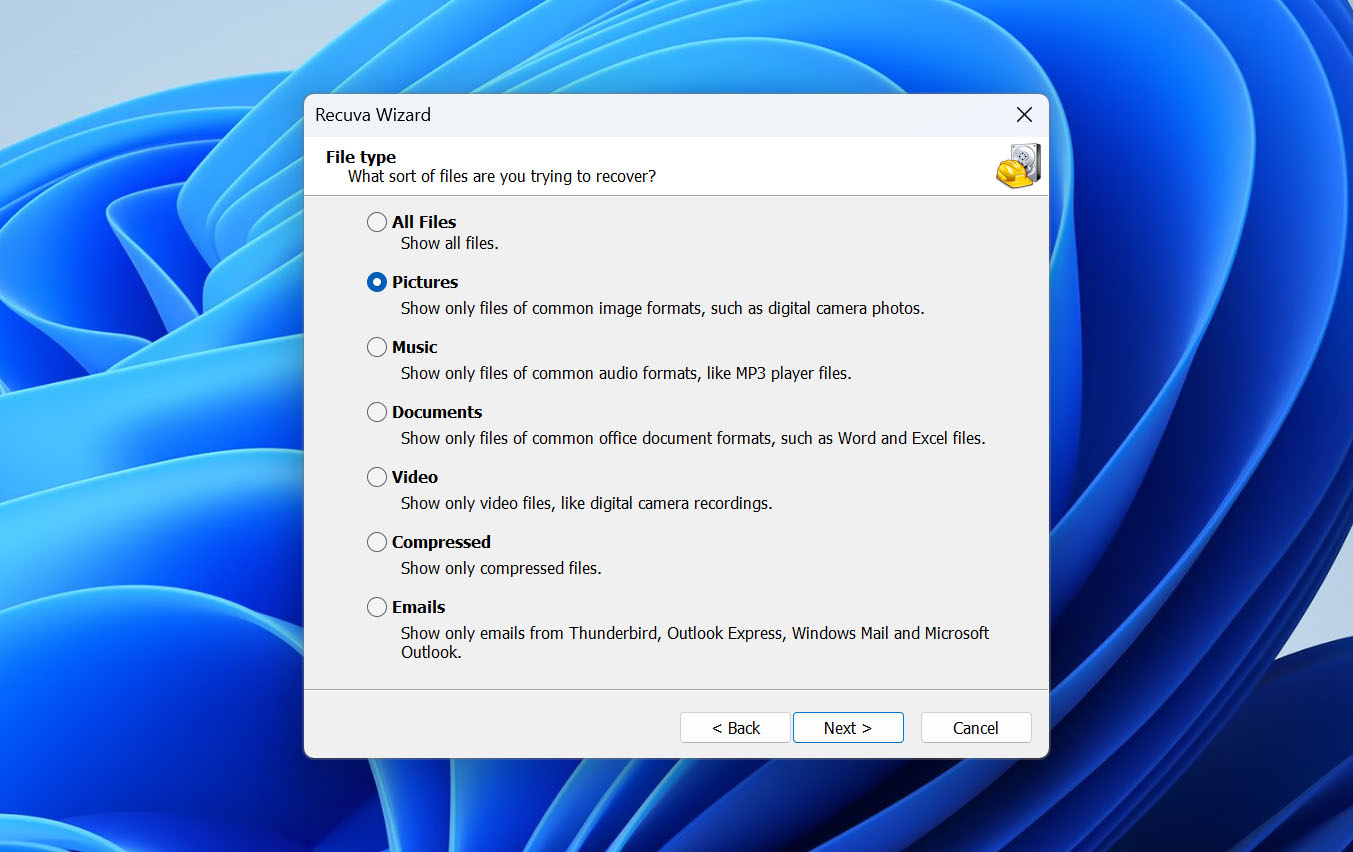
Recuva’s glory days may be over, but that doesn’t change anything about the fact that this NTFS undelete software can reliably fix even the most desperate data loss problems without costing you any money. While its user interface isn’t nearly as modern as Disk Drill’s, we find it to be intuitive and readily grasped even by folks who are less technically inclined than we are.
Because Recuva hasn’t been updated for a while, it doesn’t support all the latest file formats. The good news is that basic image, video, audio, and document file formats can be previewed and recovered without any issues. However, if your NTFS drive is corrupted or has become RAW, Recuva may not be able to scan it at all, which limits its use in more complicated recovery scenarios. Included with Recuva is a secure file shredder that you can use to delete sensitive files in a way that makes it impossible to get them back.
2. TestDisk
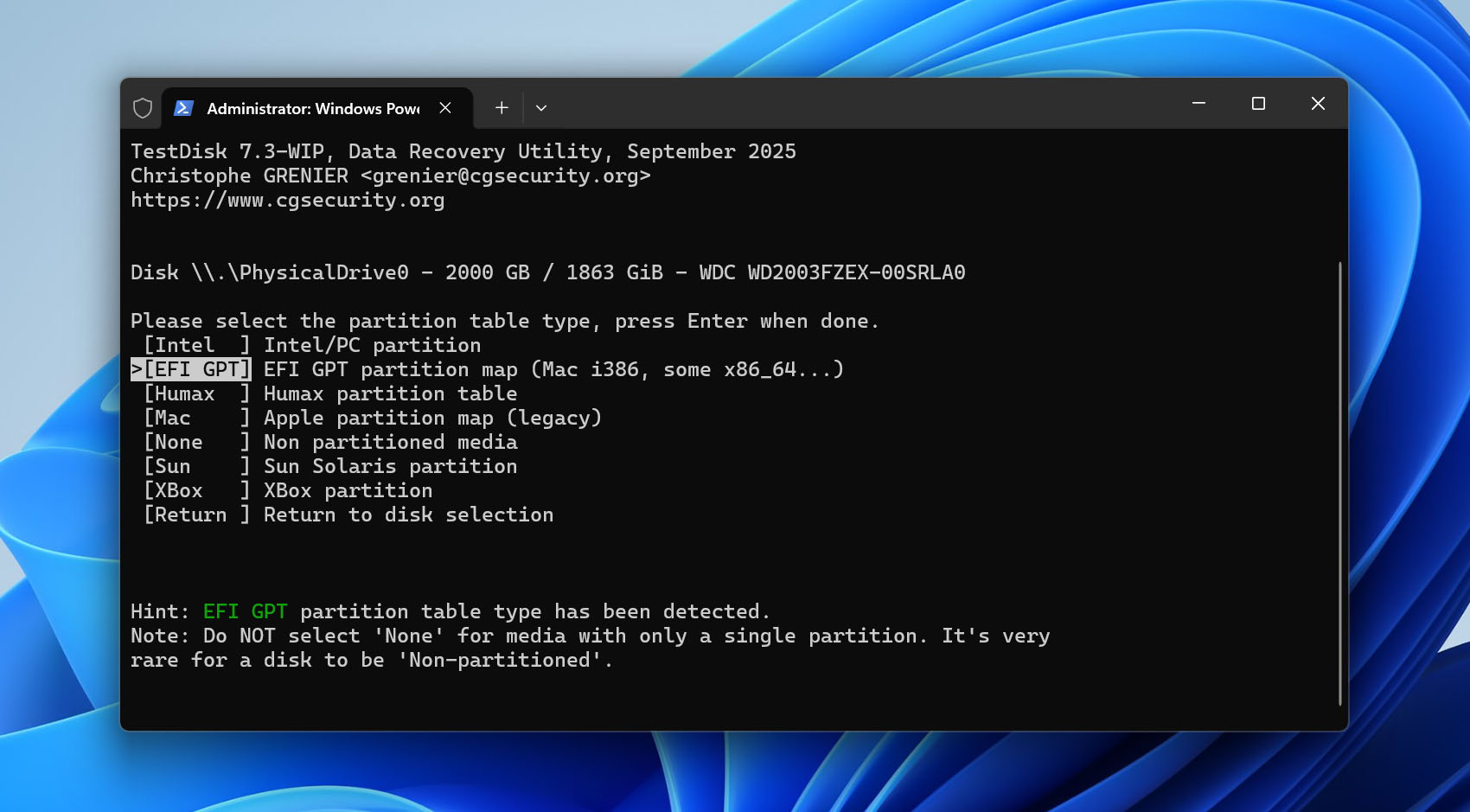
TestDisk is the go-to NTFS recovery software of open-source advocates, allowing you to undelete lost files in just a few steps. Unfortunately, there’s no graphical user interface, so don’t expect to figure everything out just by clicking around on clearly labeled buttons. The official step-by-step guide does a good job of explaining everything, so that’s a good place to start.
Besides performing NTFS data recovery, TestDisk can also recover lost partitions and/or make non-booting disks bootable again when these symptoms are caused by faulty software, certain types of viruses, or human error.
3. Wondershare Recoverit
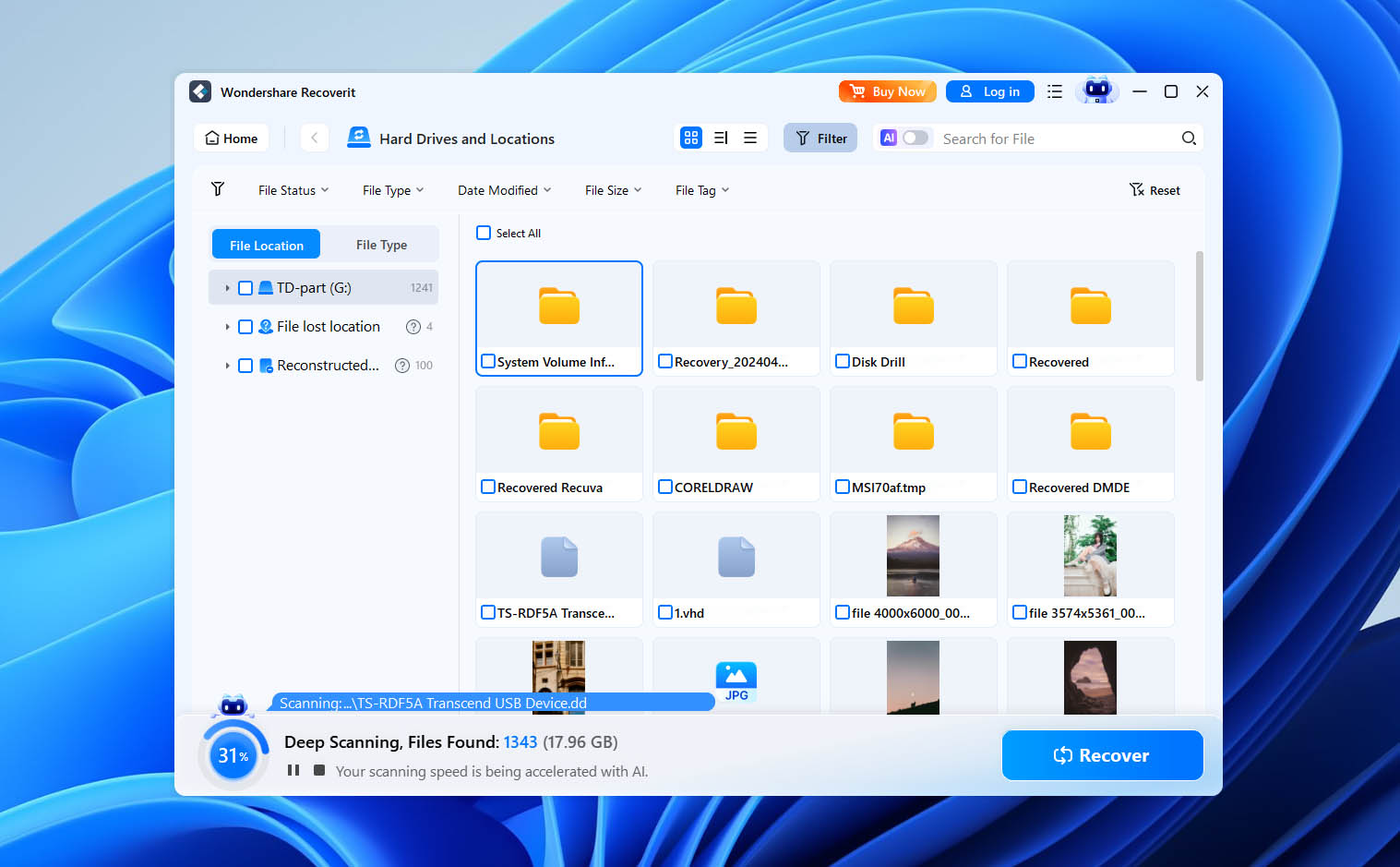
Wondershare Recoverit is an easy-to-use NTFS recovery software tool that stands out with its support for over 1,000 file formats and all commonly used file systems—not just NTFS. Data recovery with Wondershare Recoverit boils down to just three simple steps: First, download and launch the application. Then, scan the drive to restore your files. Finally, preview recoverable files and get them back.
The free version of Wondershare Recoverit can recover only up to 100 MB of data, and certain advanced options, such as the ability to save scans, are missing, but those are just minor downsides.
Alternative Ways to Recover Deleted NTFS Files
Before you scan an NTFS drive with third-party recovery software, it’s worth checking the recovery options already available in Windows. Depending on how the files were deleted and whether you had a backup configured beforehand, you may be able to restore them without scanning the drive at all. Windows also offers its own recovery utility for permanently deleted files.
Method 1: Restore Files From the Recycle Bin
The Recycle Bin should be the first place you check if you deleted files from an NTFS drive in the usual way. In this case, Windows typically moves the files to the Recycle Bin instead of immediately marking their original storage space as available for reuse. This makes recovery quick and doesn’t require a scan of the drive.
To restore deleted files from the Recycle Bin:
- Open the Recycle Bin from your desktop.
- Find the deleted file or folder you want to recover.
- Right-click the item and select Restore.
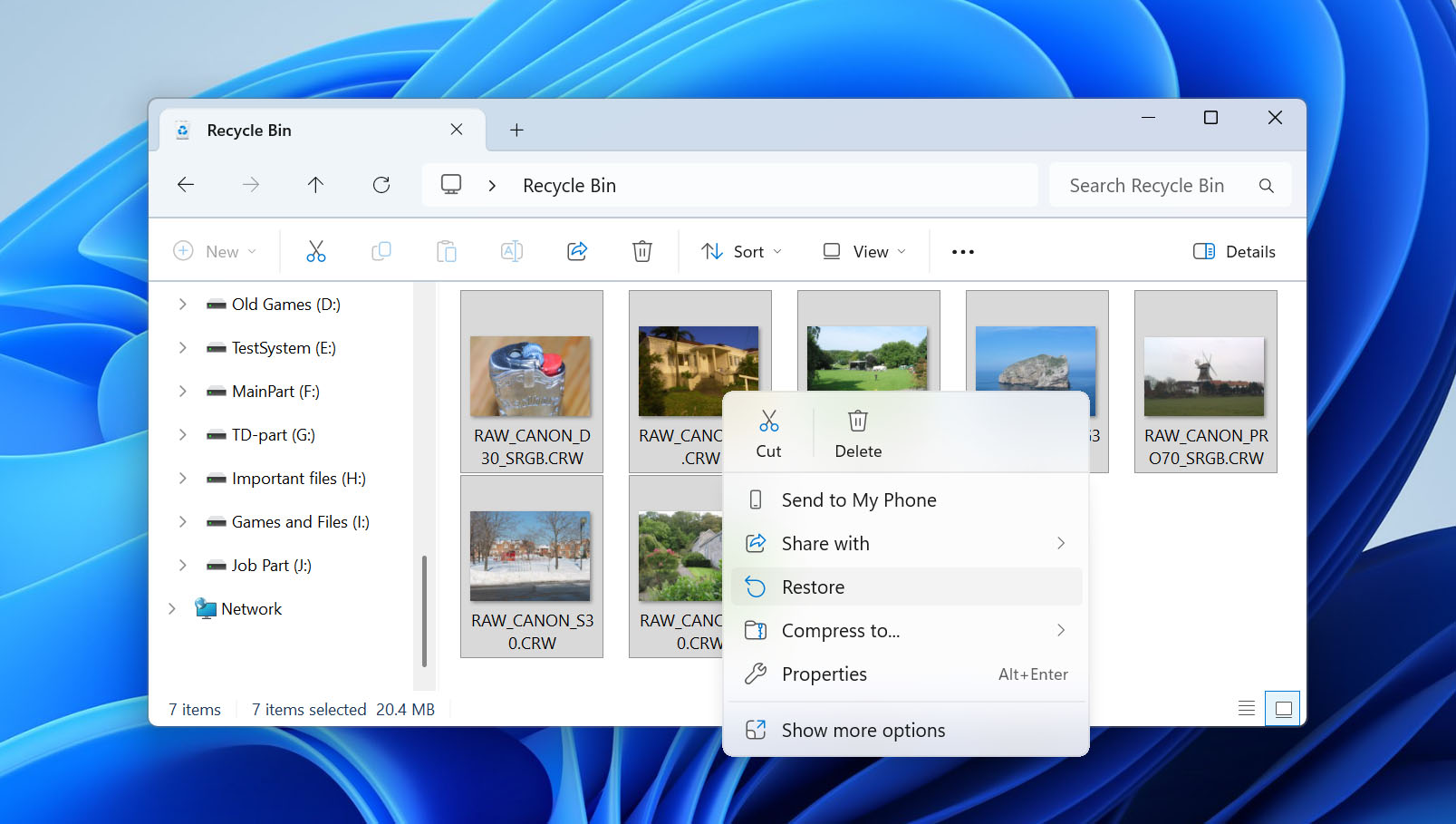
- Windows will move the file or folder back to its original location.
Method 2: Restore Deleted Files Using File History or Previous Versions
File History gives you another way to recover deleted NTFS files without scanning the drive, but there’s one important requirement: a suitable backup must have been created before the files were deleted. File History doesn’t search the NTFS file system for deleted data. Instead, it restores copies that Windows previously saved.
If File History was configured on your computer, you can check for an earlier version of the folder that contained the deleted files:
- Open File Explorer and navigate to the folder where the deleted file was previously stored.
- Right-click the folder and select Restore previous versions.
- Look for a version created before the file was deleted.
- Open the available version, when possible, and check whether it contains the file you need.
- Select Restore to restore it to its original location. Alternatively, use Restore to… if you want to save it somewhere else.
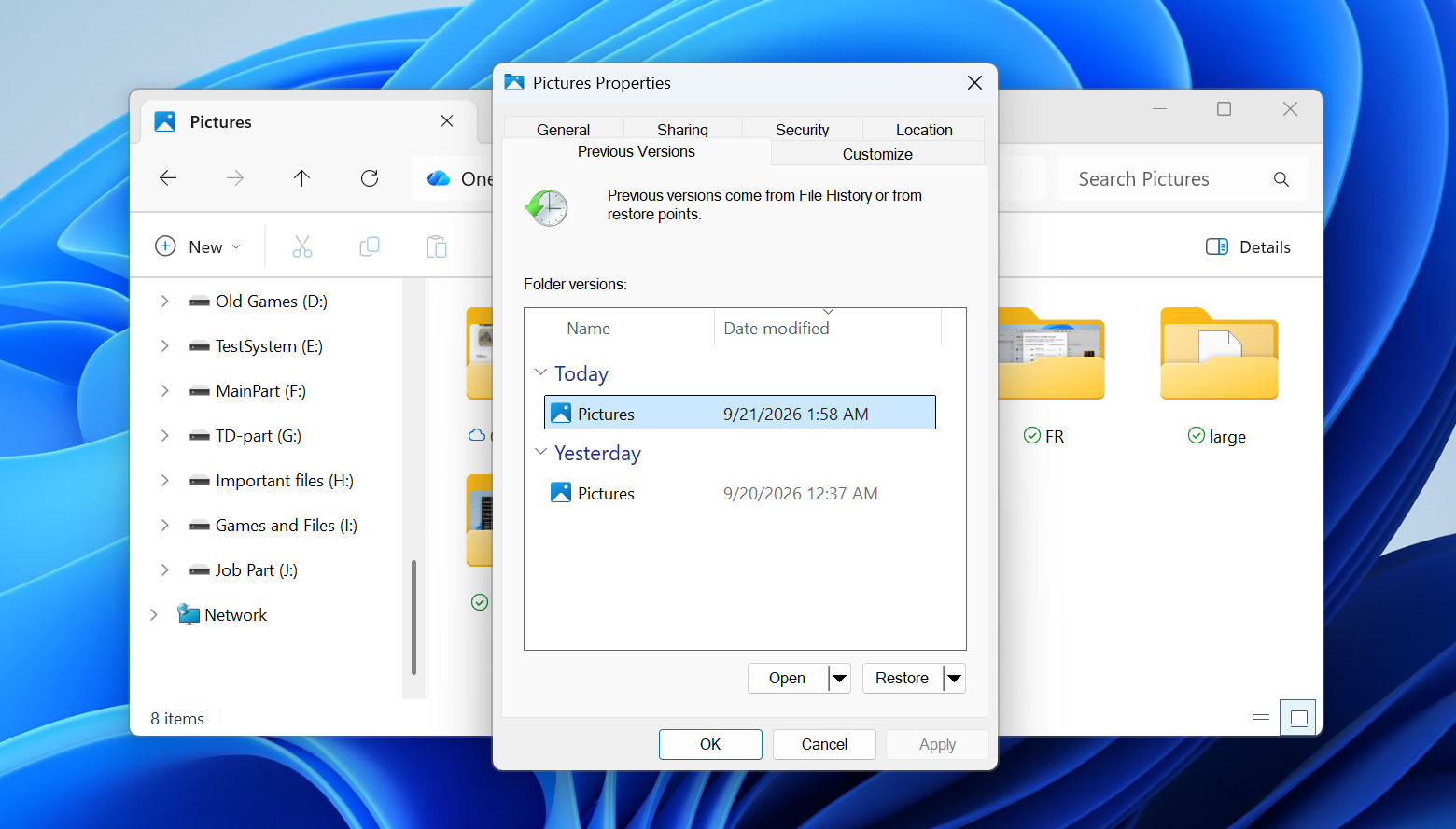
If no suitable previous version is available, this method won’t be able to reconstruct the deleted file from the NTFS drive. You’ll need an actual data recovery tool instead.
Method 3: Recover NTFS Files With Windows File Recovery
If the files have been permanently deleted and no backup is available, another option is Windows File Recovery. This is Microsoft’s free command-line data recovery utility for Windows. Unlike the Recycle Bin and File History, it can scan an NTFS volume for data that has already been deleted.
Windows File Recovery has two main recovery modes for NTFS. The mode you should choose depends on the condition of the file system and how recently the files were deleted:
| NTFS Situation | Recommended Mode |
| Recently deleted file on healthy NTFS volume | Regular |
| File deleted some time ago | Extensive |
| Formatted NTFS volume | Extensive |
| Corrupted NTFS volume | Extensive |
To recover deleted NTFS files with Windows File Recovery:
- Download Windows File Recovery from the Microsoft Store and install it on your computer.
- Connect a second drive that you can use as the recovery destination. The source and destination must be different drives. For example, if you’re recovering files from C:, you can save them to an external drive assigned the letter E:.
- Open Windows File Recovery. If Windows displays a User Account Control prompt, click Yes to allow the application to run with administrator privileges.
- Enter a recovery command based on the files you need and their original location. For example, to recover recently deleted files from the Documents folder on C:, use: winfr C: E: /regular /n \Users\<username>\Documents\. Here, C: is the source drive, E: is the recovery destination, /regular selects Regular mode for recently deleted files on a healthy NTFS volume, and /n specifies what Windows File Recovery should search for.
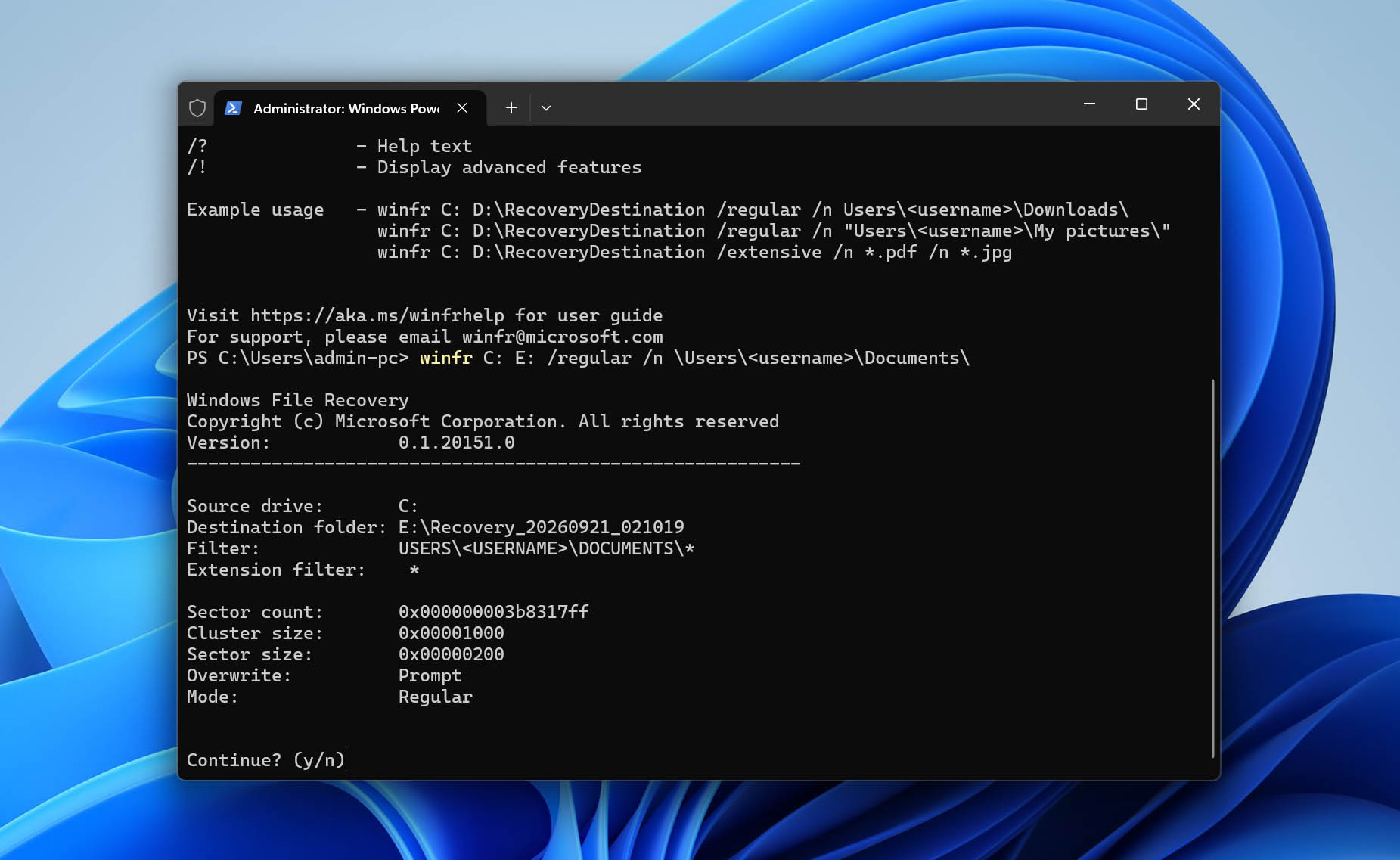
- If you’re looking for specific file types rather than everything in one folder, add /n filters for each extension. For example, the following command searches for DOCX and PDF files: winfr C: E: /regular /n *.docx /n *.pdf.
- Press Enter to run the command and confirm the recovery when prompted. Windows File Recovery will scan the source drive and save the files it finds to a Recovery_<date and time> folder on the destination drive.
- If Regular mode doesn’t find the files you need, run the recovery again using Extensive mode. You should also start with this mode if the files were deleted some time ago or the NTFS volume was formatted or corrupted: winfr C: E: /extensive /n *.docx.
- When the recovery finishes, open the Recovery_<date and time> folder on the destination drive and check the recovered files.
How to Avoid NTFS Data Loss?
NTFS data loss can occur for a variety of reasons. Fortunately, there are measures that you can take to minimize the chances that you will permanently lose data if your hard drive is subjected to a situation that results in data loss. Here are some tactics to consider if you value your data and want to keep it safe.
1. Back Up Your Data
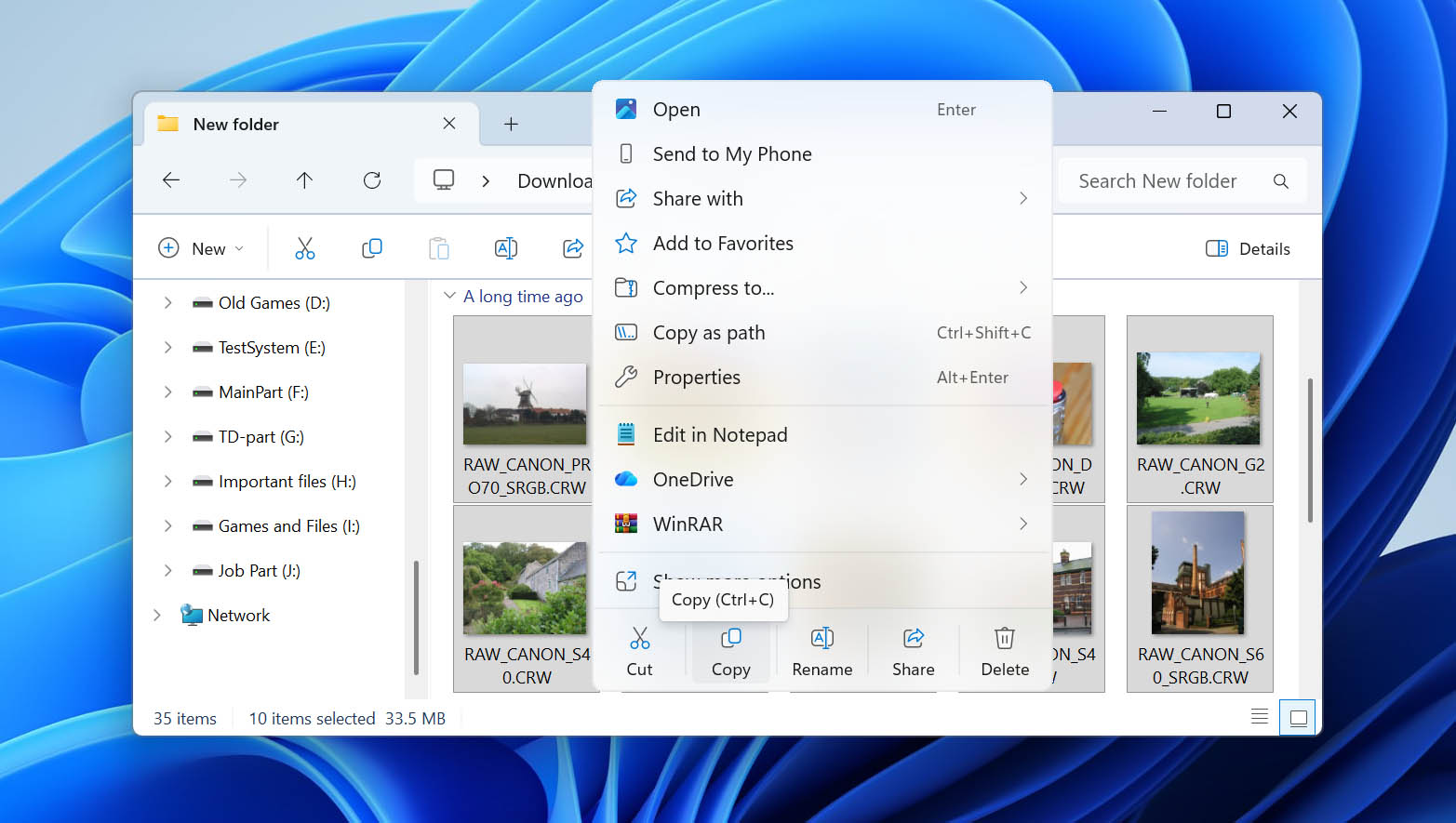
The first and most effective method you can use to protect your data is to make backups of your computer’s hard drives and storage devices. This has to be a regular practice to achieve the desired results. A schedule should be set up based on the importance of the data and the frequency with which it changes.
You can back up your machine in a number of ways. One way is to use the native Windows Backup and Restore feature to protect your data. Third-party backup solutions and the cloud are other options to evaluate. Whichever method you choose to employ, backing up your data regularly is the key to securing your information.
2. Protect Yourself Against Viruses
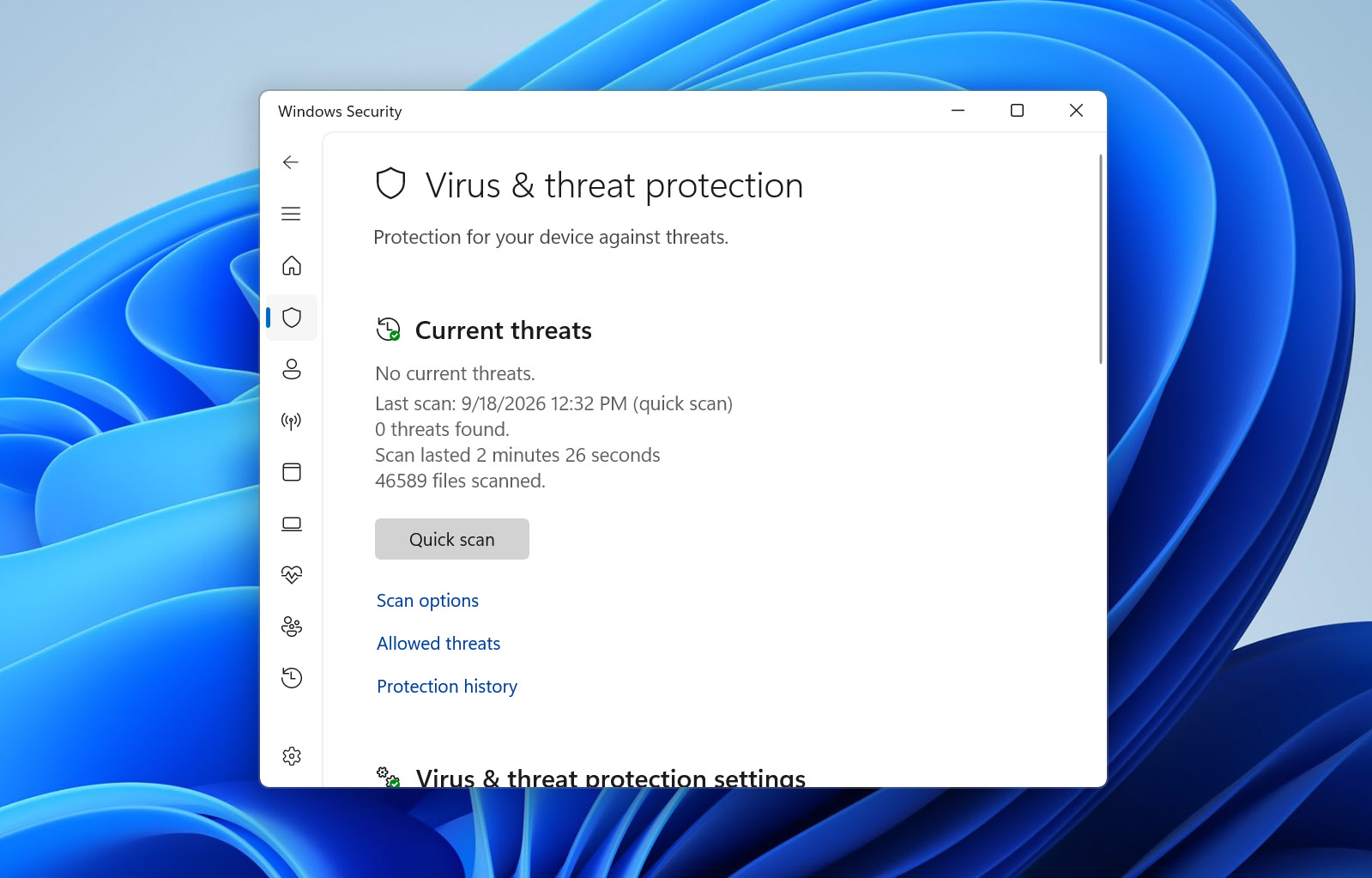
Use a quality security tool that minimizes the potential that your machine will become infected with a virus or malware. These types of rogue programs often wreak havoc on your system and deleting data is a possibility. Keeping your system free of unwanted guests is vital to your data protection efforts.
If you’re using the latest version of Windows, you already have a reliable anti-malware software application present on your computer, Microsoft Defender. Many independent tests have confirmed that Microsoft Defender is among the most effective security tools available, so just make sure to keep it enabled.
3. Take Care of Your Computer
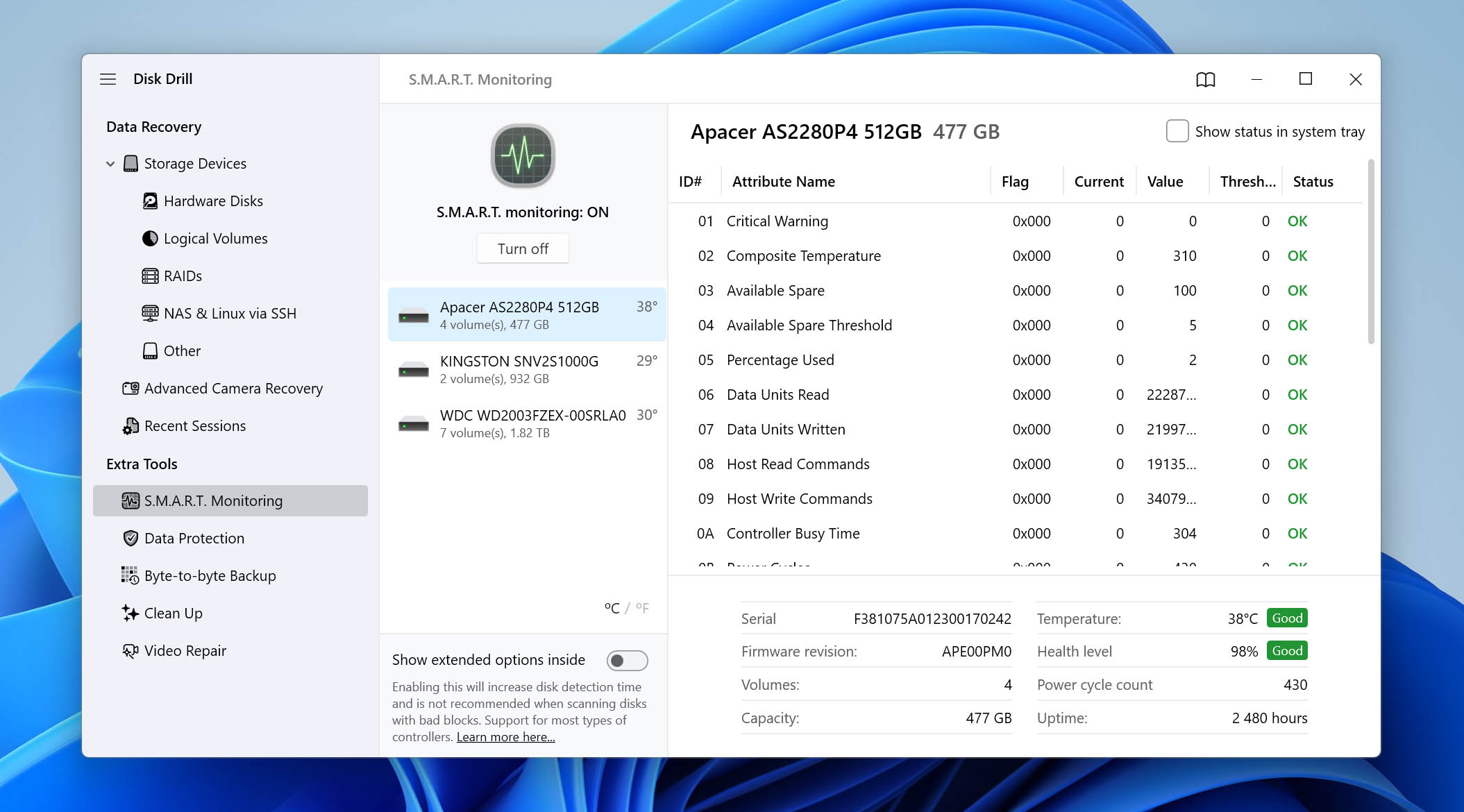
Don’t ignore symptoms that may indicate a storage device is experiencing problems. Strange noises and missing or corrupt files may be the first signs that your drive might fail. Back up the data and get it off the disk before disaster strikes.
Better yet, proactively monitor the health of your storage devices using a disk health monitoring tool capable of reading S.M.A.R.T. (Self-Monitoring, Analysis and Reporting Technology) information. One such tool is included for free with Disk Drill.
Did You Know?
There are 14 different types of permissions in NTFS. They determine the functionality granted to a user reading certain files and folders on the system. Permissions are grouped to make them easier to assign to users. When you grant a user basic full control, in reality, you are giving them access to all 14 permissions. You can assign individual permissions to exert more granular control over data access if you need that capability.
Frequently Asked Questions
What is the difference between NTFS and FAT32 file systems?
The FAT32 system was replaced by Microsoft with the NTFS file system. Major differences between the two file systems include the file and volume size which are greatly increased in NTFS. The NTFS file system also provides extended file attributes and the ability to encrypt your data.
Can I Recover Files From an NTFS Drive With a Corrupted MFT?
Yes, recovery may still be possible even if the Master File Table (MFT) is corrupted. The MFT contains essential information NTFS uses to identify and locate files. If parts of it are still intact, data recovery software may be able to reconstruct filenames, folder paths, timestamps, and other metadata.
If individual MFT records are no longer available, recovery software can still search for known file signatures and recover file contents directly. However, files recovered this way may lose their original names and folder structure. Keep in mind that $MFTMirr is not a complete backup of the MFT and can’t simply be used to restore all missing records.
If the data is important, recover the files or create a byte-to-byte image before attempting any write-based repairs. CHKDSK, for example, can repair NTFS file-system structures, but it is not an undelete tool and should not be treated as a data recovery method.
Is it possible to retrieve data from a damaged NTFS partition?
Yes, but the recovery approach depends on whether the NTFS partition has logical or physical damage. Logical damage includes a corrupted boot sector or MFT, a lost partition, a RAW volume, or an accidental format. In these cases, data recovery software may still be able to scan the drive and recover files even when Windows can no longer access the partition normally.
Physical damage is different. A clicking HDD, repeated disconnects, I/O errors, incorrect capacity, or severe read instability can indicate a problem with the storage device itself. Repeated scans may put additional stress on an unstable drive, so create a byte-to-byte image first if it can be done safely and recover the data from the image. If imaging isn’t possible, consider professional data recovery instead.
In either case, recover important files before formatting the volume, attempting repairs, or recreating the lost partition.
What happens when you delete a file from an NTFS drive?
When you permanently delete a file from an NTFS drive, the relevant MFT record is marked as available for reuse, and the clusters occupied by the file can be allocated to new data. On an HDD, the old contents may remain in those clusters until they are overwritten, which gives recovery software a chance to retrieve them.
The situation is different with SSDs. NTFS can send TRIM/delete notifications to supported SSDs, after which the freed blocks may become inaccessible to recovery software. For this reason, your best chance of recovery is before significant new data is written to the drive.
Can you recover Shift-Deleted files from NTFS?
Yes, potentially. Shift + Delete bypasses the Recycle Bin, but it doesn’t necessarily mean that the file’s metadata and contents disappear from the drive immediately.
On an NTFS HDD, recovery may remain possible until the corresponding data is overwritten. On an SSD, TRIM can sharply reduce the chances of recovering a permanently deleted file. In either case, minimize writes to the affected drive and save any recovered files to a different physical drive.
Can I recover deleted NTFS files from an SSD?
Sometimes, but recovery from an SSD is less predictable than recovery from an HDD. NTFS can issue TRIM/delete notifications when the SSD supports them, allowing the device to process blocks that are no longer in use. Once the SSD stops returning the old contents of those blocks, recovery software can’t reconstruct the deleted files from them.
There is no universal recovery window for deleted SSD data. If you need to recover files, stop unnecessary use of the SSD as soon as you notice the deletion and check your available backups first.
Can I recover NTFS files without recovery software?
Yes, depending on how the files were lost. If they haven’t been permanently deleted, you may be able to restore them directly from the Recycle Bin. File History can also restore an earlier copy if a suitable backup existed before the deletion.
For permanently deleted files, you can try free tools such as Windows File Recovery, TestDisk, or Recuva. Disk Drill also lets you scan the drive and preview recoverable files for free, with up to 100 MB of free recovery on Windows. Keep in mind that these tools differ significantly in their recovery capabilities, supported scenarios, and ease of use.
Can I recover original NTFS file names and folder paths?
Often, yes, as long as the relevant MFT records are still available. Metadata-based recovery can preserve information such as the original filename, folder path, timestamps, and file size along with the file contents.
If the corresponding MFT record has already been overwritten, recovery software may still find the file based on its signature. In this case, the contents may be recoverable, but the original filename and folder structure will usually be unavailable.
Conclusion
NTFS is the default file system of Windows computers, which is one reason why so many people are looking for effective NTFS data recovery solutions. If you’re among them, then we hope this article has been able to answer your questions by showing you how to recover lost files using Disk Drill, our favorite NTFS data recovery software currently available.

- 32 publishings
- Atlanta, GA
Jeff Cochin is a data management and recovery professional, who has been with Pandora Data Recovery Mentor for nine years and has always been an essential part of the team. Jeff also works as a technical writer at Macgasm, being a first hand in testing, trying and writing about big and small tech software.
- Houston, Texas, United States
Nikolay Lankevich has over 15 years of strong experience in various fields and platform includes Disaster Recovery, Windows XP/7. System analysis, design, application (Inter/Intranet) development, and testing. Provided technical supports on desktop and laptops on Win-XP and Macintosh for about 2000 employees.