
How to Unformat a Hard Drive on Windows and Recover Your Data


Did you format a drive, only to realize it was the wrong one? Maybe Windows asked you to format an inaccessible drive and you accepted, or you reformatted a partition during Windows installation or in Disk Management. Whatever happened, stop using the drive. Don’t format it again, create partitions, copy new files to it, or install recovery software on it.
You can’t literally unformat a drive and restore its old file system. Instead, the goal is to recover as much of the previous data as possible. Your recovery chances depend mainly on how the HDD was formatted and whether its previous data has since been overwritten.
We’ll show you what to do first and how to recover your files with several different methods.
Can You Really Unformat a Hard Drive on Windows?
You can’t literally reverse a format and return a hard drive to its exact previous state with an “unformat” command. What you can do is recover data that remains on the drive.
Here’s what the most common scenarios look like:
| Senario | Recovery Chances | What to Do |
|---|---|---|
| Quick-formatted HDD with little or no use afterward | Medium–High | Stop using the drive and scan it or create a disk image |
| Quick-formatted HDD with substantial new data written | Medium–Low | Stop all writes and recover what remains |
| Quick format to the same file system | Medium | Use software with file-system and signature scanning |
| Quick format to a different file system | Medium | Scan the entire drive for previous partitions, metadata, and files |
| Completed Windows full format | Impossible | Check your backups rather than rely on software recovery |
| Full format stopped before completion | Low / Partial | Stop using the drive and scan or image it |
| Formatted BitLocker volume | Impossible | Keep the recovery key and consider professional evaluation |
Hard Drive Format on External vs Internal Drives
Recovery works a little differently depending on whether you formatted an external HDD, another internal drive, or your C: drive:
- External HDD: Disconnect it until you’re ready to recover the data. Connect it only to create a disk image, scan it, or recover files, and never save recovered files back to the same drive.
- Internal non-system HDD: If Windows boots from another physical disk, the formatted HDD can normally stay installed. Don’t write files or install applications on it. Install recovery software on the unaffected system drive and save recovered files elsewhere.
- Internal system drive (C:): If you actually formatted C:, the previous Windows installation will no longer boot. Don’t reinstall Windows before recovery, as this can overwrite recoverable data. Instead, connect the drive as a secondary disk to another computer or boot from a separate Windows/recovery environment. Recover your files to another physical drive.
How to Recover Data From a Formatted Hard Drive on Windows
If you don’t have a usable backup, data recovery software can scan the formatted hard drive for data that survived the format. The better recovery tools combine several approaches, such as file-system reconstruction, lost-partition detection, and signature-based scanning. How much they can recover depends on what information remains on the drive, so no application can guarantee recovery.
We recommend trying the following options:
Method 1: Disk Drill (Top-Rated and Easy to Use)
Disk Drill is one of the best options for data recovery, especially when you need to unformat a hard drive. It can scan formatted drives and partitions, use surviving file-system metadata, or reconstruct files by signature when that metadata is gone. Its signature scan recognizes nearly 400 file formats.
It supports FAT16/FAT32, exFAT, NTFS/NTFS5, ReFS, HFS/HFS+, APFS, EXT2/3/4, BTRFS, and RAW storage. It can also create and scan disk images, which we recommend if the drive showed signs of instability before the format.
Here’s how to unformat a hard drive with Disk Drill:
- Download and install Disk Drill on a drive separate from the one that was formatted. If your system drive is the one to be unformatted, remove it from its system and connect it to another computer as an external storage device.
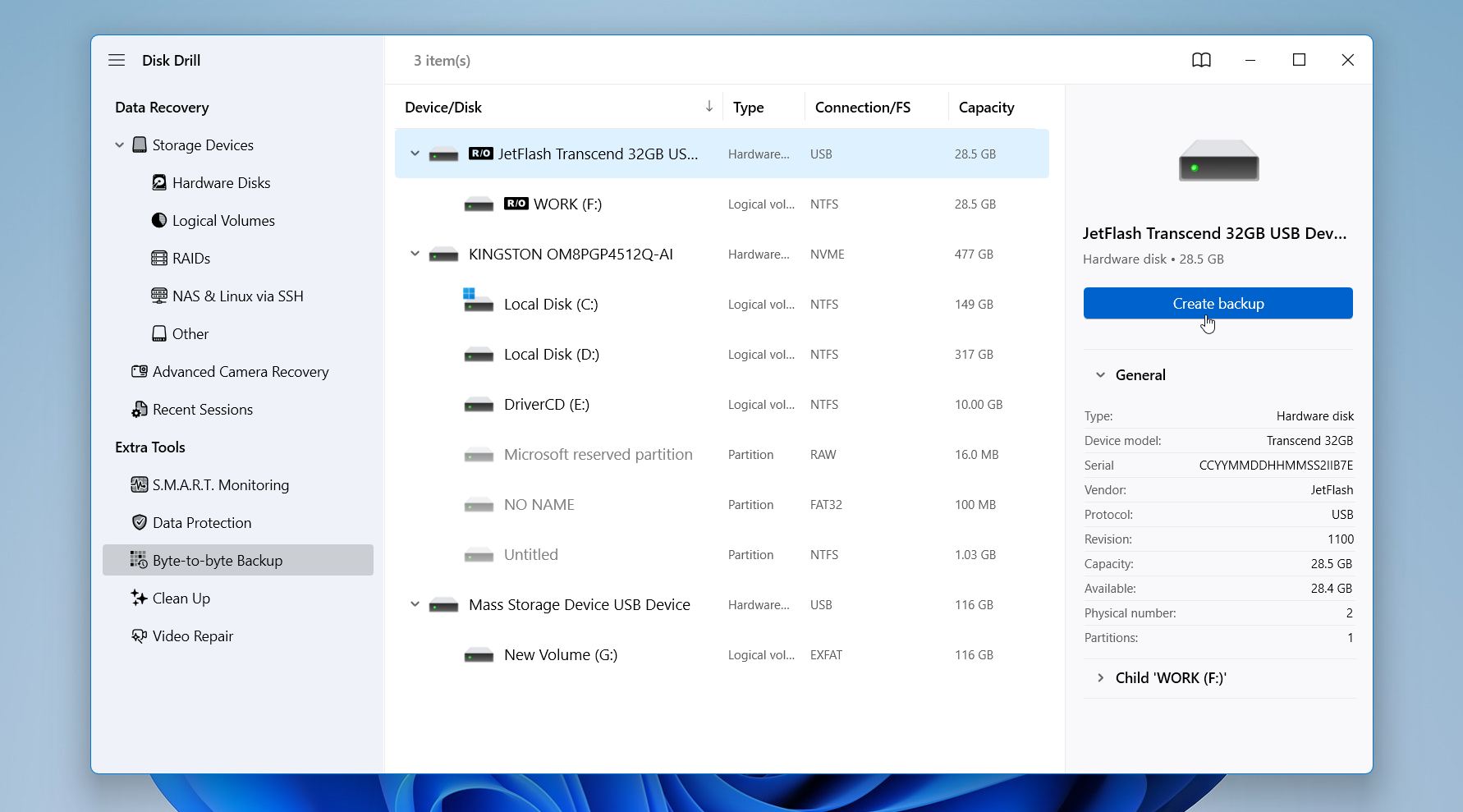
- (Optional) Open Disk Drill and select Byte-to-byte Backup from the left sidebar.
- (Optional) Select the formatted hard drive from the list and click Create backup.
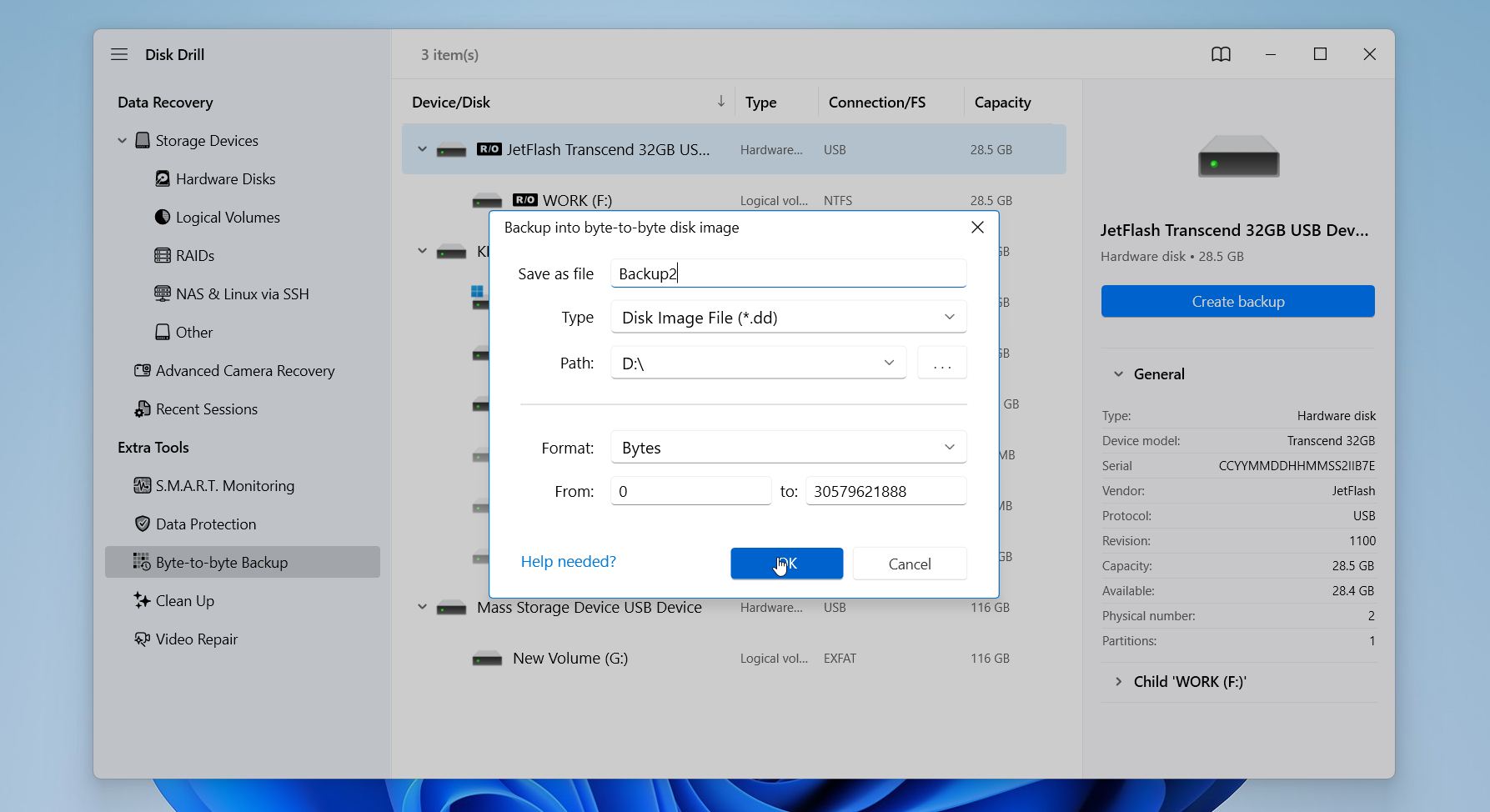
- (Optional) Choose a location on a different physical drive with enough free space to store the disk image. Wait for Disk Drill to finish creating the image. You can then scan this image instead of the original formatted drive.
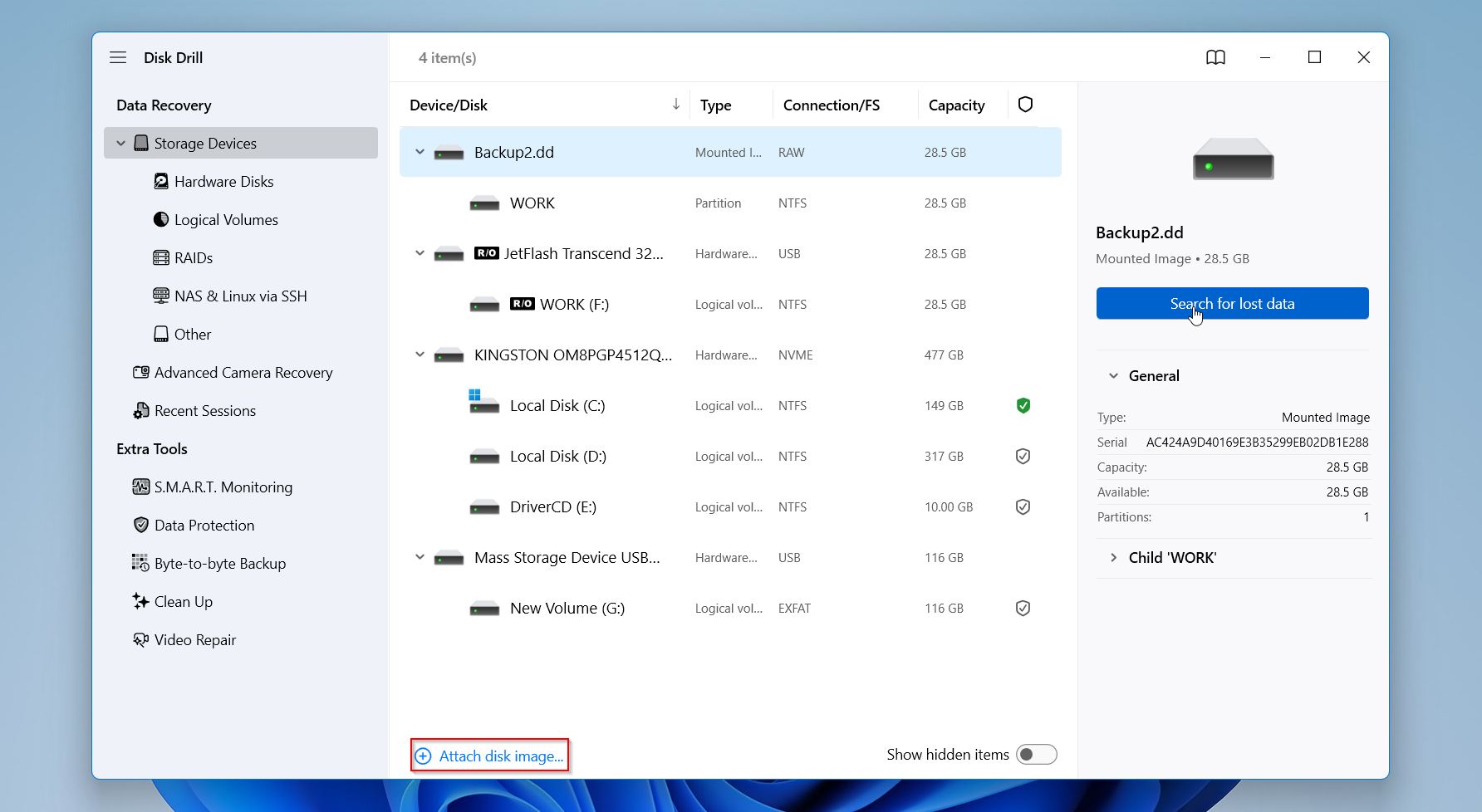
- Attach the created disk image or select the formatted drive. Click Search for lost data.
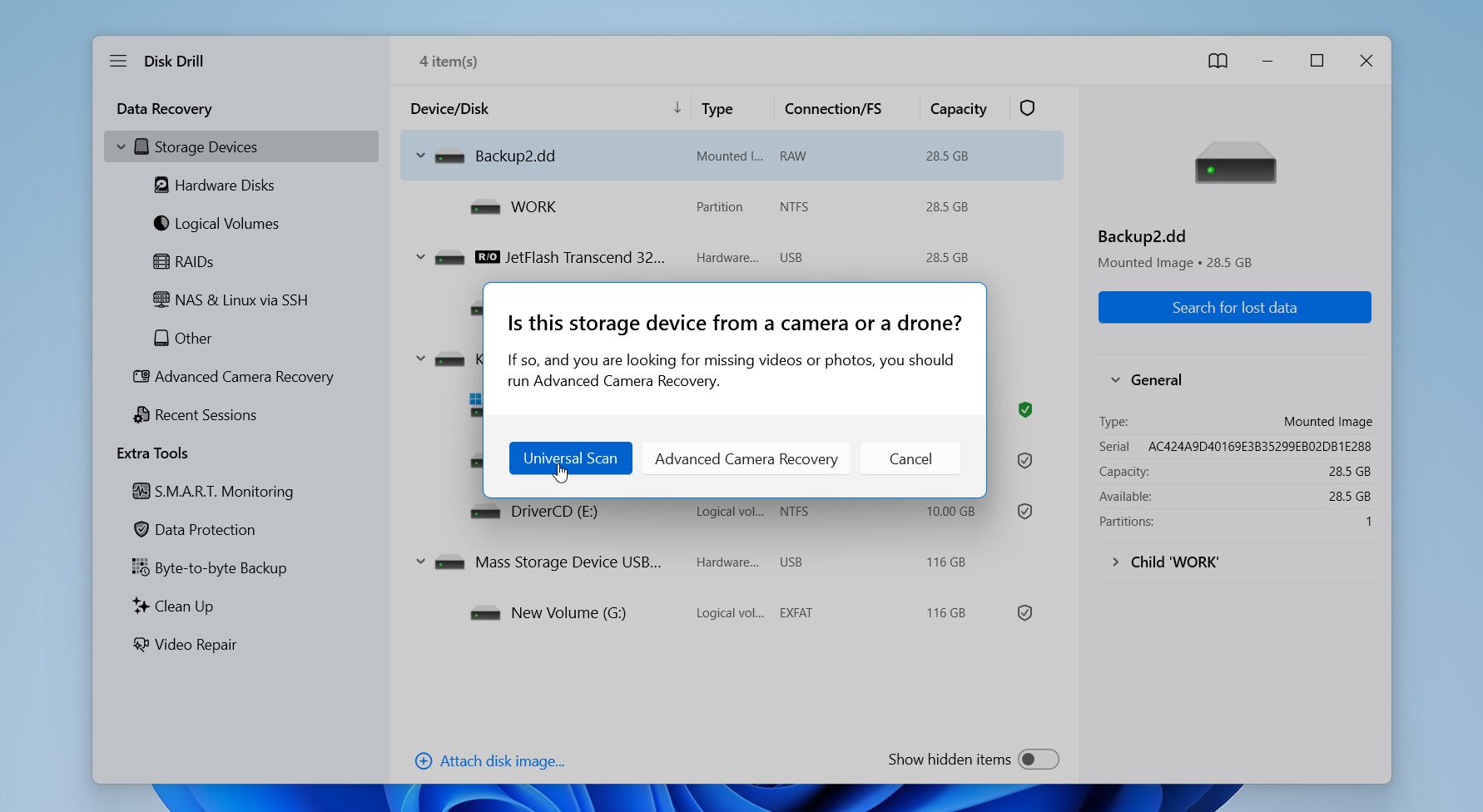
- If prompted to choose a scan type, select Universal Scan to recover all types of files. If the drive mainly contains unedited photos and videos from cameras or drones, you can also try Advanced Camera Recovery.
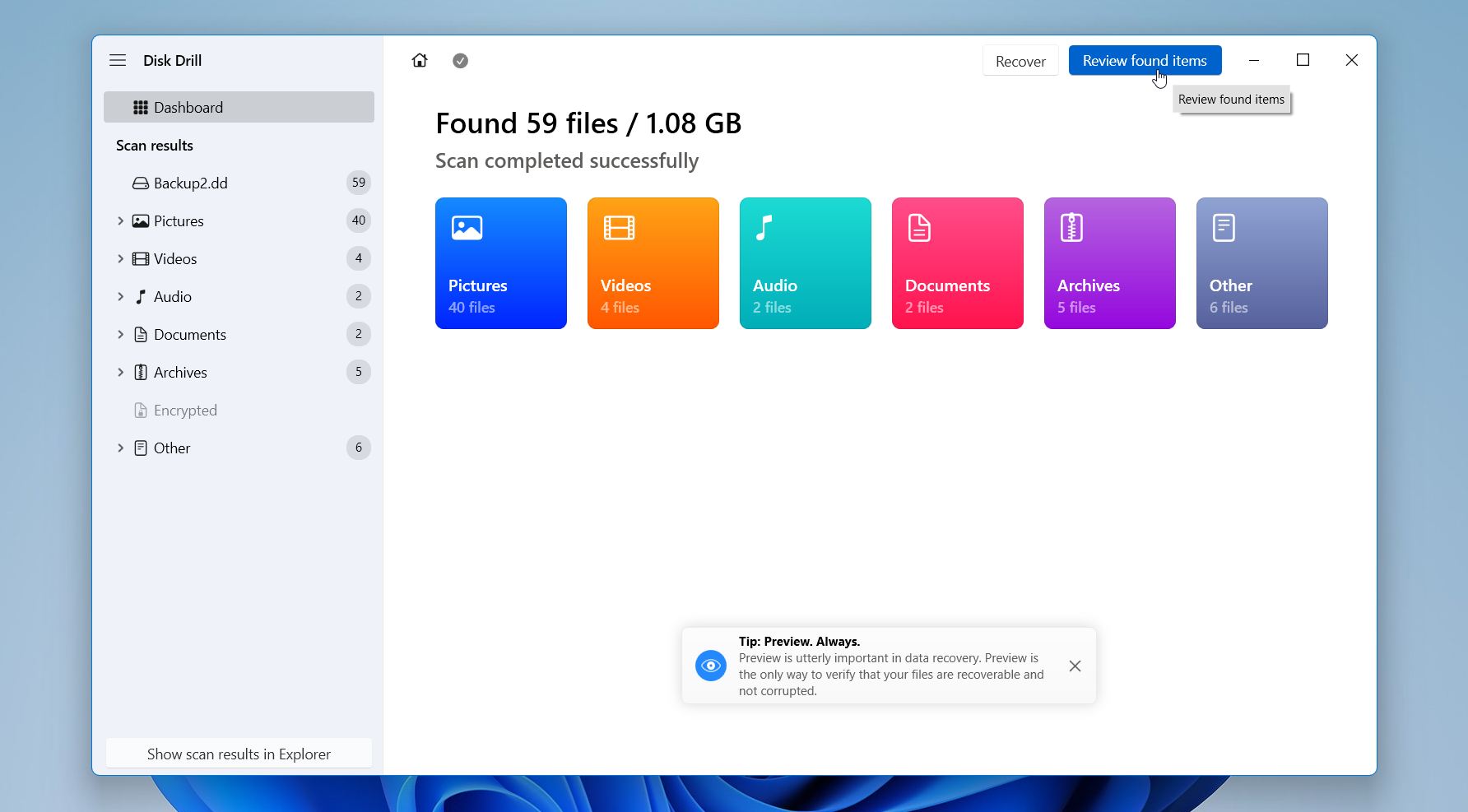
- Click Review found items to see what Disk Drill has found. You can preview files as Disk Drill finds them in real-time, or wait to see everything.
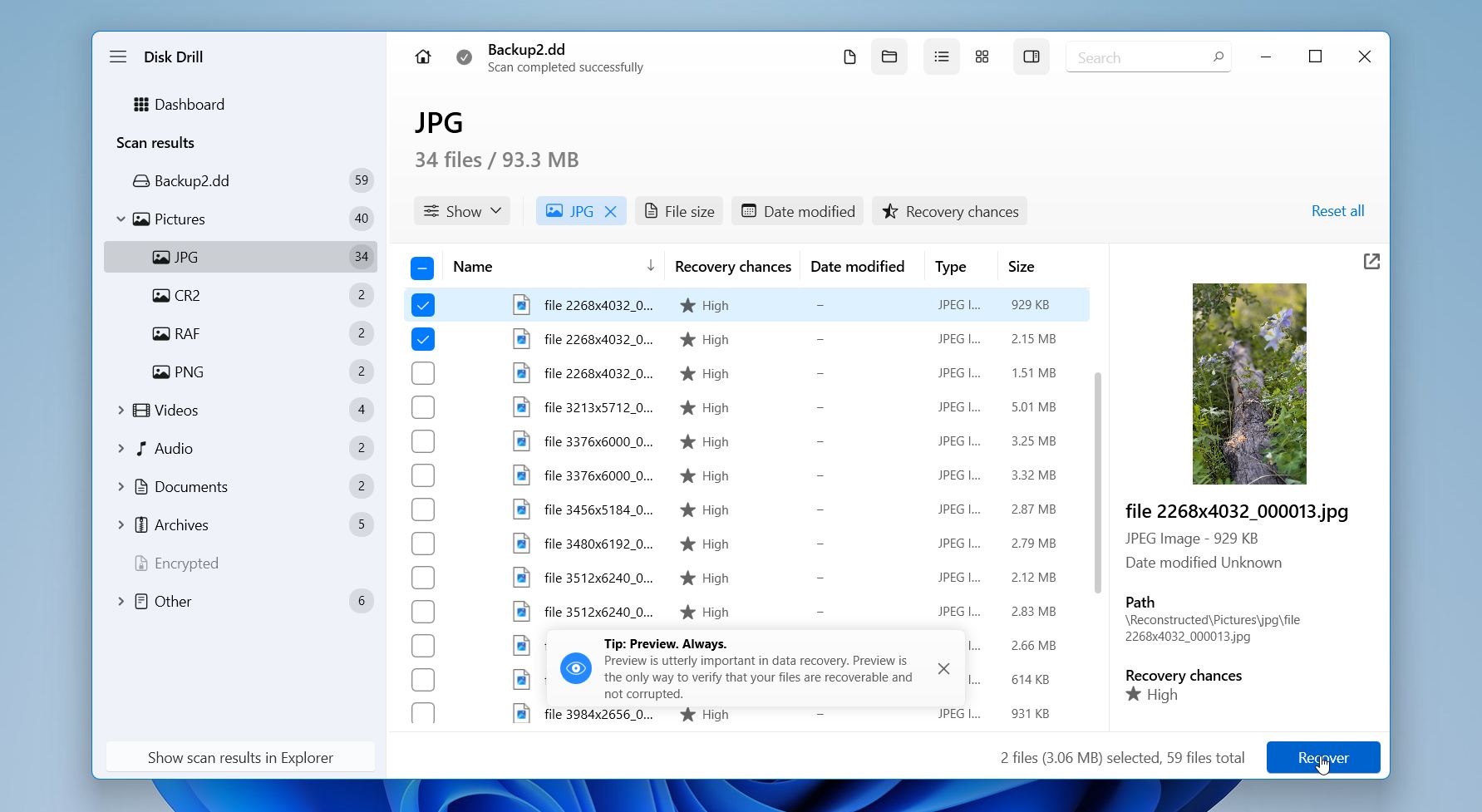
- Review all relevant result groups and use file type, size, date, path, recovery status, and previews to find the files you need. Don’t rely only on original file names or folders, since formatting may have removed that metadata. Preview important files where possible, select everything you want to restore, and click Recover.
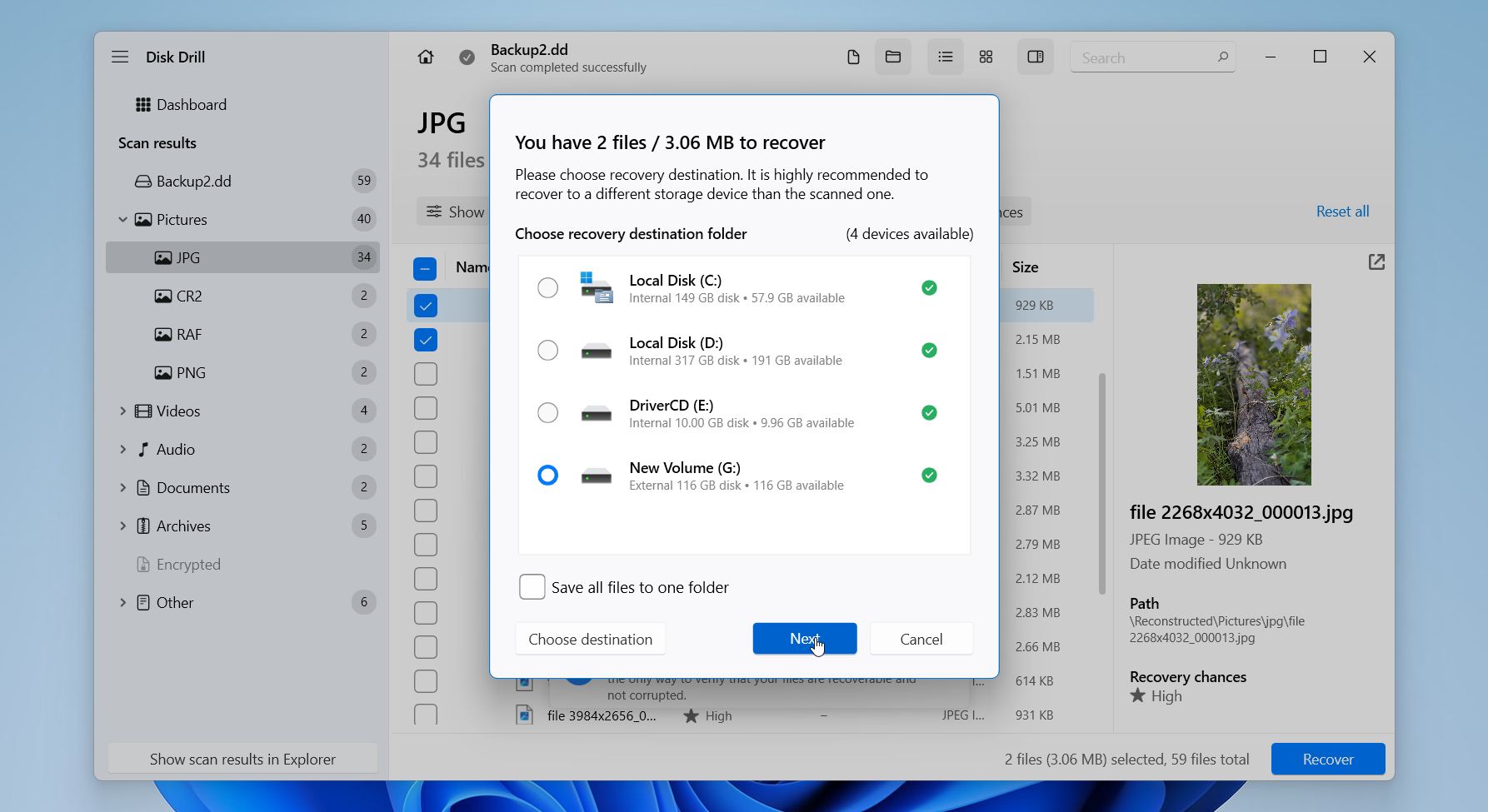
- Choose where you want to save the recovered files. Select a folder on a different, healthy drive to avoid overwriting data on the formatted drive, then click Next.
Method 2: Windows File Recovery (Free Microsoft Command-Line Option)
If you’re looking for a completely free solution, Windows File Recovery is Microsoft’s own data recovery utility for Windows. It can scan a formatted drive and recover found files to another storage device.
The main downside is that Windows File Recovery is entirely command-line based, so it’s less convenient than recovery tools with a graphical interface. Still, it’s a useful option if Windows detects your formatted drive, you don’t have a usable backup, and you’re comfortable with Terminal or Command Prompt.
Here’s how to use it:
- Connect another physical drive with enough free space for the recovered files.
- Install Windows File Recovery from the Microsoft Store.
- Open the tool with administrator permissions.
- Check the drive letters for your formatted source drive and recovery destination. They must be different drives.
- Run Extensive mode, because formatting may remove or damage the file system information that simpler recovery modes rely on. Extensive mode performs a broader scan and is the mode Microsoft recommends for formatted drives. For example: winfr D: E: /extensive. Here, D: is the formatted drive and E: is the drive where recovered files will be saved.
- To search only for specific file types, add /n filters. For example: winfr D: E: /extensive /n *.jpg /n *.docx
- Press Y when Windows File Recovery asks you to confirm the scan.
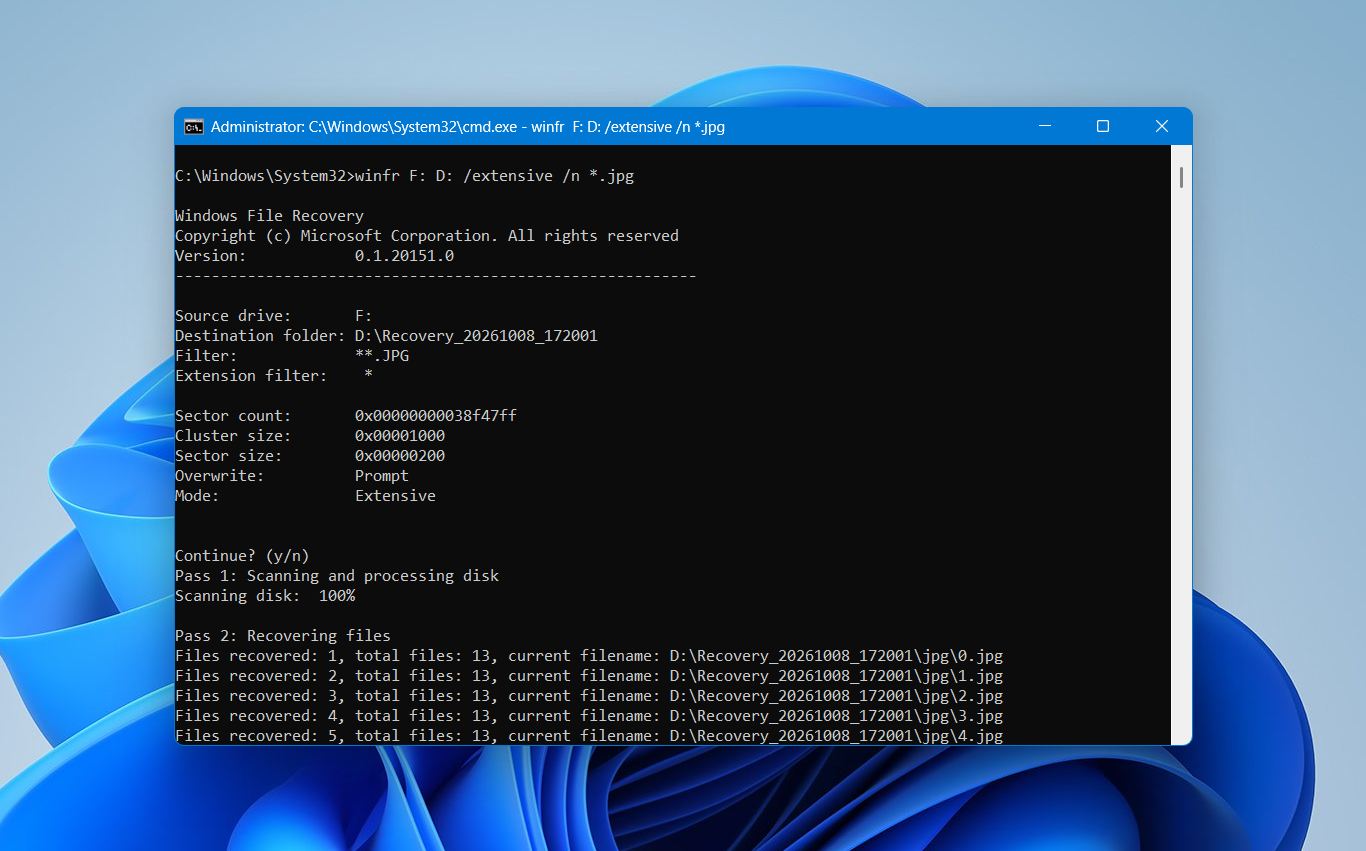
- Once recovery finishes, open the Recovery_<date and time> folder created on the destination drive and review your files.
Don’t copy recovered files back to the formatted source drive until you’ve finished the recovery and verified the results.
When Professional Recovery Is Needed for a Formatted HDD
If you accidentally quick-formatted your hard drive and it’s otherwise healthy, you most likely won’t need to send it to a data recovery lab. Data recovery software is usually the first option people try, and in most cases, it’s all you need. However, there are some situations where professional recovery is the safer option.
We recommend contacting a professional data recovery service if:
- Your HDD clicks, doesn’t spin correctly, or makes unusual noises.
- It keeps disconnecting or disappears from Disk Management.
- Windows shows the wrong drive capacity.
- You get severe I/O errors, or the drive freezes when you try to read it.
- The HDD was dropped, hit, or otherwise physically damaged.
- The drive was already unstable before you formatted it.
- You can’t create a stable disk image because the drive keeps failing or disconnecting.
- The drive was encrypted, and the format damaged encryption or volume metadata.
- The files are too valuable to risk DIY attempts.
If your HDD shows signs of physical failure, don’t keep scanning it with recovery software. A scan forces the drive to read large amounts of data, which can put additional stress on failing mechanical parts and make the damage worse. Data recovery labs have access to specialized hardware-level tools, and if the HDD has mechanical damage, technicians can open and work on it in a cleanroom environment.
Professional recovery can be costly, and we recommend asking for an estimate first. If the lab offers “no data, no fee,” check the terms carefully, since diagnostic fees, shipping costs, or minimum-recovery conditions may still apply.
Frequently Asked Questions
What's the best free tool to unformat a hard drive?
Disk Drill is one of the best tools to unformat a hard drive, offering up to 100 MB of free recovery on Windows and an advanced all-in-one scan to recover as much data as possible. If you’re after a completely free tool, Recuva works well for simple deletion scenarios.
Can I restore a formatted SSD?
Possibly, but TRIM can make recovery from a formatted SSD difficult. TRIM is usually issued quickly after formatting, and once the SSD clears those blocks, the data can’t be recovered. However, external SSDs connected via USB may not receive TRIM, depending on the enclosure and connection.
What if I formatted a system partition (C: drive)?
If you formatted your Windows C: drive, the previous Windows installation and its files will no longer be normally accessible. Don’t reinstall Windows yet, as the process can overwrite data you still want to recover.
Instead:
- Connect the disk to another computer or boot from another storage device.
- Scan the formatted partition and recover files to a different physical disk.
- Verify the recovered files, then reinstall Windows.
If BitLocker or Device Encryption was enabled, keep your recovery key. If formatting destroyed the encryption metadata needed to decrypt the volume, software recovery may not be possible.
How to unformat an external hard drive?
To unformat an external hard drive, scan it with data recovery software and recover the lost files to another drive. If the external HDD is RAW, use a recovery tool such as Disk Drill that can scan RAW volumes and find files even when the original file system is damaged or no longer recognized.
Can I undo a hard drive format without recovery software?
You can’t reverse a hard drive format without recovery software, but you can restore the lost files from a backup. Check File History, Backup and Restore, OneDrive, or any other backup service you use. If no backup exists, you’ll typically need data recovery software or, in more serious cases, a professional recovery service.
Is it possible to recover data after a full format?
Usually, no. On modern versions of Windows, a full format writes zeros across the formatted volume, which overwrites the previous data and makes it unrecoverable. If you stop the full format before it finishes, however, data may still be recoverable from the portion of the drive that hasn’t been overwritten yet.
Can I use CMD or Windows Terminal to unformat a drive?
Modern operating systems do not provide a built-in command to easily undo a format. MS-DOS included the UNFORMAT command that was specifically designed for this, but there is nothing of a similar function in the operating systems of today. If you’ve formatted a drive, recovering the data requires specialized recovery software, like Disk Drill.

- 48 publishings
- Auckland, New Zealand
Jordan Jamieson-Mane is a content writer with a focus on technology-related content. He has spent much of his life studying and working with all types of technology. During his time as a writer, he has written countless articles in the field of data recovery, breaking down complex topics into articles that are easy to understand.
When he's not writing articles on data recovery, Jordan enjoys traveling the world, reading books, and building websites.
- LC Tech FILERECOVERY Professional Review – Can It Compete with Modern Recovery Tools?
- UFS Explorer Review – A Powerful Recovery Tool With Lots to Offer
- Cisdem Data Recovery for Windows Review – A Capable Copy
- AnyRecover Data Recovery Review – A Polished Solution for Basic Users
- iBoysoft Data Recovery Review: Not Much to Offer
- Frisco, Texas, United States
Yevgeniy Tolkunov is Hardware Engineer at ACE Data Recovery. Yevgeniy has a Master's Degree in Physics, Information Technology; 15+ years of experience.