
How to Recover Deleted Videos and Photos from Your Canon Camera


With almost 50% of the global camera market, Canon digital cameras, and especially the company’s DSLRs, are in the hands of many enthusiasts, professionals, and everyday people alike.
Because of how popular Canon digital cameras are, it’s no surprise that accidental deletion of photos and videos is a common issue faced by their users. Deleted photos and videos are often recoverable, and we’ll show you how to get them back.
Canon Photo Recovery: Dos and Don’ts
The steps you take immediately after deleting photos or videos from your Canon camera can affect whether they can be recovered. Before you try to recover deleted photos or videos from your Canon camera, take a moment to review these important dos and don’ts:
DO Identify the Cause of Data Loss
Not every case of data loss on a Canon camera has the same cause, and your chances of getting your photos or videos back largely depend on what happened to the memory card:
| Reason for Canon camera data loss | Brief description | Data recovery chances | Recommended solution |
|---|---|---|---|
| Accidental deletion | Photos or videos are deleted while reviewing images in-camera or while managing files on the memory card using a computer. | High | DIY data recovery |
| Interrupted write operation | The camera loses power, the battery dies, or the memory card is removed while photos or videos are still being written. This can leave files missing, incomplete, or corrupted. | Moderate to High | DIY data recovery |
| Quick format | The memory card is formatted in the camera or on a computer using the Quick Format option. Only the file system information is removed, while the actual photo and video data usually remains until overwritten. | Moderate | DIY data recovery |
| Full format | The memory card is formatted using a Full Format, which overwrites the storage space and checks for bad sectors. On modern operating systems, this typically destroys the original data. | Very Low to None | Professional data recovery (rare, e.g. interrupted format) |
| Memory card corruption | Logical memory card corruption can be caused by improper ejection, file transfer interruption, or the accumulation of bad sectors. | Moderate (if the card is still detected) | DIY data recovery |
| Memory card damage | Physical damage to the memory card due to exposure to water, heat, or other extreme conditions, as well as damage to the card’s connectors or flash memory chip. | Low to Moderate | Professional data recovery |
| Camera malfunction | Issues with the camera’s firmware or hardware cause crashes, freezes, and other problems that can lead to data loss. | Moderate | DIY data recovery (recover the card first, then troubleshoot the camera) |
As the table shows, most Canon camera data loss cases fall into one of two categories:
- Problems you can usually solve yourself. These include accidental deletion, accidental formatting, logical memory card corruption, and most cases of camera malfunction. If the memory card is still recognized by your computer, data recovery software often provides an excellent chance of restoring your photos and videos.
- Problems that require professional recovery. If the memory card has suffered physical damage or isn’t detected by any device, software is unlikely to help. Professional recovery labs use specialized equipment to repair damaged cards and read data directly from the memory chips when necessary.
DON’T Write Any New Data to the Canon Memory Card
As soon as you realize that you’ve lost important photos or videos, stop using your Canon camera immediately. Your lost data is most likely still located on the memory card, and your main job at this point is to prevent the data from becoming overwritten, which would make its recovery impossible.
DO Remove the Memory Card from Your Canon Digital Camera
As soon as you notice that your photos or videos are missing, remove the memory card from your Canon camera. This helps prevent deleted files from becoming overwritten and avoids additional changes to the card while you prepare for recovery.
You’ll also need to remove the card because most Canon cameras connect to a computer using Media Transfer Protocol (MTP), which doesn’t provide the low-level access that data recovery software needs to scan the memory card. A dedicated memory card reader offers much more reliable results.
If your computer has a built-in card reader, simply insert the memory card. Otherwise, use a compatible external reader that supports your card type, whether it’s SD, microSD, CompactFlash (CF), CFast, or CFexpress, depending on your Canon camera model.
DON’T Format the Canon Memory Card
If Windows asks you to format your Canon memory card, don’t do it until you’ve recovered your files. This message usually appears because the card has become corrupted or Windows can’t read its file system. As you can see from our table, a Quick Format lowers your chances of recovery because it removes the file system information, while a Full Format usually overwrites the entire card, making photo and video recovery impossible.
DO Select Suitable Data Recovery Software
To recover deleted photos/videos from your Canon camera, you’ll need to use reliable data recovery software. With so many options available on the market, it can be overwhelming to choose the right one. Here are some factors to consider when selecting the best software for your needs:
- OS compatibility: You need to select data recovery software that’s compatible with your specific version of Windows, such as Windows 11, Windows 10, Windows 8, or Windows 7.
- File system/format support: The software should support the specific file formats used by your Canon camera (e.g., CR2/CR3/CRW for raw images, JPEG or HEIF for compressed images, and MP4 + HEVC, MP4 + H.264, or just plain MP4 for videos).
- User-friendliness: Look for software with an intuitive user interface that makes the recovery process free of any hassle.
- Performance: High recovery rates are very important for successful data recovery. Read in-depth reviews and testimonials to gauge the software’s effectiveness.
- Value: While some data recovery software may be free or free to try (great for testing recovery capabilities before paying!), others come at a price. It’s crucial to weigh the benefits and features of the software against the cost to make sure that you’re getting the best value for your money.

How to Retrieve Deleted Photos and Videos from Canon Camera
With the basics covered, you can start recovering your deleted Canon photos and videos. The methods below cover the most common data loss scenarios, so pick the one that matches what happened to your Canon memory card.
Method 1: Use Disk Drill to Recover Files Deleted from a Canon Camera’s SD Card
Data recovery software usually offers the best chance of restoring deleted photos and videos from a Canon camera. For this guide, we’ll use Disk Drill, one of the most reliable recovery tools for Windows and macOS. It works with virtually all Canon memory cards and supports common photo and video formats, including JPG, CR2, CR3, MP4, and MOV.
What’s more, it can scan even memory cards that don’t have any file system at all (are raw) using its powerful signature scanner. In our testing, it delivered excellent recovery results and proved easy to use (see our full review for more details). If your memory card appears unstable, Disk Drill also lets you create a disk image first, so you can recover your files from the copy instead of the original card.
Here is how to recover photos and videos from Canon SD card using Disk Drill:
- Download Disk Drill from its official website. The application is free to download, and it lets you scan an unlimited number of files.
- Install the application on your Windows computer. You can then connect your Canon SD card.
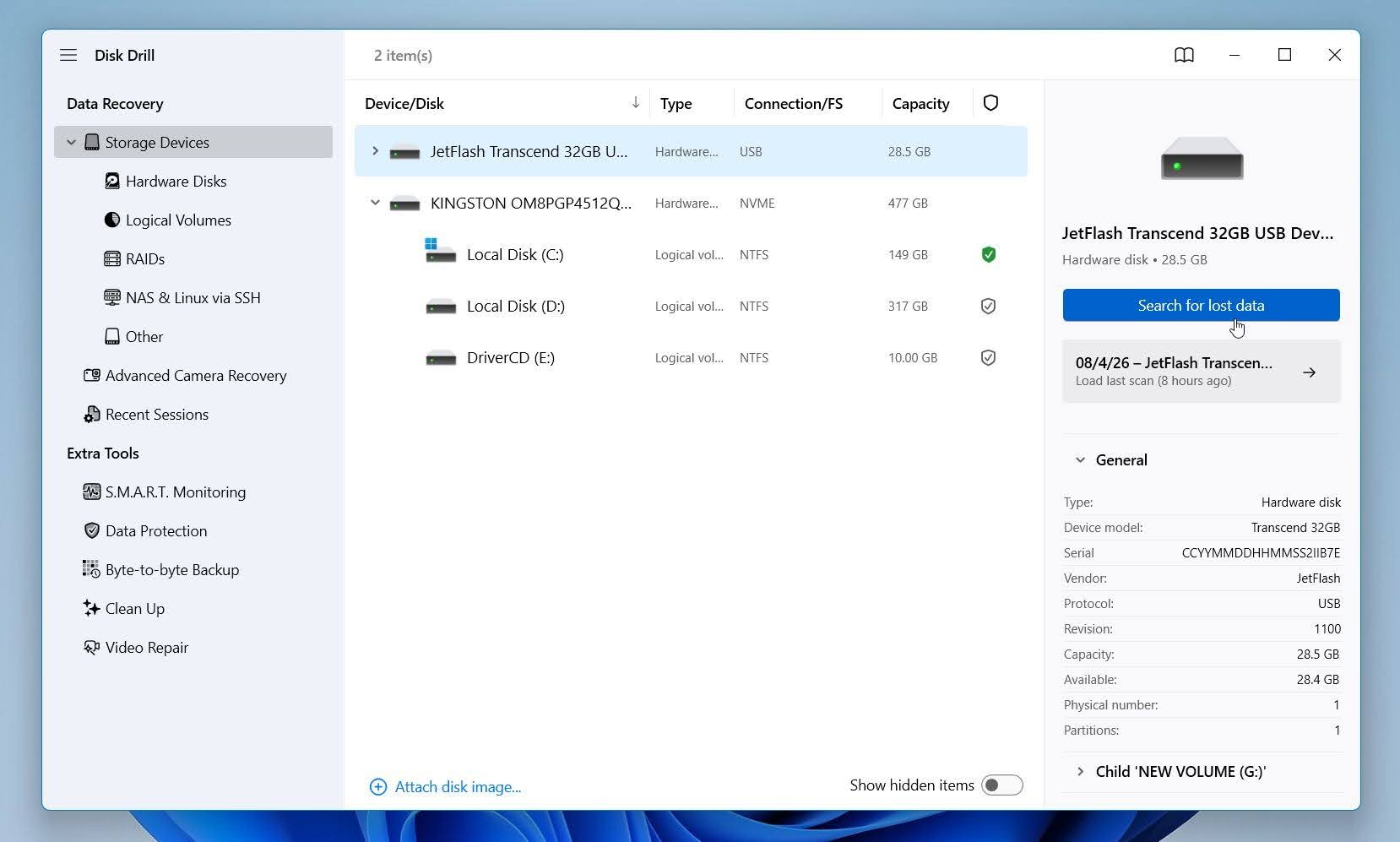
- Launch Disk Drill and scan your Canon memory card. To do that, select the SD card from the list of available storage devices and click the Search for lost data button.
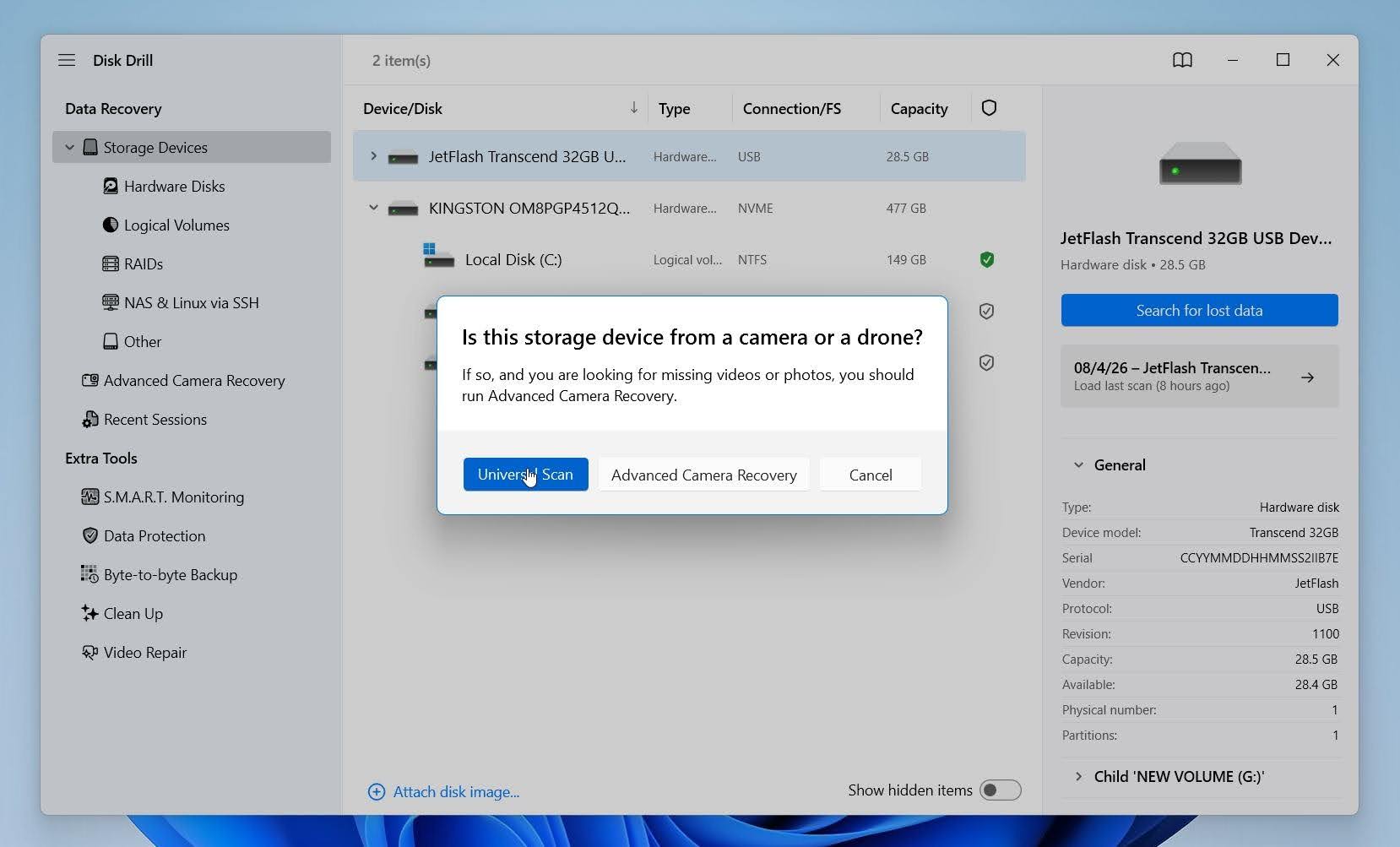
- If you’re recovering data from a camera memory card, Disk Drill may ask you to choose a recovery mode. For videos, you can try Advanced Camera Recovery, which is designed for fragmented video files. For photos, mixed file types, or general data recovery, Universal Scan is usually the better choice. Wait until Disk Drill finishes scanning, or view the scan results while the scan continues.
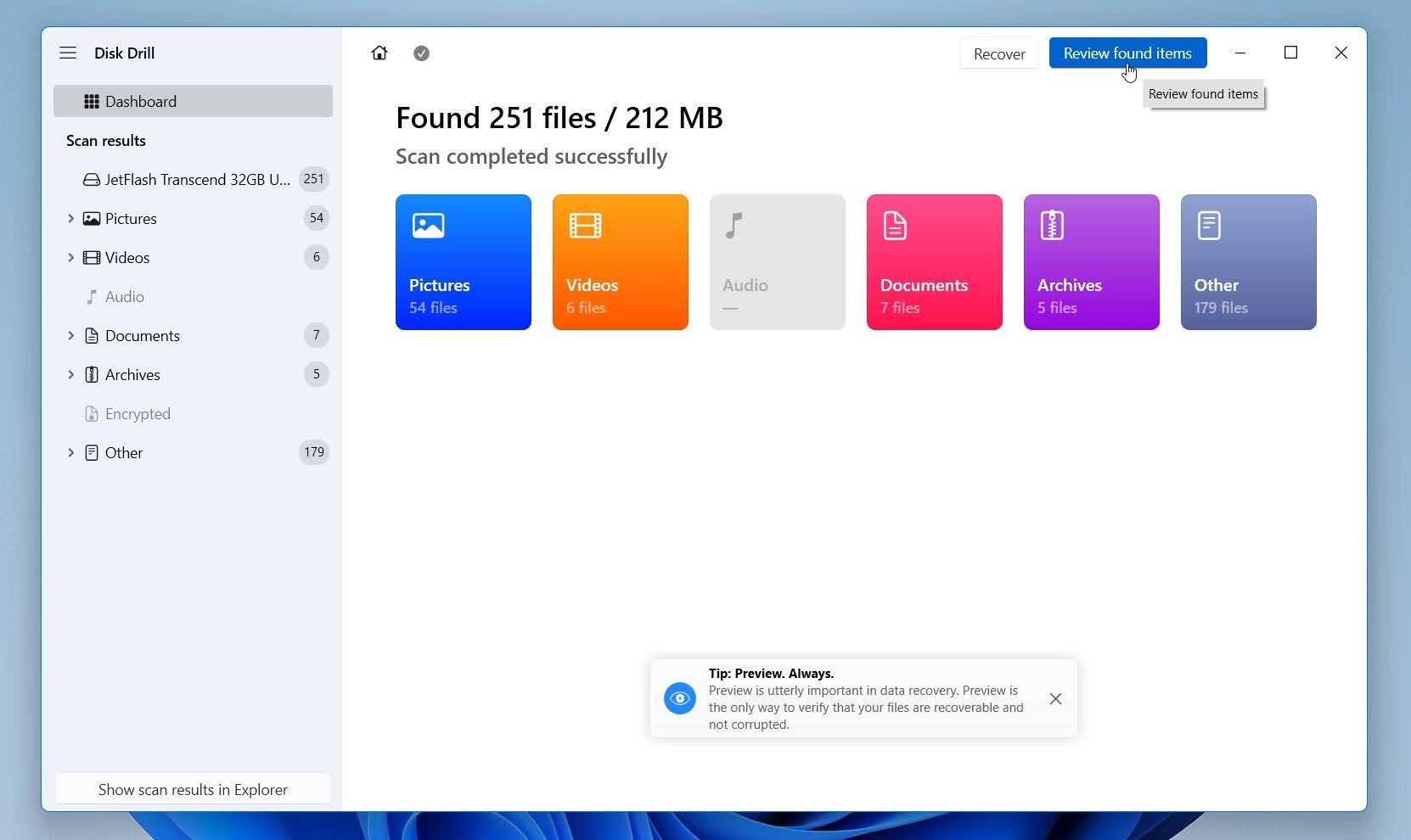
- Click Review found items or select Videos or Photos category.
- Use the search box and filters to locate the photos and videos you want to restore. Preview each file before recovery to confirm it’s intact. Then, select the files, click Recover.
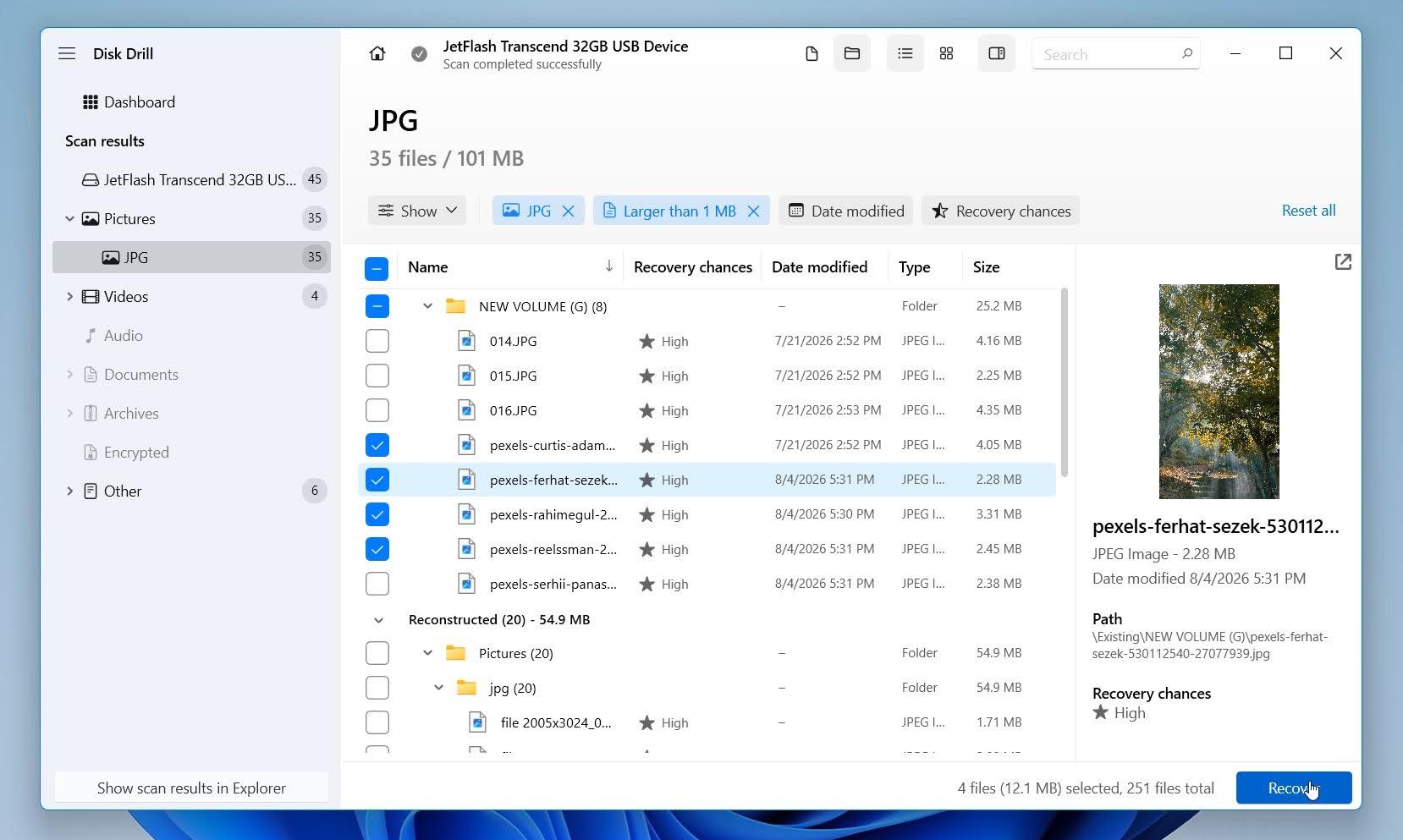
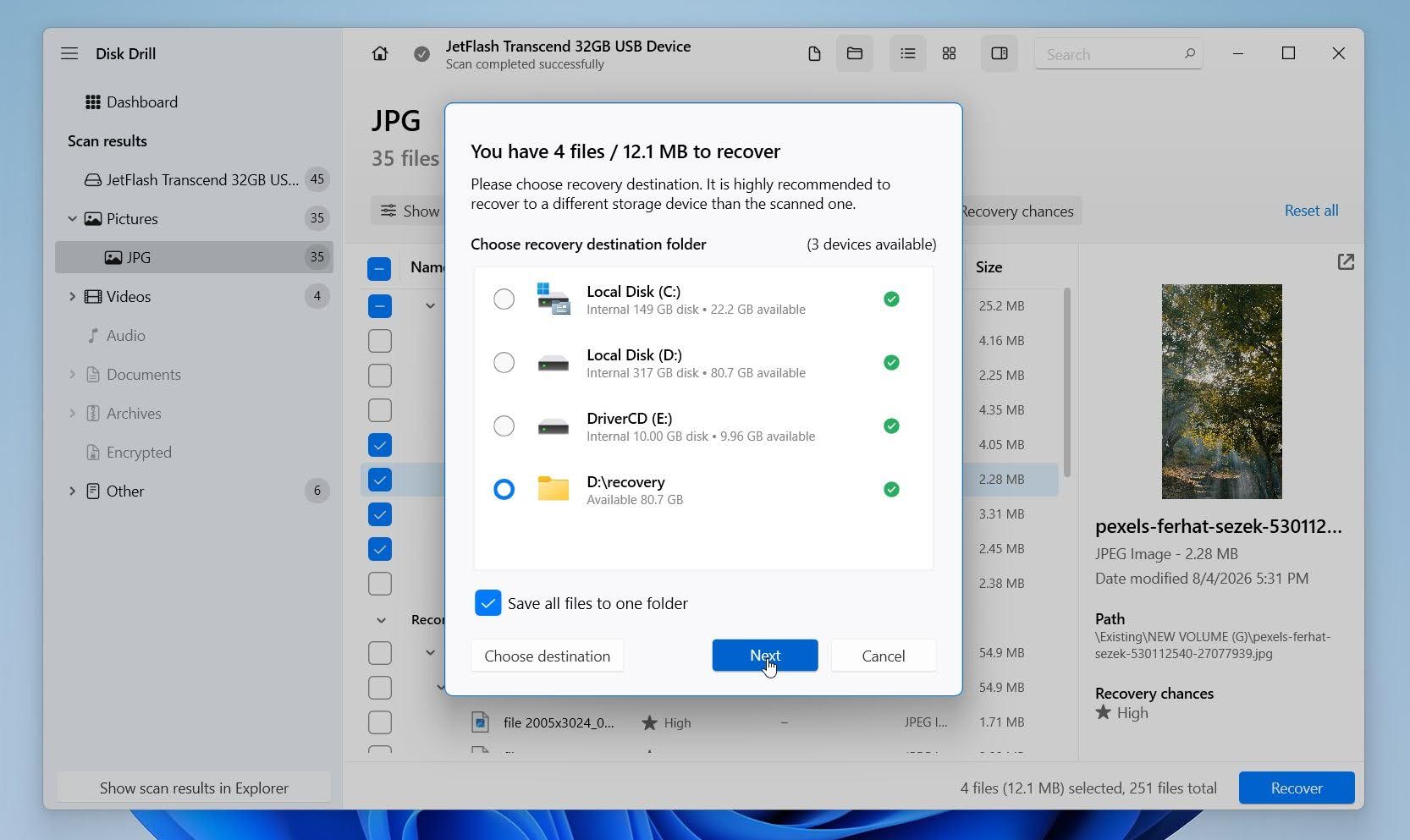
- Pick a suitable location for your Canon photos and/or videos and click Next.
Method 2: Repair a Damaged Partition Table With TestDisk
Our second recommendation for Canon memory card data recovery is TestDisk, an open-source application capable of fixing broken partition tables to recover lost partitions and more. Despite its unintuitive command-line user interface, this application has proven to be a powerful tool for data recovery after various formatting and file system management mishaps.
TestDisk can even technically recover an unlimited number of files from FAT/FAT32, exFAT, NTFS, and ext2 filesystems, but we can’t recommend it as a Canon memory card undelete tool because it doesn’t have any signature scanning capabilities (that’s why it scored so poorly when we reviewed it).
- Download TestDisk from its official website and unpack the downloaded archive.
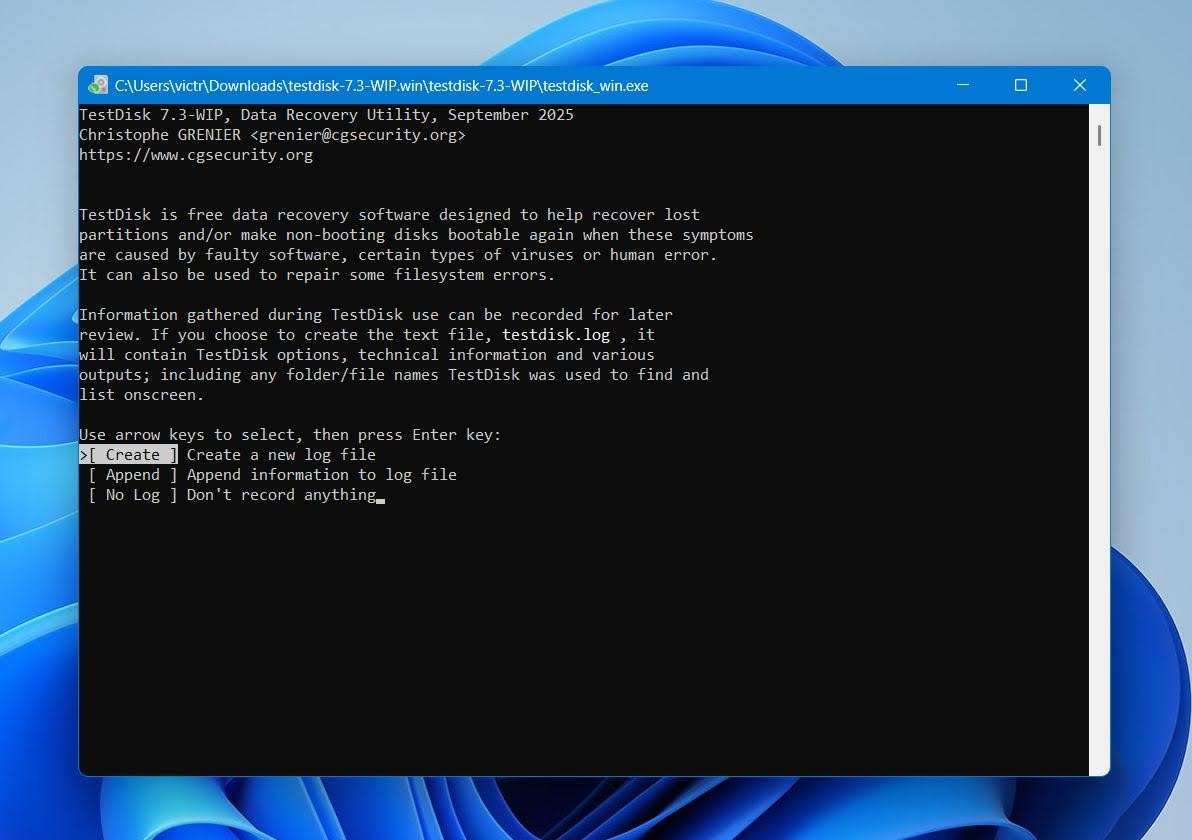
- Launch the application and press Enter to create a new log file (useful when something goes wrong and you need to diagnose what).
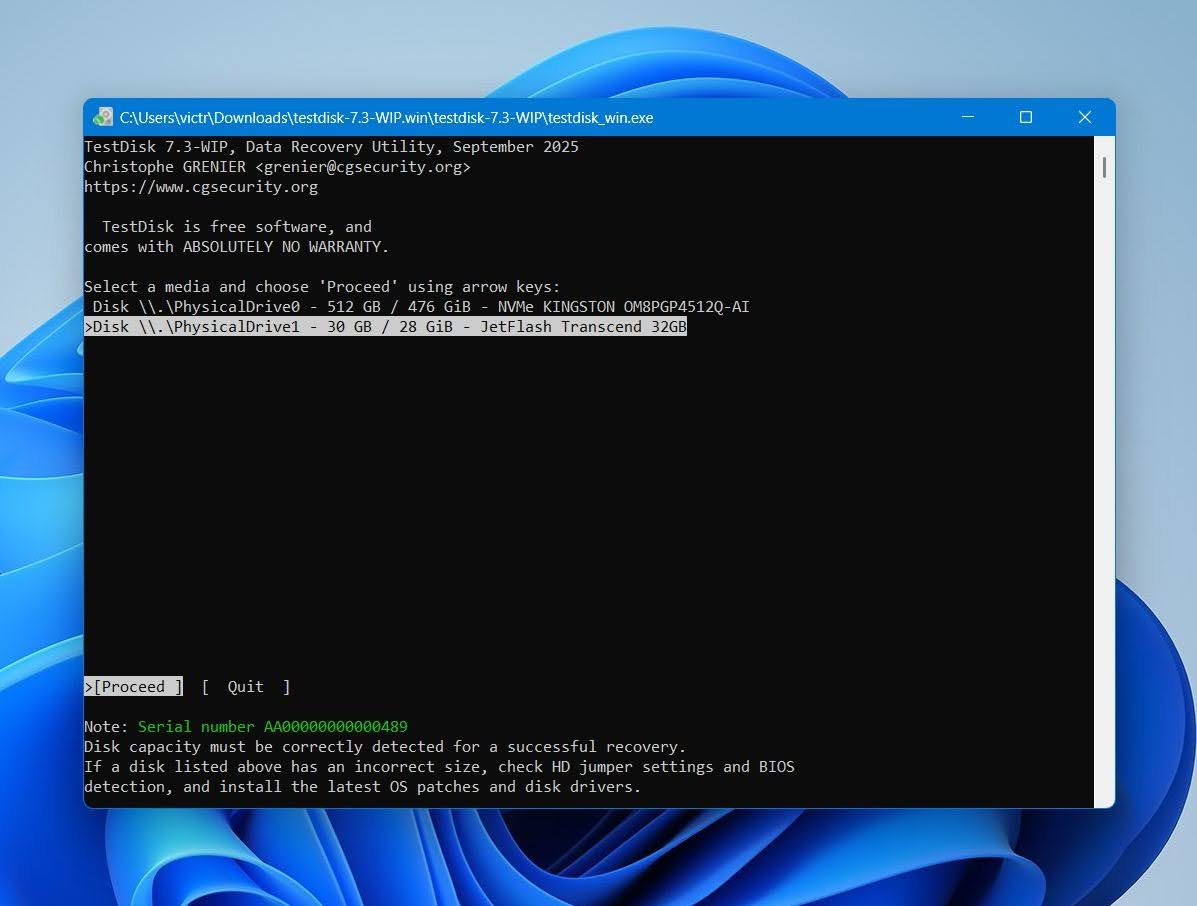
- Select your Canon memory card and press Enter.
- Choose the detected partition table type (TestDisk usually selects the correct option automatically).
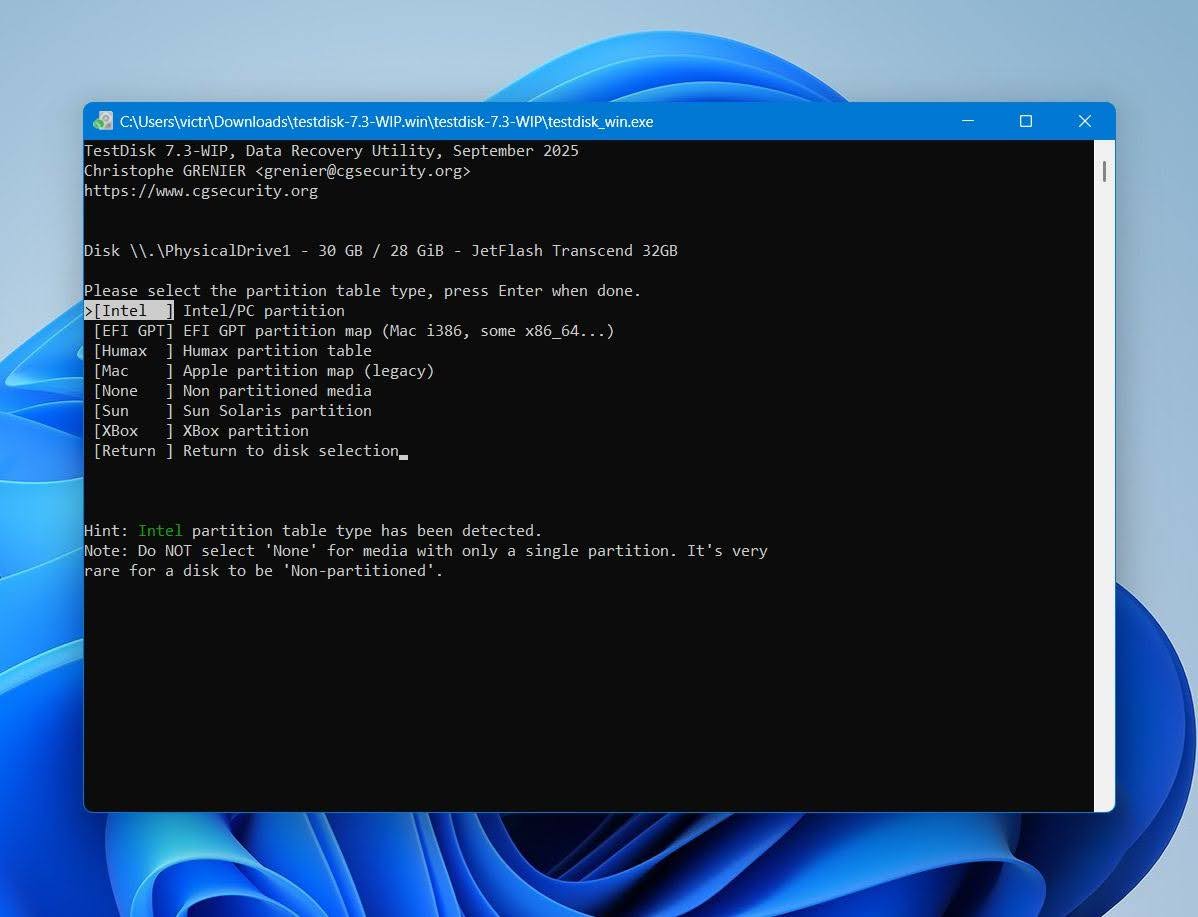
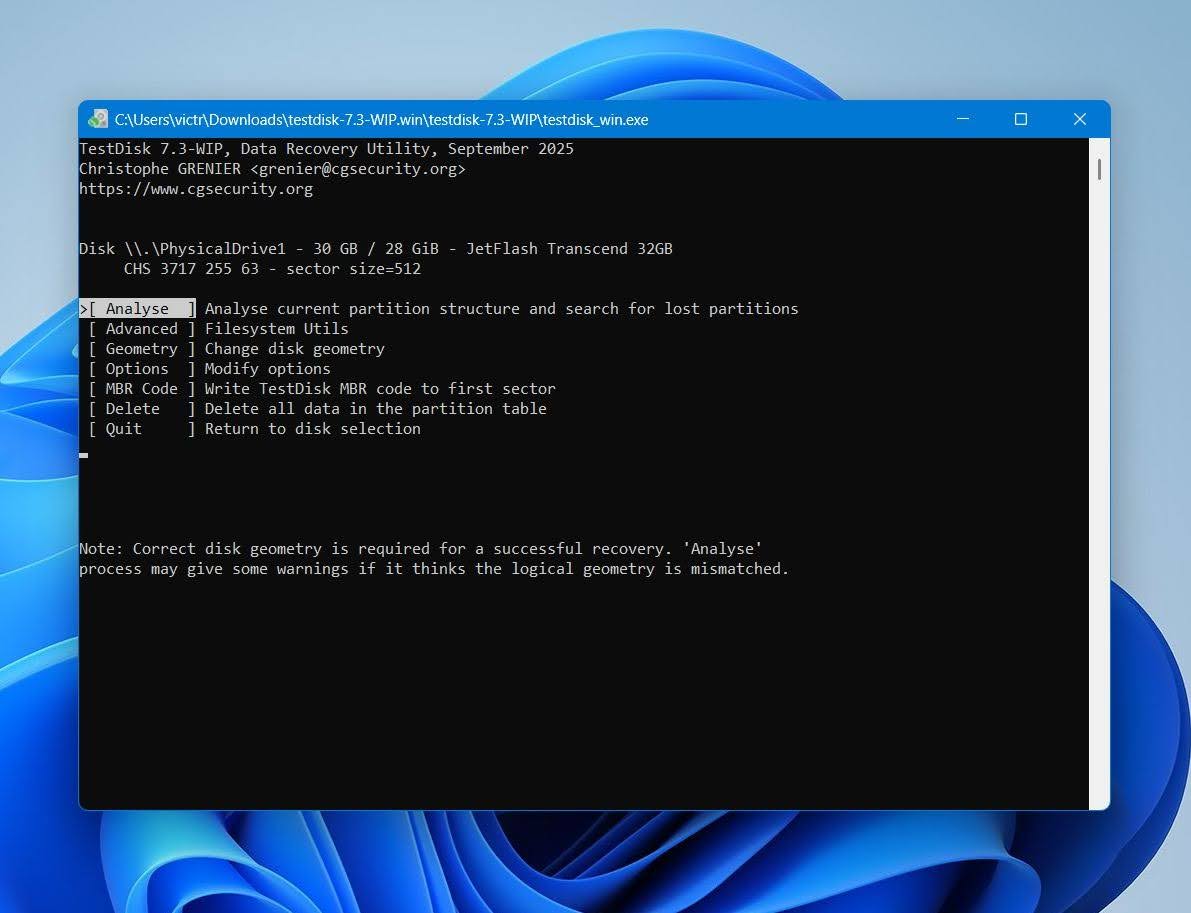
- Select Analyze and press Enter.
- Run Quick Search to look for lost partitions.
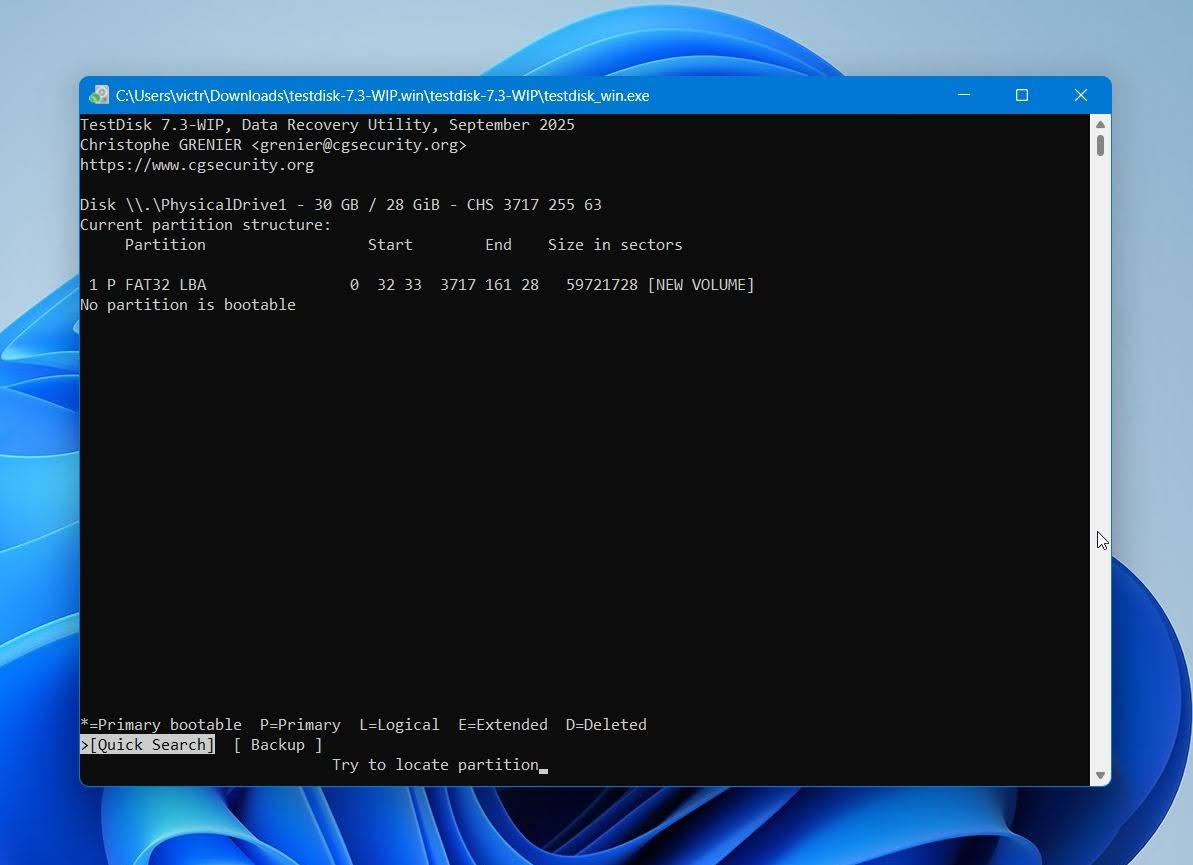
- Review the results. If your missing partition appears, follow the prompts to write the corrected partition table. Only use Write after you’ve confirmed that all expected partitions are present and their contents are correct. If anything looks wrong, stop and recover your files first instead of modifying the partition table.
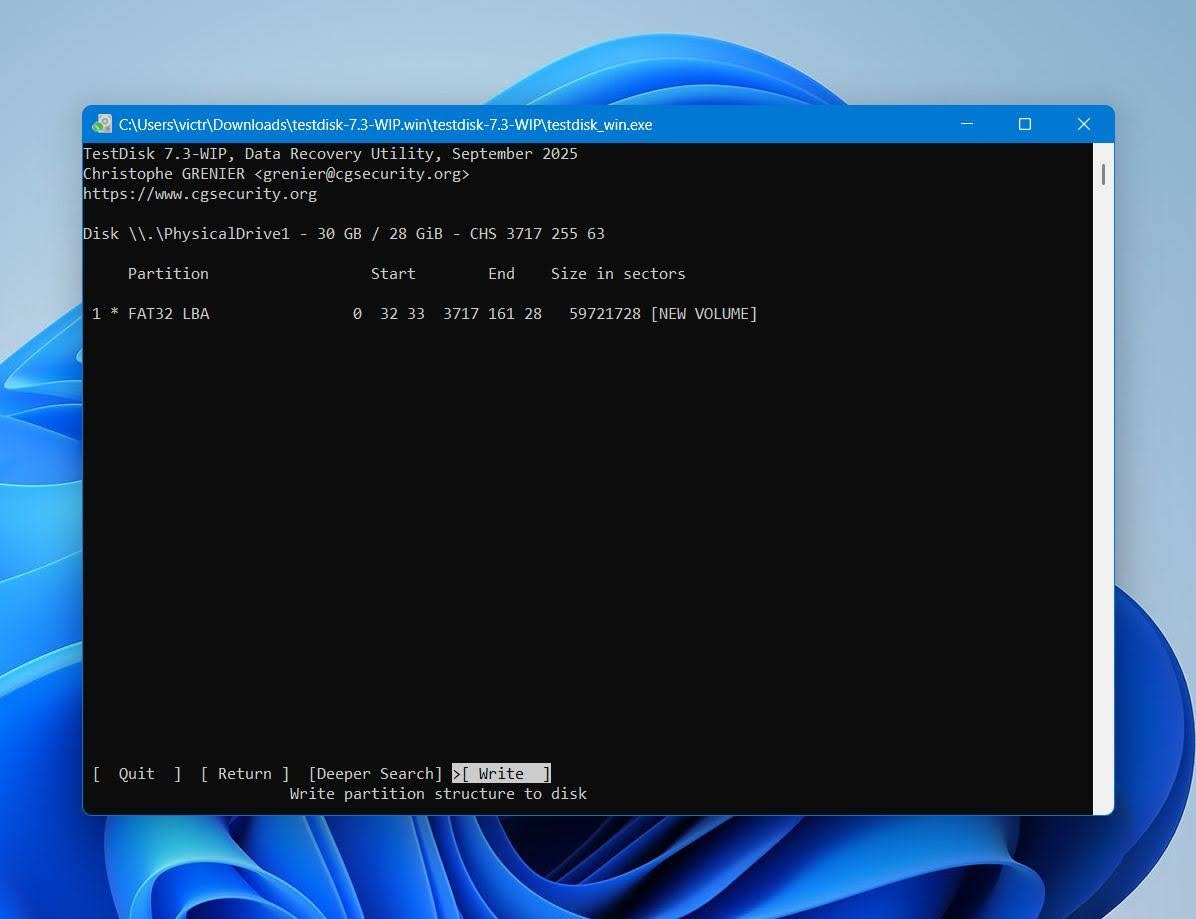
- If Quick Search doesn’t find the partition, run Deeper Search and check the results again.
If TestDisk can’t restore the partition, don’t continue making changes to the card. At that point, it’s usually better to switch to dedicated recovery software or, if the card has physical issues, contact a professional data recovery service.
Method 3: Contact a Data Recovery Service
If your Canon camera memory card is physically damaged or files are valuable, we recommend reaching out to a professional data recovery service. Data recovery experts have specialized tools and equipment at their disposal, allowing them to recover data even from devices that are unrecognizable by Windows.
Before you choose a service, keep these points in mind:
- Expect an initial evaluation. Most reputable recovery labs offer a free or low-cost inspection before providing a recovery quote.
- Recovery isn’t cheap. Recovery cost typically starts at around $300 and can exceed $1,000 for severe physical damage or complex cases.
- Look for a “no data, no fee” policy. Many providers only charge if they successfully recover your files.
- Choose a company with camera media experience. Check customer reviews, ask about their experience with SD cards, and avoid services that promise guaranteed recovery before examining the card.
Fortunately, SD card recovery software is enough for most Canon camera data loss situations. Professional recovery services are generally needed only for more challenging cases.
Frequently Asked Questions
Can you recover deleted photos from a Canon camera?
Yes, you can often recover deleted photos and videos from a Canon camera, as long as the files haven’t been overwritten by new data. Your chances of success depend on several factors, including how much you’ve used the memory card after deletion, whether the card was quick-formatted or fully formatted, whether it has developed physical damage, and whether TRIM has erased the deleted data (on cameras that use internal storage or certain SSD-based media). To maximize your chances, stop using the memory card immediately and recover the files as soon as possible.
Can you recover deleted photos from a camera's internal memory?
It depends on the camera model. Most Canon cameras store photos and videos on SD, CF, or CFexpress memory cards rather than in internal storage. If your camera does have built-in storage, recovery is usually not possible because the internal memory is typically inaccessible to standard data recovery software. If the files are important, stop using the camera immediately and contact a professional data recovery service, as they may have specialized tools that can recover data in some cases.
How can you recover deleted videos from a Canon camera for free?
If the videos were stored on a removable memory card and haven’t been overwritten, you may be able to recover them with a free data recovery tool. For example, Disk Drill lets you scan your Canon memory card for free, preview recoverable videos, and recover up to 100 MB on Windows at no cost. If you need a completely free option, you can also try PhotoRec, though it’s less beginner-friendly.
How to recover deleted photos from a DSLR SD card?
To recover deleted photos from a DSLR SD card, connect it to your computer using a card reader and then use a reliable photo recovery software application to scan and recover lost files.
How to recover deleted photos from Canon 80D?
The Canon EOS 80D stores photos and videos on an SD card, so the recovery process is the same as for most Canon cameras:
- Stop using the SD card immediately to avoid overwriting the deleted photos.
- Remove the card from the camera and connect it to your computer with a card reader.
- Scan the card with data recovery software such as Disk Drill.
- Preview the recoverable photos and recover them to a different storage device, not the same SD card.
- If the card is physically damaged or isn’t detected, contact a professional data recovery service instead.
What is the best Canon recovery software?
Disk Drill is one of the best recovery tools for Canon cameras because it supports virtually all memory cards used by Canon, including SD, microSD, CF, CFast, and CFexpress cards. It can recover common Canon photo formats such as JPG, CR2, and CR3, along with video formats like MP4 and MOV. It also lets you preview recoverable files before restoring them and works on both Windows and macOS. The free Windows version can recover up to 100 MB of data, making it a good option for recovering smaller batches of photos or videos.
Final Thoughts
Deleted photos and videos from a Canon camera are often recoverable, especially if you stop using the memory card right away. Disk Drill is an excellent choice for most recovery situations because it supports virtually all Canon memory cards and photo and video formats, lets you preview recoverable files before restoration, and can even create a disk image if your memory card appears unstable. The sooner you scan the card, the better your chances of success.
If the memory card has physical damage or isn’t detected by your computer, recovery software is unlikely to help. In that case, a professional data recovery service may still recover your photos and videos with specialized equipment. Quick action gives you the best chance of getting your files back.

David Morelo is a professional content writer with a specialization in data recovery. He spends his days helping users from around the world recover from data loss and address the numerous issues associated with it.
When not writing about data recovery techniques and solutions, he enjoys tinkering with new technology, working on personal projects, exploring the world on his bike, and, above all else, spending time with his family.
- Klennet Recovery Review (Formerly Zero Assumption Recovery)
- iBeesoft Data Recovery Review – A Likable Clone With Limited Features
- DMDE Review – A Data Recovery Powerhouse or a Usability Nightmare?
- Cisdem Data Recovery for Mac Review – A Clone in Disguise
- Tenorshare 4DDiG Review – All That Glitters Is Not Gold
- Houston, Texas, United States
Nikolay Lankevich has over 15 years of strong experience in various fields and platform includes Disaster Recovery, Windows XP/7. System analysis, design, application (Inter/Intranet) development, and testing. Provided technical supports on desktop and laptops on Win-XP and Macintosh for about 2000 employees.